A
1
2
3
4
5
6
A
DOCUMENT NO.: QR-208/A
B C D E
B C D E
1
2
3
4
5
6
SCALE
SIZE
DATENAME
APPROVALS
APP. BY
CUSTOMTER
DRAWN BY
CHECKED BY
1:1
A4
更 改 记 录
次 号
1.
2.
3.
VER.A0
SHEET
OF
PART Number: X-XXX-XXX-XX
1 1
WT8811 (WINTACT) 中 文 有 唛说明 书 示意图
日 期
更 改 内 容
71688811001
MJP
2018-04-09
SHENZHEN JUMAOYUAN SCIENCE AND TECHNOLOGY CO., LTD.
71688811001
WT8811 中文有唛说明书
材料:105G双铜;
页数: ( )
成品尺寸:190*130MM; 公差:+-1.0MM;
工艺:单色双面印刷,加工:装订成册说明书;骑马钉
20P 封二及封三留空白
130.00 mm
95.00 mm
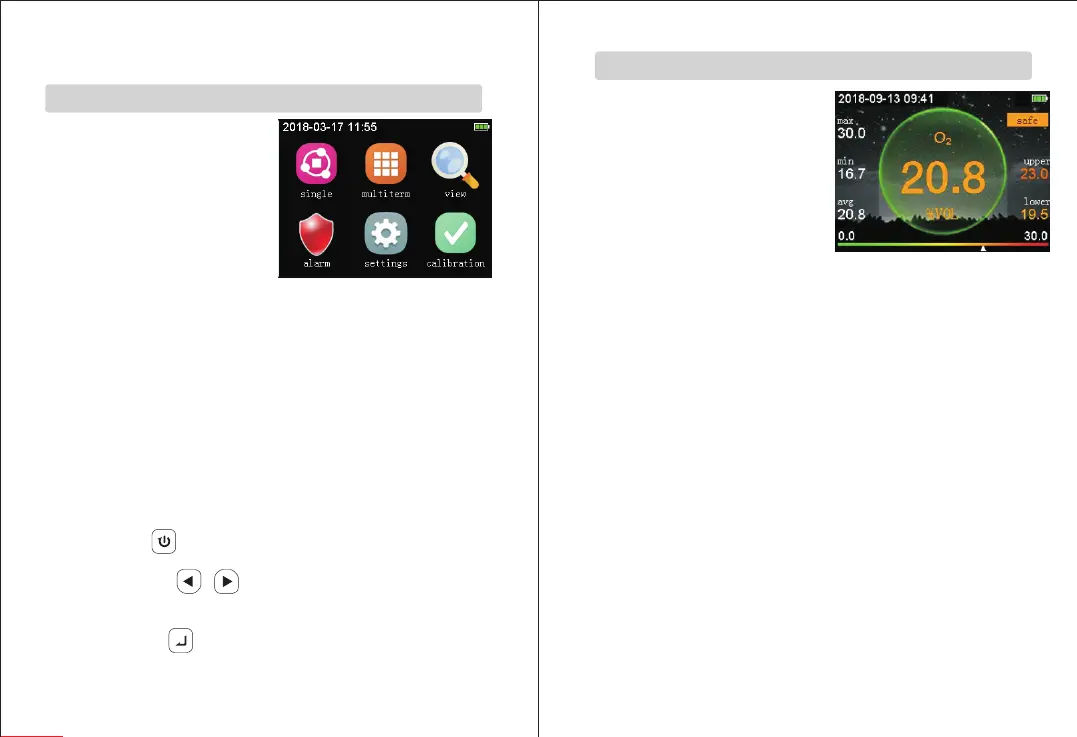
1. Long press on/off button (back
button) for about 2 seconds. After
powering on, the instrument enters
into the countdown interface (for
the sensor takes about 20 seconds
to stabilize). After the countdown
is over, the main menu screen will
appear, as shown in the right figure.
2. The current date and time are
displayed on the upper left corner.
If the time is incorrect, enter the settings interface to set.
3. The battery level is displayed on the upper right corner. When the
remaining power is low, the battery indicator will turn red. When the
power level is detected to be too low, the instrument will start 10s
countdown for automatic shutdown. The countdown second will be
displayed on the left side of the battery indicator. After the countdown is
over, the instrument will automatically shut down.
4.The main menu has 6 icons, namely, single measurement, multiple
measurement, viewing records, alarm settings, syste settings,
calibration.
5. Functions of Buttons:
1) Back button : When the icon is selected, touch the icon and it will
turn unselected, touch it again to go back to the first icon (unslected).
2) Left/right button / : If an icon is not selected, touch the icon
and it will become selected. Touch it again to select the next icon by
pressing left/ right button.
3) Confirm button : If an icon is not selected, touch it once and th
icon will turn selected; when the icon is selected, press confirm button
to enter the corresponding interface of the icon.
-07--06-
2.Operation manual
Main Menu Interface
单 个 测 量 界 面
Single Measurement Interface
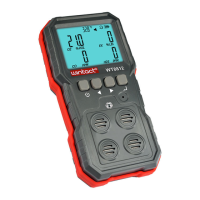
1. This interface only displays single
measurement values; the left side
shows the maximum minimum,
and average value,where the
average value is the value mea-
sured in the last 4 minutes; the right
side shows the high and low alarm
values, and the middle shows
real-time values.
2. When checking oxygen
concentration, if the concentration
value is lower than the low alarm value, the instrument will trigger low
alarm state. If the concentration is greater than the high alarm value,
the instrument will trigger high alarm state; for the concentration of
gas other than oxygen, if the concentration value is greater than the low
alarm value,the instrument will trigger low alarm state. If the
concentration is greater than the high alarm value, the instrument will
trigger high alarm state.
3. In alarm state, Danger icon shows up; otherwise, Safety icon is
displayed.
4. In the alarm state, if the alarm is triggered, an alarm will be issued and
the alarm will be issued when the alarm is high.The alarm in high alarm
state shows more urgency and faster frequency than that of low alarm
state.
5. The alarm has three forms, light flashing alarm, sound alarm and
vibration alarm, which can be turned on/off in the alarm setting.
6. The lower left corner of the screen shows the lower limit of the range,
the lower right corner shows the upper limit of the range, the lowermost
triangle indicates the color of real-time value.
Single Measurement Interface Display
(Figure 3)
Main Menu Interface Display
(Figure 2)


 To Next Page