
 Need help?
Do you have a question about the Wintal DAB20C and is the answer not in the manual?
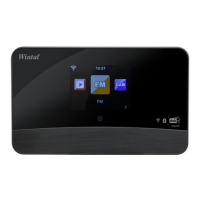
The device features a 2.8-inch color display for information and navigation.
Receives signals from the infrared remote control for device operation.
Port for connecting the supplied antenna for DAB and FM reception.
Output for connecting external powered speakers or audio systems.
Digital optical output for audio connection to compatible systems.
Power input socket for connecting the supplied power adapter.
Switch located on the rear to turn the device on or off.
Silences the audio output of the radio.
Puts the device into or out of standby mode.
Used for favorite stations, inputting WiFi passwords, and characters.
Buttons for preset station management and recall.
Buttons for cursor control, menu navigation, and confirmation.
Buttons to switch radio modes and adjust equalizer settings.
Buttons for playback, pause, previous, and next track/station.
Buttons for accessing local stations, information, and display dimmer.
Ensure broadband internet, Wi-Fi router, and network security details are ready.
Safety guidelines for operating the radio in various environments and conditions.
View and manage your list of favorite radio stations.
How to save a currently playing station to a preset.
Options to delete, shift, or rename favorite stations.
Instructions for selecting a saved preset station.
Browse stations by category, genre, location, or access local radio.
The radio memorizes the last 10 listened stations.
Search for stations by name or add new stations via URL.
Stream music from network devices like PCs or hard drives.
Play music streams from DLNA-compatible devices on the same Wi-Fi.
Configure server, select Media Centre, and choose UPnP to stream music.
The radio scans for available UPnP servers in the network.
Choose media categories, files, and set playback modes.
Make custom playlists from UPnP files or clear existing ones.
Connect the wire antenna for optimal FM reception.
Automatically scans and stores available FM radio stations.
Manually seek FM stations and fine-tune frequencies.
Connect the wire antenna for optimal DAB reception.
Automatic scanning for DAB stations and displaying the list.
Choose stations to play or re-scan for new DAB stations.
Enable and view weather information and forecasts in standby mode.
View software version, MAC address, and IP address details.
Stream music from DLNA-compatible devices on the same Wi-Fi network.
Connect and play music from Bluetooth-enabled devices like phones.
Choose between analog or digital time display format.
Register your radio on the Media U website for managing favorite stations.
Manage favorite stations and add new ones via the Media U interface.
Add stations by entering name, URL, location, and genre.
Find and listen to added stations or custom favorite lists.
Configure and connect to available wireless networks.
Connect using Wi-Fi Protected Setup (WPS) for easy pairing.
Configure DHCP, SSID, and other network settings manually.
Enable or disable automatic network checking when the radio starts.
Set local time automatically or manually, and choose time/date formats.
Schedule two alarms with options for sound and volume.
Set a short-term alarm for naps, with a beeping sound only.
How to activate snooze mode or cancel the alarm.
Set a countdown timer with pause, resume, and cancel options.
Choose from 17 available languages for the user interface.
Adjust LCD backlight for power saving and operation mode.
Select between color or monochrome display styles.
Auto-standby settings to save power when no internet signal is detected.
Set a timer to put the radio into standby after a duration.
Adjust buffer time for smoother playback during network congestion.
Configure weather display in standby by region and temperature unit.
Option to select stereo or mono playback for FM, though radio is mono.
Adjust scanning threshold to pick up stronger or weaker FM stations.
Adjust scanning threshold for stronger or weaker DAB/DAB+ stations.
Enable or disable display of DAB/FM information.
Find same channels over internet if available, reducing noise.
Select channels and switch to internet radio mode if available.
Detect local stations or manually set a different country for stations.
Set playback preferences like Off, Repeat one, Repeat all, or Shuffle.
Configure DLNA settings and change the default device name "AirMusic".
Use smartphone app for remote control; available for Android and iOS.
Select preferred equalizer settings for listening.
Option to resume the last played station upon power on.
Information about available software updates and recommended checks.
Factory reset the device, losing all custom settings and presets.
Steps to resolve issues connecting to Wi-Fi networks.
Reasons for inability to play particular stations despite network connection.
Troubleshooting steps when PCs are not found during UPnP scans.
Resolve problems finding folders on a PC for music playback.
Address intermittent playback caused by broadband connection errors.
Explanation of what buffering is and its purpose in streaming.
Specifications for model number, power input, and voltage.
Details on wireless network standards and security protocols.
Information on audio sockets, unit dimensions, and frequency ranges.
List of items included in the product package.
Information on the 12-month warranty and conditions.
Steps to follow for obtaining warranty service and contact information.
Contact number and address for customer support and troubleshooting.

 To Next Page
 General