05
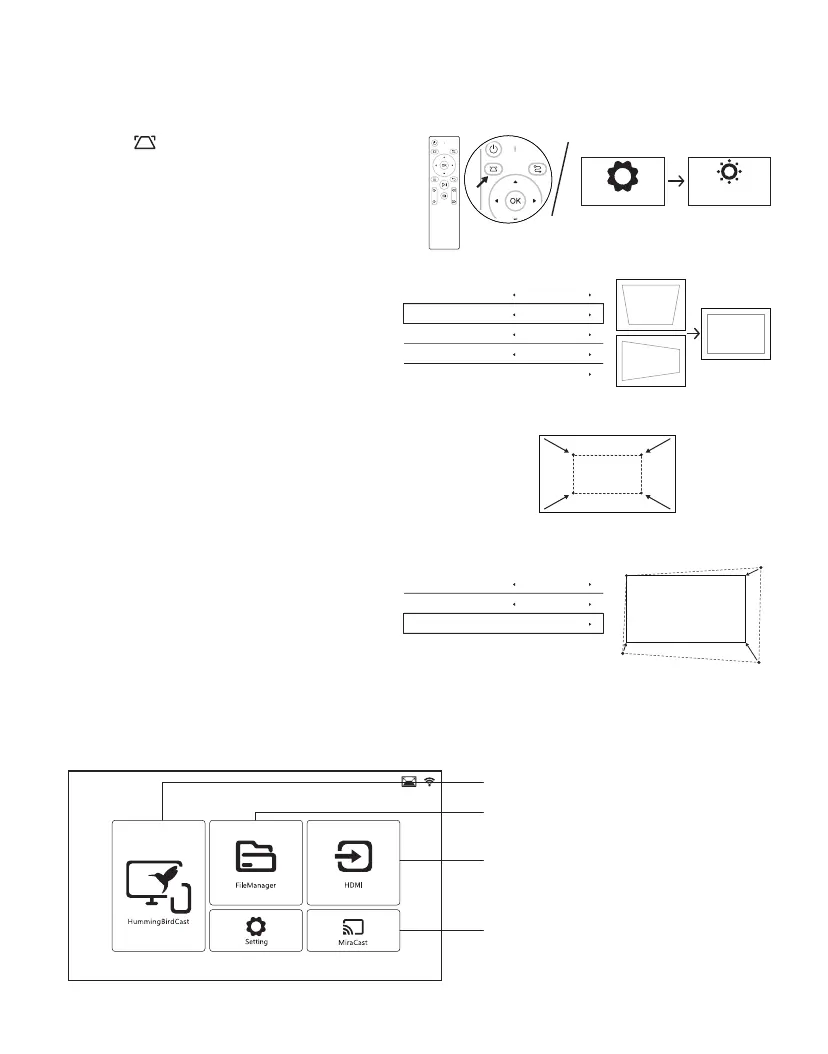
Select "Keystone Advanced"→"Front", select
"Vertical Keystone" and "Horizontal Keystone"
to adjust the image.
•Keystone Advanced
Projection Mode
Keystone Advanced
Vertical Keystone
Horizontal Keystone
Front-Desktop
Front
0
0
Digital Zoom
*Select "Digital Zoom" to adjust the picture,
the zoom range is 50% to 100%.
7.KEYSTONE CORRECTION
Take one point as the standard, adjust the
other three points until the screen is rectangle.
•4-Point Keystone
Projection Mode
Keystone Advanced
4-Point Keystone
Front-Desktop
Side
Press the" "button on the remote control,
enter the projection image setting interface.
You can choose two different keystone
correction methods.
*You can also find this function through the following path.
Homepage→Setting→Projection Image Setting
Projection Image
Setting
Setting
iOS Device Mirror
USB Connection
HDMI Connection
Android Device Mirror
8.INPUT SOURCE


 To Next Page