06
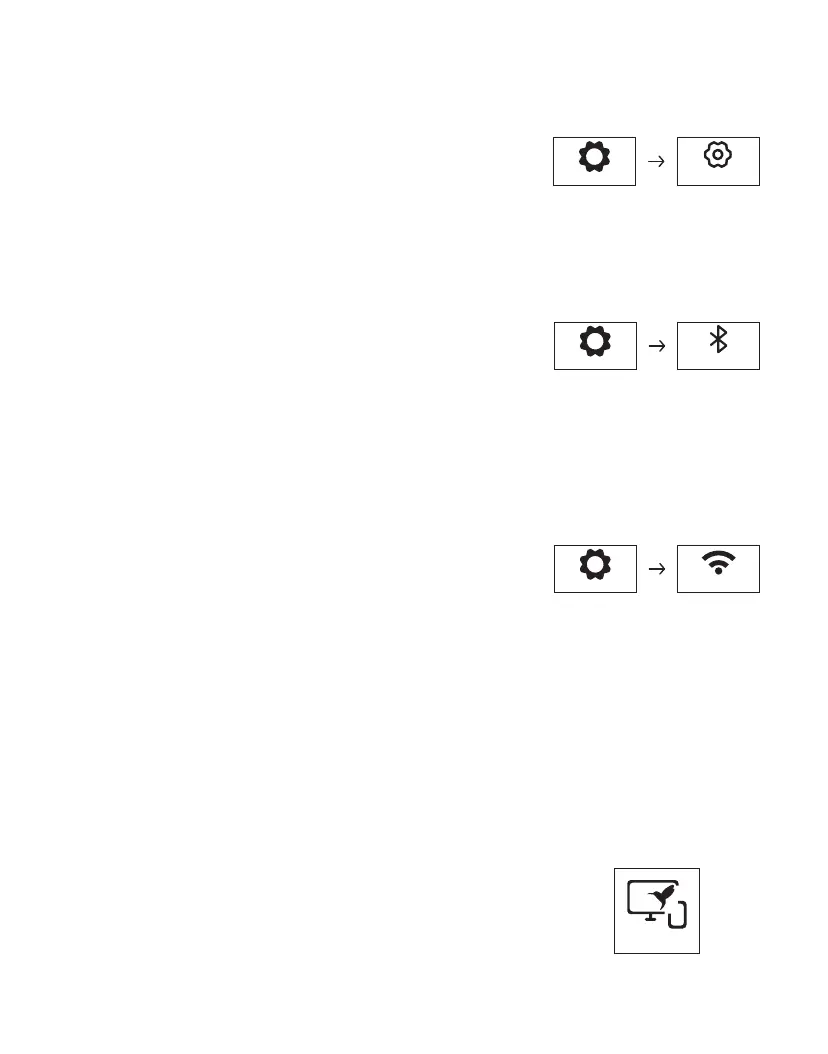
1. Select "Setting" on the projection image.
2. Select "Other Setting"→"Language Setting"
on the projection image.
3. Select the language you want to use.
Other Setting
9.LANGUAGE SETTING
Setting
10.BLUETOOTH CONNECTION
1. Select "Setting" on the projection image.
2. Select "Bluetooth Setting" on the projection image.
3. Turn on the Bluetooth function and wait for the
projector to search for available Bluetooth devices.
Bluetooth Setting
Setting
(The Bluetooth function supports connecting audio devices, but
not smart devices such as mobile phones, tablets and computers.)
11.WIFI CONNECTION
1. Select "Setting" on the projection image.
2. Select "WiFi Setting" on the projection image.
3. Wait for the projector to search for available networks.
4. Choose your network name and enter the password to connect.
(Ensure you have your own WiFi at home. If not, please open your
phone personal hotspot to create the WiFi, and then connect to it.)
Setting
WiFi Setting
•For iOS Device
1. Connect the projector to your home wifi, and make
sure that your iOS device is connected to the same
network as your projector.
2. Select "HummingBirdCast" on the projection image.
HummingBirdCast
12.WIRELESS SCREEN MIRRORING


 To Next Page