Copyright © 2020 WyreStorm Technologies | wyrestorm.com
EX-100-H2-PRO v1 Quickstart Guide | 200227
UK: +44 (0) 1793 230 343 | ROW: 844.280.WYRE (9973)
support@wyrestorm.com
3 of 4
Setup and Conguration
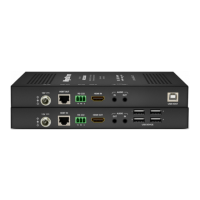
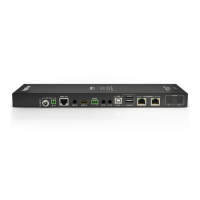
USB Operation
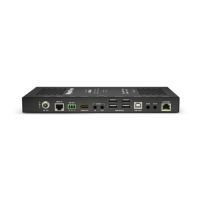
When using the USB ports one of the units needs to set as a host while the
other is set as a device connection. The host can be either the TX or RX as long
as the other unit is set to device.
Set the switch to Host to connect to a host device
such as a PC or Mac. Requires that the opposite unit
is set to Device.
Set the switch to Device to connect devices such
keyboards or USB cameras to the unit. Requires that
the opposite unit is set to Host.
RS-232 Port Conguration
The RS-232 port on this extender has 2 settings that are important to the
operation of the unit. While being used the RS-232 switch should be in the
Pass-through position.
Set the switch to Pass Through for normal RS-232
operation. This is the default setting.
Set the switch to Update when updating rmware.
Troubleshooting
No or Poor Quality Picture (snow or noisy image)
• Verify that power is being supplied to the transmitter and receiver.
• Verify that the HDBaseT cable is properly terminated following EIA568B
standard.
• Verify that the output resolution of the source and display is supported by
this extender.
• If transmitting 3D or 4K, verify that the HDMI cables used are 3D or 4K rated.
• Verify that all source and HDBaseT connections are not loose and are
functioning properly
No or Intermittent 3rd party Device Control
• Verify that the IR, RS-232, and Ethernet cables are properly terminated
following the Wiring and Connections section.
• Verify that RS-232 modes are properly selected for the desired operation.
Refer to RS-232 Mode Settings for details.
Troubleshooting Tips:
• WyreStorm recommends using a cable tester or connecting the cable to
other devices to verify functionality.


 To Next Page
 Loading...