DRUM KIT EDIT
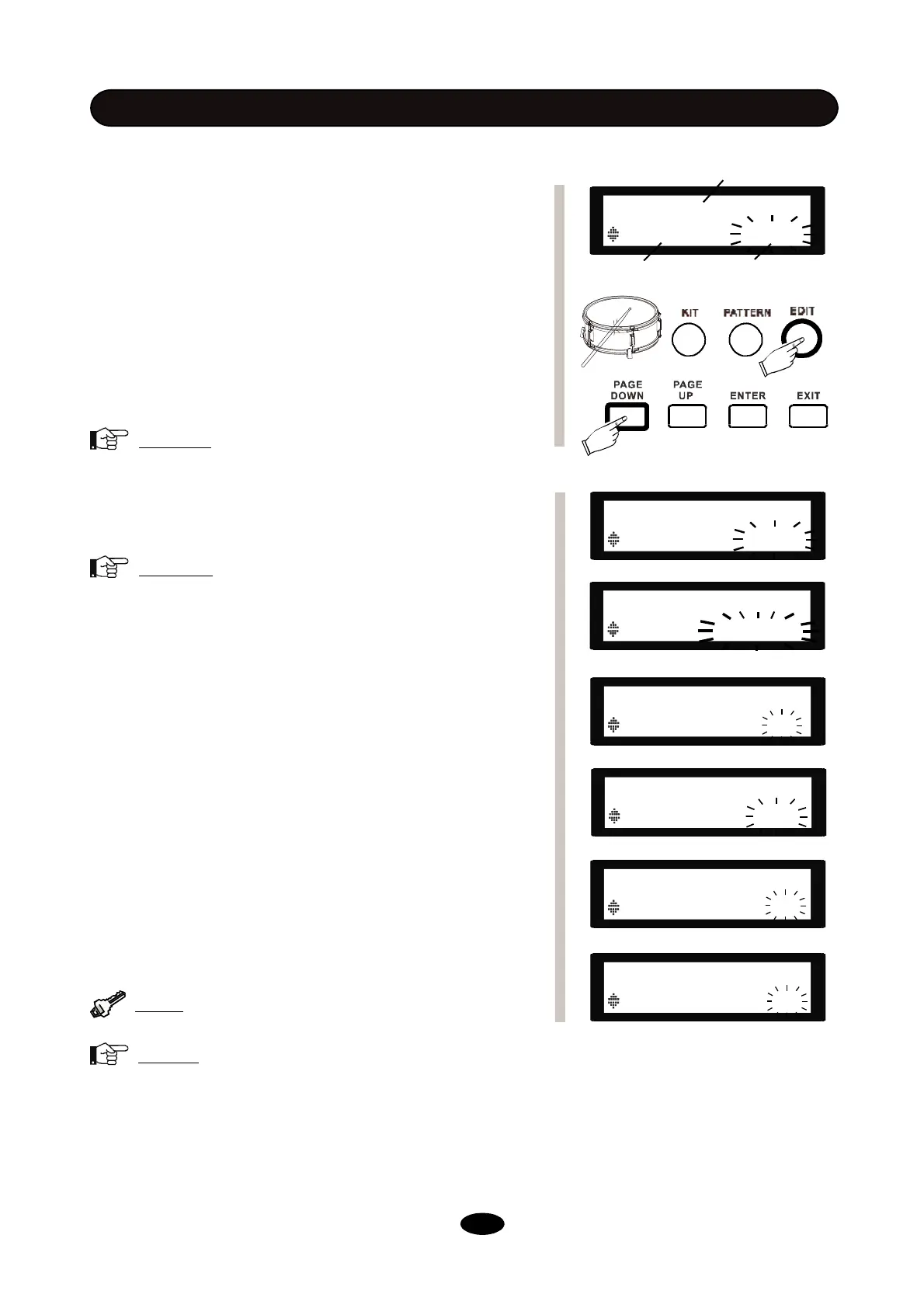
First, select a kit for editing. Press on the EDIT button to
enter drum kit edit menu. There are 6 items available for kit
editing.
The chapter <BASIC OPERATION> instructs how to en-
ter the Edit mode, select part and item in details; this chap-
ter offers more information.
VOICE TYPE: Select the category of the voice, including
KICK, SNARE, TOM, RIDE, CRASH, HIHAT, PERC
(Percussions and FXs), METRO (Metronome), --- (Blank).
Note
:
Select “---” for Pedal Splash if you don’t
need it.
VOICE: Select a voice in its category. Create your own kit
with voices you like.
Note
:
For hi-hats don’t have a matching Half-
Open sound, please set the HalfOpen voice the same to
HIHAT-Open sound.
VOLUME: Adjust the volume of current trigger. The higher
the volume, the louder it will be.
REVERB: Adjust the reverb level of current trigger. Over-
all reverb can be adjusted by S2 in FX mode, this value
decides how much the current trigger will be affected by
fader S2.
PITCH: Adjust the pitch of current trigger, measured in semi-
tones.
PAN: Adjust the panning of current trigger. Minus value
stands for left and 0 stands for middle position.
Tip
:
Use DRUM button can switch between trig-
gers quickly in EDIT menu.
Note
:
For drum kit settings in EDIT menu, each
setting affects one trigger. For multi-triggering pads, they
may have many triggers. For example, snare head, snare
rim and snare X-stick can have different volume settings.
SNARE-Rim
VOICE TYPESNARE
Editable parametr
Part to edit
SNARE-Rim
VOLUME 80
SNARE-Rim
VOICE Rock R
SNARE-Rim
VOICE TYPESNARE
Item name
SNARE-Rim
PAN 25
SNARE-Rim
PITCH 0
SNARE-Rim
REVERB 120
18


 To Next Page