07
06
OPERATION WITH A COMPUTER
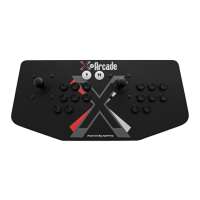
On a PC or MAC™, the buttons are assigned to a specific keyboard keys. When you press a button on
the X-Arcade™, your computer thinks you are pressing a key on your keyboard. If you open a word
editor like notepad, you will notice that the buttons and joysticks type. See the X-Arcade™'s default
Mode1keyassignmentsonpage8.
For most games on your computer, you will need to change the button assignment to the actions or
functions you wish them to perform within the game itself. If the game does not have an option to
use the keyboard keys you want, you can simply use the hardware programming on the X-Arcade™ to
changethebuttonassignments.Seepage8formoreinformationonprogramming.
GAME SETUP:
Thefirsttimeyouplayagame,youmustgotothegame’soptionsmenu.MostlikelyitwillbeSETUP,
SETUP CONTROLS, OPTIONS, or CONTROLS. and lead you to the menu for assigning actions in
games. The majority of computer games require that you first start the game, and then press either
ESC or go to the main menu, where there will be some sort of icon that represents the OPTIONS for
the game or the CONTROLS for the game.
Onceyoufindthegame’sOPTIONS,andsubsequently,thegame’sCONTROLS, you must understand
how to change the game's default keys to the keys on the X-Arcade™. Make sure the controls in the
game are set to keyboard, NOT A MOUSE OR JOYSTICK, as the X-Arcade™ is seen as a keyboard
by your PC.
LookatthediagramfortheX-Arcade™onpage8toseewhichbuttonsareassignedtowhichkeys.
Example, LEFT CONTROL key of keyboard is actually the PLAYER 1 main action button, so if you want
to have that first top left button assigned to a function like FIRE or ACTION, just highlight the action
you wish to perform, FIRE (or similar), then in some fashion it will then ask you to pick the key or
button you wish to assign it to, then press the button on the X-Arcade™. You must do this for PLAYER
1 and PLAYER 2 (if you are playing a 2 Player game) and set up all of the actions you wish to use.
This only has to be done once, and it will be saved in the game itself
OPERATION WITH EMULATORS
The X-Arcade™ has been optimized for use with arcade-style video games and has a preset
configuration for the highly popular MAME™ arcade emulator on PC/Mac™. MAME™ is a softare
application that allows you to play arcade games on your computer. With MAME™, classic video
gamesfromthe70’sand80’sarestillaliveandkickingtoday.Thesegamesarenotremakes,butthe
original,authenticclassicarcadegamesyouplayedinthe70’s,80’sand90’s.Checkoutthe"Arcade
Gaming"sectionofwww.X-Arcade.comformoreinfoonMAME™.
Warning! MAME™ is an emulator. It reproduces, more or less faithfully, the
behavior of various arcade machines. But hardware is useless without software,
so images (files) of the ROMs which run on that hardware are required. Such
ROMs, like all commercial software, are copyrighted.
NOTE: The first thing you want to do is test the X-Arcade™ on your PC using the X-Arcade™ Test
Utility Program to check that it is being recognized by your PC properly. The layout that MAME™ is
looking for is the exact same one that is used in the X-Arcade™ Test Utility Program (see layout on
next page). This means if your controller works in the X-Arcade™ Test Utility Program, then it will
work in MAME™ and other emulators. If it does not, then check your settings in the emulator, not
theX-Arcade™.DownloadtheX-Arcade™TestUtilityProgramfromthe"CustomerService"pageof
www.X-Arcade.com
MAME™ SETUP
1)InMAME™choosethe"Options"menu(atthetop),andclick"DefaultGameOption"sfrom
the drop-down menu.
2)Selectthe"GameControllers"tab.
3) Set your “Default input layout” to X-Arcade™ from the drop-down list. If this option is missing,
downloadtheX-Arcade™configfilefromthe"CustomerService"pageofwww.X-Arcade.com
4)Clicktheboxnextto"EnableMouseSupport"toaddacheckmark(ifitisnotalreadychecked).
All of your MAME™ games will work with that configuration.
NOTE: Ifjoystick1istheonlythingnotworking,besurethatyourNUMLOCK(NLOCK)keyisON.


 To Next Page
 Loading...