Need help?
Do you have a question about the Xiaomi AX9000 and is the answer not in the manual?
Step-by-step guide to configure the router's network settings via the Mi Home/Xiaomi Home mobile application.
Guide to set up the router's network connection using a web browser and the router's IP address.
Provides solutions for common problems like connectivity, forgotten passwords, and factory resets.
Guidelines for using the product in EU countries and adhering to RF exposure requirements.
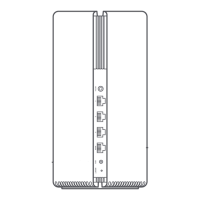
The Xiaomi Router AX9000 is a high-performance networking device designed to provide extensive and reliable Wi-Fi coverage, particularly suitable for larger areas. Its primary function is to act as a central access point for your home or office network, distributing internet connectivity to various devices. The router also supports mesh networking, allowing for the expansion of Wi-Fi coverage by integrating multiple mesh-enabled Mi Wi-Fi routers.
Setting up the router can be done through two primary methods: via the Mi Home/Xiaomi Home app or through a web page interface. For app-based setup, users are guided to download the Mi Home/Xiaomi Home app by scanning a QR code or searching in an app store. Once the app is installed and the router is powered on, users connect their smartphone or computer to the router's Wi-Fi network (which initially has no password and its name is found on the router's base). The app will then automatically detect the router, prompting the user to "Start adding" it. If the pop-up doesn't appear, users can manually add the router via the "+" icon. The setup process continues by tapping "Set up as new router," configuring the Wi-Fi name, and setting a Wi-Fi password. This password can optionally be used as the administrator password for the router. A successful setup is confirmed when the system indicator light turns white, and the network is established.
Alternatively, the router can be configured via a web page. Similar to the app setup, users first connect to the router's Wi-Fi network (again, no password initially, Wi-Fi name on the base). Upon connection, a browser should automatically redirect to the router's landing page. If not, users can manually navigate to "router.miWi-Fi.com" or "192.168.31.1". The setup then prompts for the broadband provider's account name and password, which may be skipped depending on the internet connection type. Following this, users configure their Wi-Fi name and password, with the option to use the Wi-Fi password as the administrator password. After this step, the Wi-Fi module restarts, and the network should be successfully established.
A key usage feature of the Xiaomi Router AX9000 is its mesh networking capability. This allows users to purchase multiple mesh-enabled Mi Wi-Fi routers to extend network coverage over larger areas. The pre-configuration for mesh networking involves setting up one Mi Router AX9000 as the central access point and completing its network configuration, ensuring both front indicators are solid white. A second mesh-enabled router, acting as a satellite node, is then placed within 1 meter of the central access point to avoid interference. After connecting the satellite node to a power supply and waiting 2-3 minutes for its System status indicator to turn white/blue, the central access point automatically discovers it, and its Internet status indicator will flash intermittently (once per second). If the satellite node has been previously configured, it needs to be reset by holding down its Reset button for at least 5 seconds.
There are three methods for configuring mesh networking. The recommended method (Method 1) involves simply pressing the Mesh button on the central access point. This initiates wireless mesh networking, and the Internet status indicator on both routers will flash intermittently (twice per second), indicating that pairing is in progress. Method 2 utilizes a network cable to connect the LAN port of the central access point to the WAN port of the satellite node, after which wireless mesh networking is configured. The Internet status indicators on both routers will again flash intermittently. Method 3 involves using the Mi Home/Xiaomi Home app. After adding and connecting to the central access point in the app, users navigate to "Router Management," tap "Mesh network devices," and follow the prompts to add the satellite node. Once mesh networking is successfully configured, the Internet status indicator on each router will turn solid white or blue. Users can then strategically move the satellite node to their desired location for optimal extended network coverage, avoiding placing nodes too far apart or obstructed by multiple walls.
The router also features a USB 3.0 port, which can be used to connect USB storage devices. This allows users to access films, photos, and other files stored on the USB device via their smartphone or TV, enhancing its utility beyond just network connectivity.
Maintenance features and troubleshooting guidance are also provided. For ambient lighting setup, users connect their device to the Mi Home/Xiaomi Home app and configure the light settings, including color and effects for the X-shaped light strips on the router's top. If internet connectivity issues arise after setup, users are advised to first check if the router's Wi-Fi network is discoverable and if the router has finished booting up. If the problem persists, connecting to the router's Wi-Fi and navigating to "router.miwifi.com" allows access to network diagnostic tools to fix the issue.
In cases where the administrator password for the router is forgotten, the manual suggests trying the Wi-Fi password if a specific administrator password was not set. If this doesn't work, restoring the router to factory settings is recommended, followed by setting up the network again. To restore factory settings, users must ensure the router has finished booting up, then hold down the Reset button at the base of the router for more than 5 seconds until the system status indicator turns orange. Releasing the button and allowing the router to boot up again will complete the reset.
The router's status indicators provide crucial information about its operational state. The Internet status indicator, a two-color light (white, orange), shows: Off when the network cable is not plugged into the WAN port; Solid Orange when the network cable is plugged into the WAN port but the upstream network is unavailable; Solid White when the network cable is plugged into the WAN port and the upstream network is available. It also flashes intermittently (once per second) when a satellite node is discovered for mesh networking configuration, and intermittently (twice per second) when mesh network pairing is in progress. The System status indicator, also a two-color light (white, orange), indicates: Off when the router is not connected to a power source; Flashing Orange during a system update; Solid Orange (turning white after approximately one minute) when the system is booting up; Solid Orange (not turning white after approximately two minutes) indicating a system fault; and Solid White when working normally.
The Xiaomi Router AX9000 also incorporates advanced technology such as 4K QAM. The 5G_Game band supports 2x2 4K QAM technology, offering maximum theoretical wireless speeds of up to 2882Mbps when paired with a 4K QAM-enabled smartphone, which is 20% faster than 1024 QAM. This highlights the router's capability to deliver high-speed and efficient wireless performance for demanding applications like gaming.
 Operating Environment
| operating temperature | 0~40℃ |
|---|
 Power
Power| input voltage | 12V |
|---|---|
| input current | 4A |
Wireless| wireless standard | IEEE 802.11a/b/g/n/ac/ax |
|---|---|
| frequency bands | 2.4GHz/5GHz |

 To Next Page