This function is enabled by default. During auto image
correction, the projector will automatically detect and avoid
obstacles in the projected area, ensuring an unobstructed
and complete image. The image may zoom out based on the
positions and sizes of the obstacles.
You can enable or disable this function by pressing the
settings button on the remote control and selecting Settings
> Projector > Keystone > EasyView.
Auto obstacle avoidance
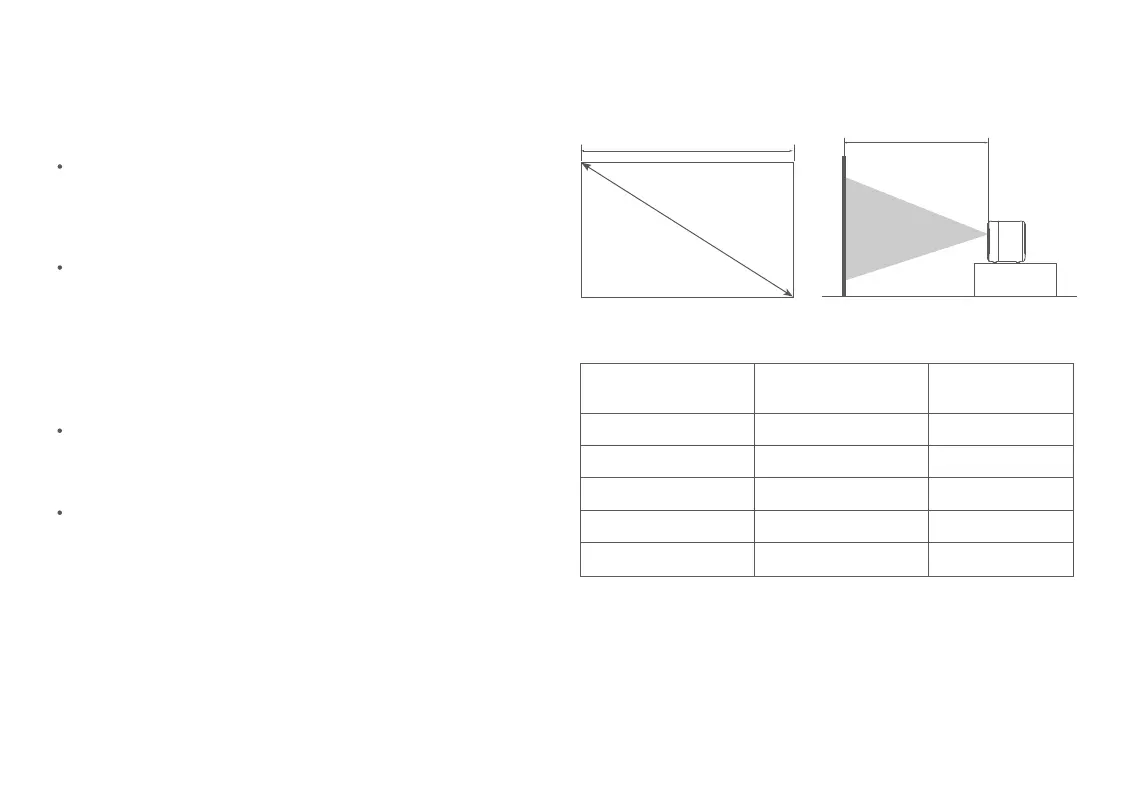
Projection Screen
SD
D
W
Projection Screen
Screen Dimensions (SD): The diagonal size of the projection screen (in inches).
Projection Distance (D): The distance between the front end of the projector
and the screen (in centimeters).
Screen Width (W): The width of the image projected on the wall (in centimeters).
Note: The values in the table above are for reference only. They may slightly
differ from the actual values. Please refer to the actual values.
Determine the distance between the projector and the screen
according to the desired screen size.
Projection distance & screen dimensions
This function is enabled by default. During auto image
correction, the projector will automatically detect the screen
(sold separately) and align the image with all four edges of
the screen.
You can enable or disable this function by pressing the
settings button on the remote control and selecting Settings
> Projector > Keystone > EasyFit.
Auto screen alignment
08
Screen Dimensions
(SD)
Projection Distance
(D)
Screen Width
(W)
161 cm 133 cm
177 cm
268 cm
322 cm
214 cm
221 cm
266 cm
60"
107 cm 89 cm40"
80"
120"
100"



 To Next Page