Image correction
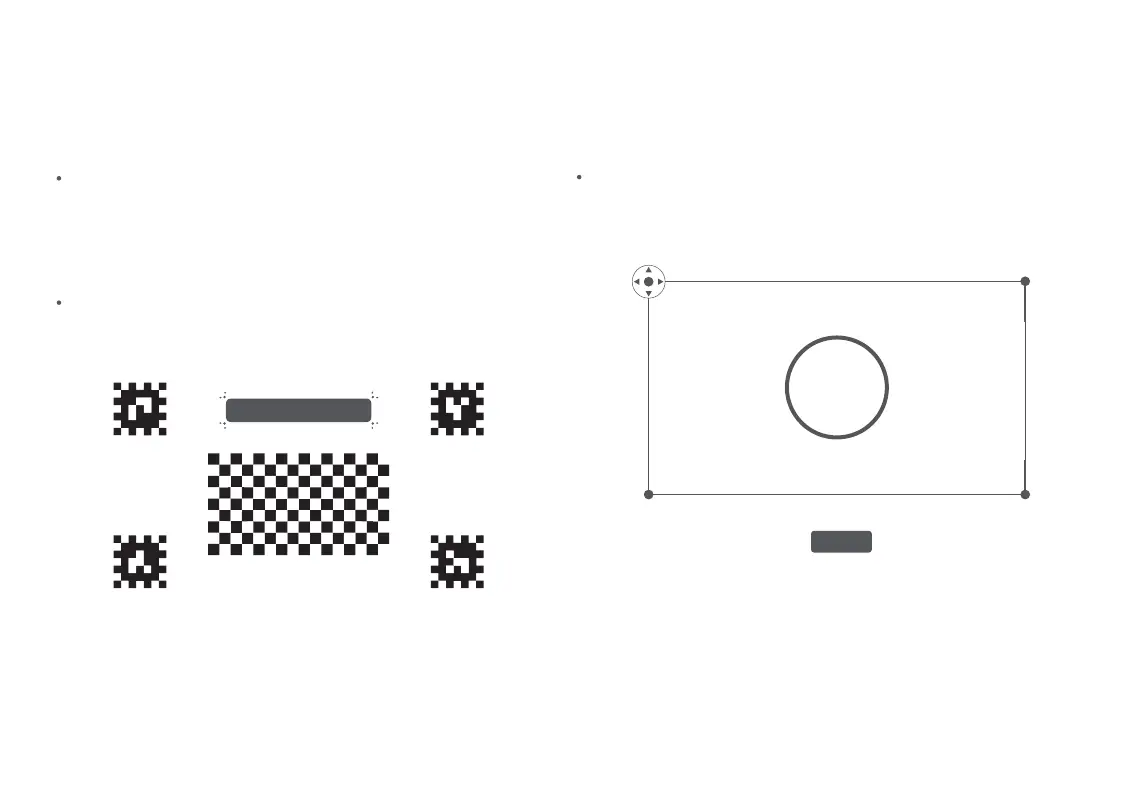
The auto keystone correction function is enabled by default.
When this function is triggered by moving the projector, the
keystone correction will be automatically applied to the image.
Alternatively, you can select Settings > Projector > Keystone >
Execute auto keystone correction, and the keystone correction
will be automatically applied to the image.
You can enable or disable the auto keystone correction function
by selecting Settings > Projector > Keystone.
You can select Settings > Projector > Keystone > Manual keystone
correction, and use the remote control to adjust the image corners
for correction.
Auto keystone correction Manual keystone correction
Note: After auto keystone correction is completed, you can also press the confirm button on the remote control to enter manual keystone
correction, and use the remote control to fine-tune the image corners for correction.
Auto-correction in progress
The aspect ratio is optimal when the circle in the
figure above is properly displayed.
Press the Confirm button to edit and press the Back button to exit
Reset
07



 To Next Page