06
Xiaomi Mesh Networking
Xiaomi Mesh networking technology supports Mesh networking of up to
10 routers to achieve broader network coverage. Follow the steps below to
configure the Mesh networking.
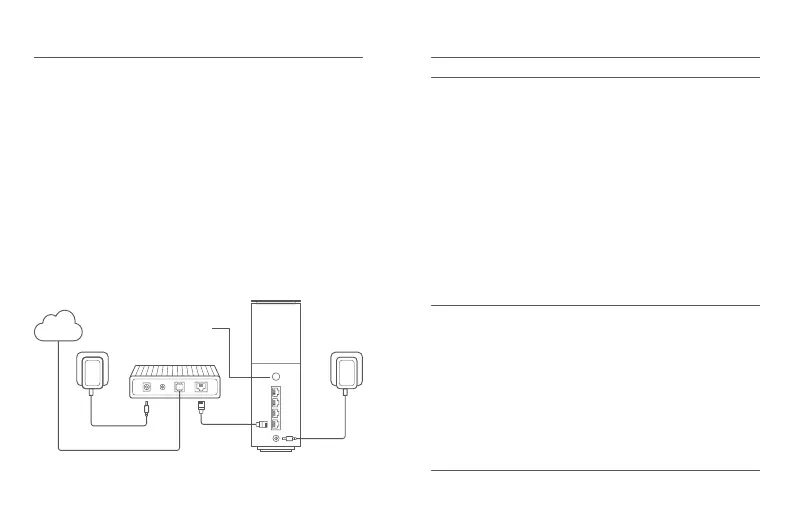
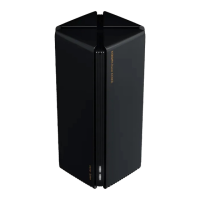
1. Make sure the main router is connected to the network. Connect the
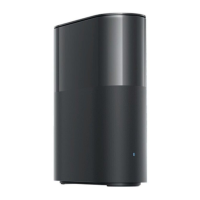
satellite router to power and place it near but at least one meter away
from the main router. Otherwise, they will interfere with each other and
affect the networking.
2. After the satellite router powers on, the main router will automatically
discover it, and the indicator of the main router will start breathing blue.
Note: If the satellite router is already configured, press its reset button to
restore it to the factory settings first.
3. Press the mesh button on the main router, and the indicators of the
main router and satellite router will start blinking. It will take about
2 minutes to complete the Mesh networking.
4. When the Mesh networking is completed, the indicator of the satellite
router turns into blue.
Internet
Mesh/Reset
button
07
Troubleshooting
Issue
I cannot access the
internet.
My wireless devices
cannot connect to the
Wi-Fi.
Make sure the network cable is plugged
into the Ethernet port of the modem. If your
modem has multiple Ethernet ports, leave
the others unplugged.
Turn off your modem and wait for 5 minutes,
then turn it on and have a reset.
Directly connect a computer to the modem
via a network cable to check if the internet is
working. If not, contact your Internet service
provider.
Log in to the router's web management page,
and go to the Network Settings to verify the
internet IP address. If valid, set your primary
DNS to 8.8.8.8, and secondary to 8.8.4.4. If
invalid, make sure the hardware connections
are connected properly or contact your
Internet service provider.
Ensure the Wi-Fi name and password do
not contain special characters during
configuration.
Make sure the Wi-Fi you selected and the
password you entered are correct.
Verify if your device is blacklisted. If yes,
remove it from the blacklist to allow
connection.
Choose WPA2 encryption for your router to
enhance compatibility.
Restart both your router and device then try
again.
Possible Cause and Solution
·
·
·
·
·
·
·
·
·









 To Next Page