43
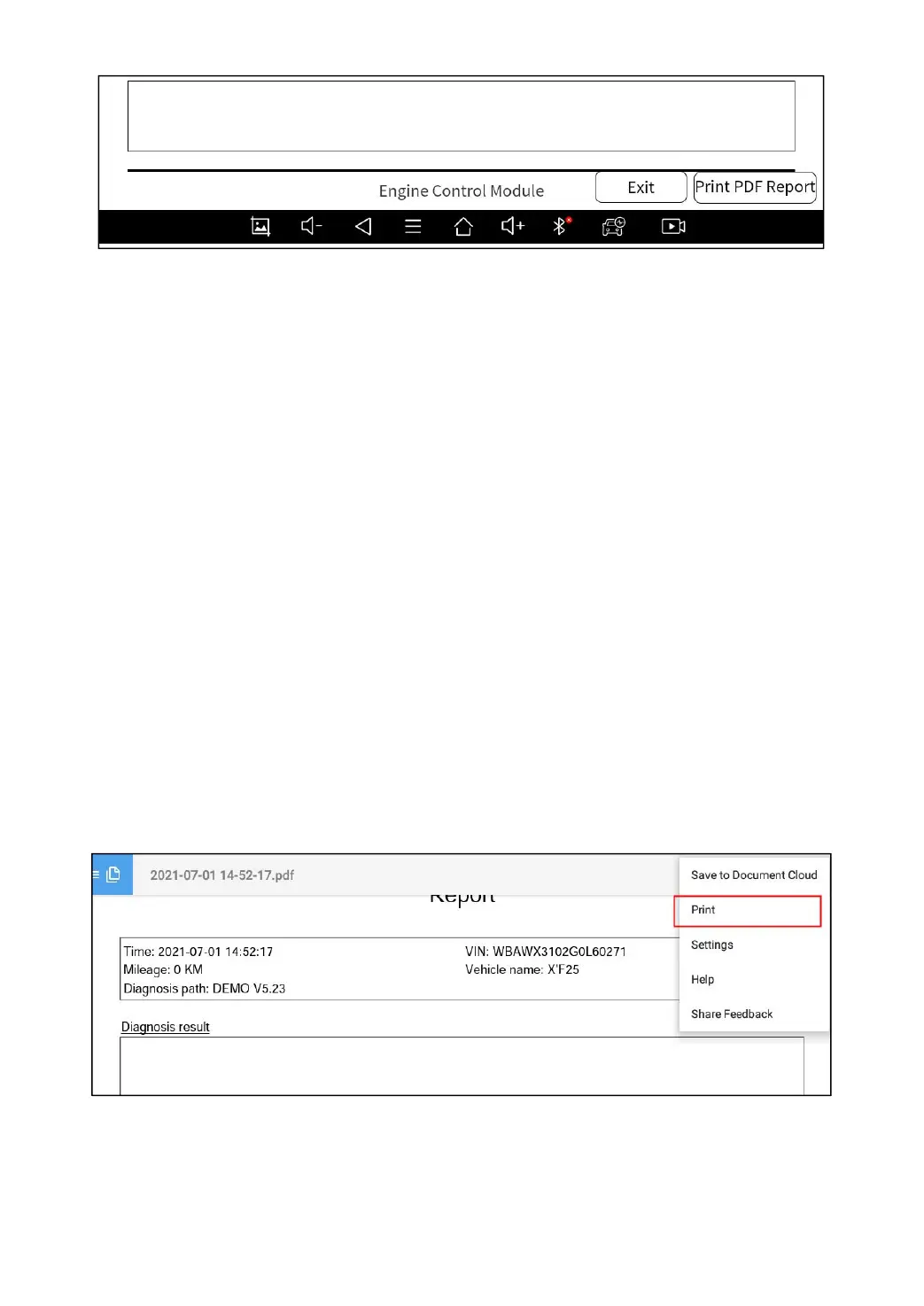
Fig 6-3
Print PDF Report
As you can see, you also could click " Print PDF Report " at the
bottom right corner to output the pdf report. If you need to close the
report, you could tap on the button “Exit”.
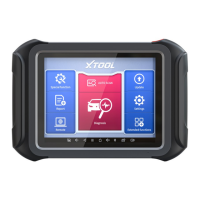
Please follow the below steps to print your report▼
Step 1: Install an APP that can drive your target printer. Add the
printer and input the IP address of the printer in the APP, or you can
contact your dealer for help.
D9 Smart Diagnosis System don’t provide the printer driver software, please install a third
part App on the tablet if you need the print your diagnosis report.
Step 2: Back to the Android main menu, go to Settings -> Printing->
Turn printer on.
Step 3: Report-> Choose report-> Print PDF Report-> Print
Fig 6-4
Step 4: Click the top-left corner of the screen and choose the printer
you added before. Then click the button on the right to print.


 To Next Page