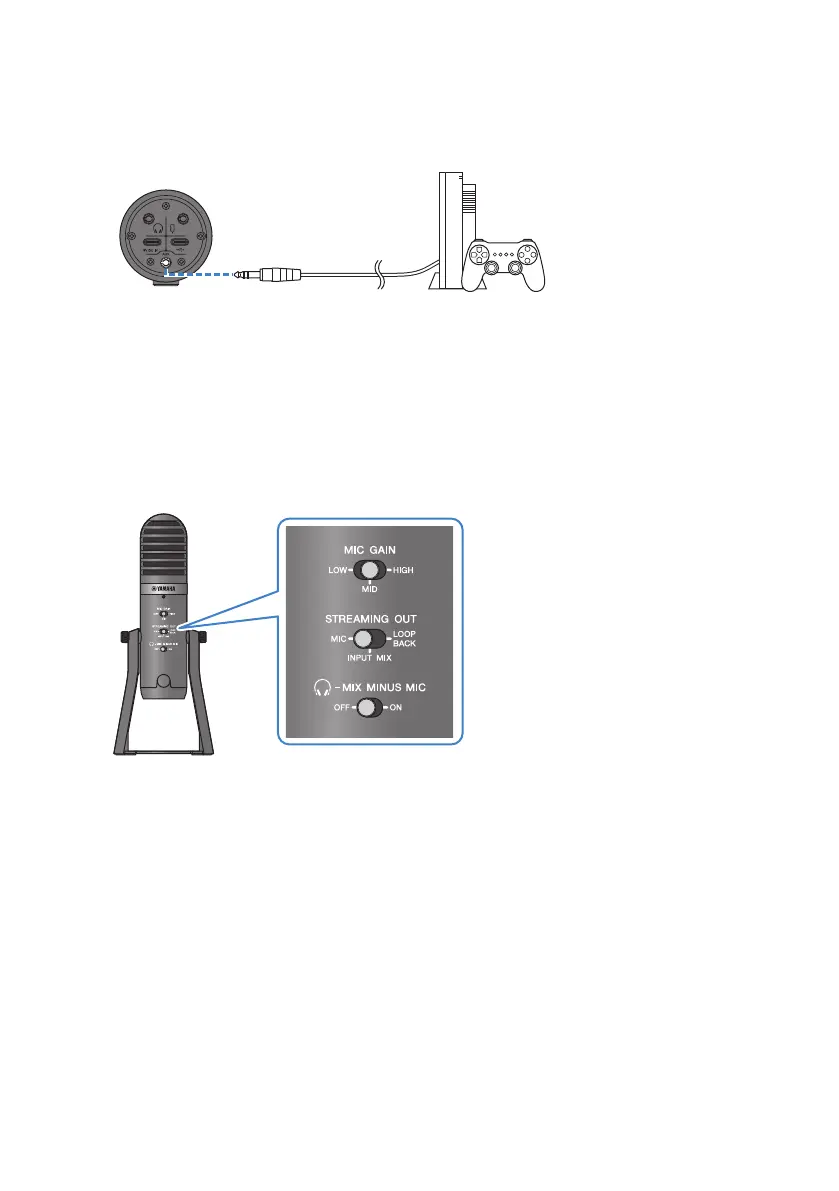
4 Connect your gaming device
Connect the headphones output from your gaming device to the [AUX] input jack.
Once you’ve made all the connections, let’s configure the settings for this product.
5 Configure the settings for this product
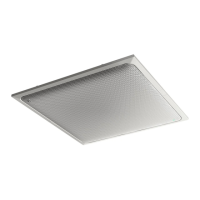
Make the settings for each switch on the rear as follows.
[MIC GAIN]: [MID]
[STREAMING OUT]: [MIC]
[H-MIX MINUS MIC]: [OFF]; set this to [ON] if you don’t want to hear your own voice.
6 Configure the settings for Discord
Log in after launching Discord.
Confirm that the “Audio Settings” sound input device and sound output device are both set to
“Yamaha AG01”.
7 Starting the voice chat
1 Adjust the volume using the headphone [H] volume knob while audio is playing on the
gaming device. If the sound coming from the gaming device is too low, turn up the volume
on your gaming device.
2 Use the USB/smartphone [n] input volume knob to adjust the volume of the person you’re
talking with.
44
Using this product for game chats (Discord) > Using this product with your computer



 To Next Page