Quick Guide
11
AUDIOGRAM 3 Owner’s Manual
Macintosh:
Double-click the [Application]
→
[Cubase AI 4].
• If you specified a file destination when installing the Cubase AI software, launch the appli-
cation from that location.
• Create a Cubase AI shortcut or alias on your desktop so you can easily launch the pro-
gram when required.
3
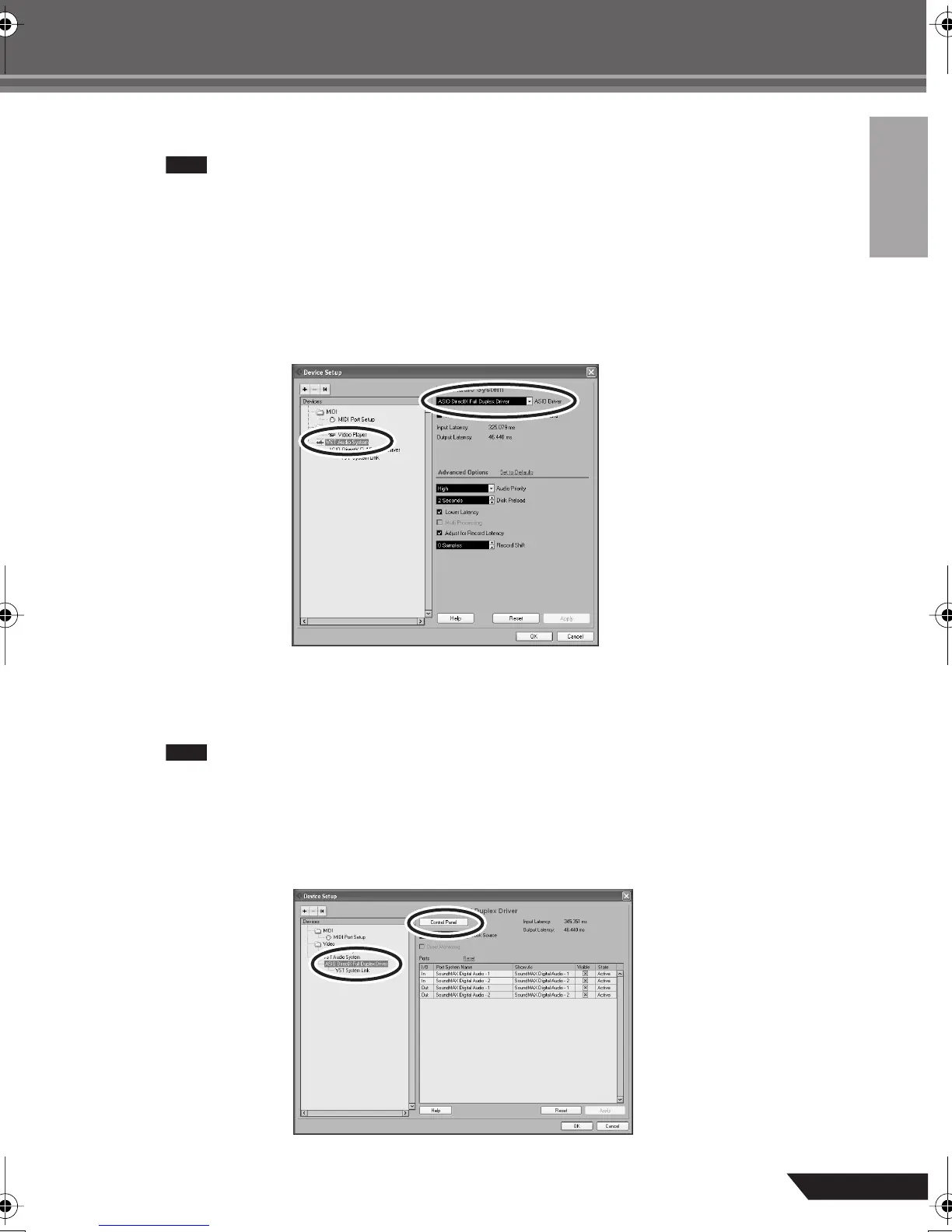
Select [Device Setup] from the [Device] menu to open the Device Setup window.
Windows:
Select [VST Audio System] in the [Device] field on the left side of the window. Select [ASIO DirectX
Full Duplex Driver] in the [ASIO Driver] field on the right side of the window. A dialog box will appear
asking “Do you want to switch the ASIO driver?”. Click [Switch].
Macintosh:
Select [VST Audio System] in the [Device] field on the left side of the window. Select [USB Audio
CODEC (2)] in the [ASIO Driver] field on the right side of the window, and click [OK]. Skip ahead to
step 7, below.
Under Mac OS X you can select either [USB Audio CODEC (1)] or [USB Audio CODEC (2)]
in the [ASIO Driver] field. Normally you should select [USB Audio CODEC (2)], but if you will
only be playing back and mixing previously recorded data you can select [USB Audio
CODEC (1)] to lighten the load on the computer’s CPU.
4
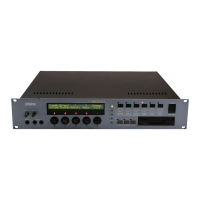
On a Windows computer select [ASIO DirectX Full Duplex Driver] in the [Devices] field
on the left side of the Device Setup window, and click [Control Panel] on the right side of
the window.
audiogram3en.book Page 11 Wednesday, April 2, 2008 2:40 PM


 To Next Page