EasyManua.ls Logo

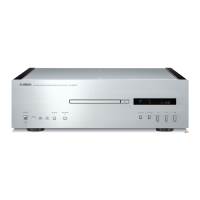
Yamaha CD-S300 - User Manual

Yamaha CD-S300
16 pages
Print Icon
To Next Page IconTo Next Page
Loading...
Compact Disc Player
Lecteur Compact Disc
U
OWNER’S MANUAL
MODE D’EMPLOI

Other manuals for Yamaha CD-S300

Questions and Answers

  • S
    stephanie72Sep 12, 2025
    Why Yamaha CD-S300 CD Player playback is delayed, or begins at the wrong place?
    • C
      Christine HernandezSep 12, 2025
      If playback on your Yamaha CD Player is delayed or starts at the wrong place, the disc may be scratched or damaged. Inspect the disc carefully and replace it if necessary.
  • J
    Jean WilsonSep 10, 2025
    What to do if my Yamaha CD Player disc tray does not close completely?
    • B
      Brandi MorrisonSep 10, 2025
      If the disc tray on your Yamaha CD Player isn't closing completely, a foreign object may be obstructing it. Carefully check the tray and remove any obstructions.
  • H
    Hector OliverSep 9, 2025
    What to do if the sound of a component connected to the DIGITAL OUT jacks is not played on my Yamaha CD-S300?
    • J
      Jessica MartinSep 9, 2025
      If you're not hearing sound from a component connected to the DIGITAL OUT jacks on your Yamaha CD Player, check if PURE DIRECT is turned on. If it is, turn PURE DIRECT off or make an analog connection.
  • C
    Cheyenne ParsonsSep 8, 2025
    What to do if my Yamaha CD-S300 iPod playback does not start even though iPod is connected?
    • B
      Brian LopezSep 8, 2025
      If your iPod isn't playing on your Yamaha CD Player, make sure: * The connected iPod is compatible with this unit. Compatible iPod models include iPod classic (including 120GB model), iPod nano (2nd, 3rd and 4th generations), and iPod touch (1st and 2nd generations) (As of April 2009). * The unit is in iPod/USB mode by pressing CD/ USB, not in disc mode.
  • N
    Nicholas StokesSep 7, 2025
    What to do if my Yamaha CD-S300 USB playback does not start?
    • E
      Edward RodriguezSep 7, 2025
      If USB playback isn't starting on your Yamaha CD Player: * Check the USB device connections and reconnect if necessary. * The MP3 or WMA file format might be incompatible. Replace the file with a compatible one. * The unit might be in disc mode. Switch to iPod/USB mode by pressing CD/USB.
  • M
    monicagarciaAug 23, 2025
    How to fix a Yamaha CD Player that won't turn on?
    • J
      Jared WilliamsAug 23, 2025
      If your Yamaha CD Player fails to turn on, the power cable might not be properly connected to the AC IN inlet on the rear panel or plugged into the wall outlet. Ensure the power cable is firmly connected at both ends.
  • G
    Gerald GuerreroSep 5, 2025
    Why Yamaha CD Player sound skips?
    • L
      Laura Bond DVMSep 5, 2025
      If the sound from your Yamaha CD Player is skipping, it could be due to: * Vibrations or impacts affecting the unit. Try relocating it. * A dirty disc. Clean the disc.
  • C
    Cheryl LewisSep 4, 2025
    What to do if my Yamaha CD-S300 CD Player has no sound?
    • J
      Jesse OrtegaSep 4, 2025
      If you're not getting any sound from your Yamaha CD Player, check the following: * Ensure that the output cables are properly connected. If the problem continues, the cables could be defective. * Verify that your amplifier is set to the correct input selection.
  • B
    Bobby AllenSep 3, 2025
    Why does my Yamaha CD-S300 remote control not work?
    • C
      Christine GillSep 3, 2025
      If the remote control for your Yamaha CD Player isn't working, consider these possibilities: * You might be too far away or at the wrong angle. The remote works up to 6 meters (20 feet) and within 30 degrees of the front panel. * Direct sunlight or strong lighting might be interfering with the remote sensor. Try repositioning the unit. * The batteries might be weak. Replace all of them.
  • L
    Leslie FordSep 2, 2025
    What to do if my Yamaha CD-S300 disc playback does not start?
    • T
      Timothy BeckSep 2, 2025
      If your Yamaha CD Player isn't playing discs, there are several potential reasons: * The disc may be damaged, so check it carefully and replace it if needed. * Moisture might have condensed on the laser pickup. Wait 20 to 30 minutes after turning the unit on before attempting playback. * The disc might be loaded upside down; reload it with the label side up. * The disc could be dirty, so clean it. * The MP3 or WMA file format may not be compatible. Try a correctly recorded disc that's playable with the unit. * If using a CD-RW disc, it may not have been recorded correctly. Replace it with a correctly recorded disc. * The disc may be a non-standard disc. Use a compatible disc. * The unit might be in iPod/USB mode. Switch to disc mode by pressing CD/USB.

Summary

Important Safety Instructions

Risk of Electric Shock Warning

Warning to avoid electric shock by not opening the unit.

Graphical Symbols Explanation

Explains the meaning of safety symbols like lightning flash and exclamation point.

Customer Information and Recording

Instructions for recording serial number and Canadian customer advice.

FCC Compliance Information

Modifying the Unit

Warning against unauthorized modifications to maintain FCC compliance.

Cable Usage and FCC Authorization

Specifies using shielded cables and following instructions for FCC authorization.

Resolving Interference Issues

Guidance on resolving radio frequency interference according to FCC regulations.

Radiation Exposure Warning

Hazardous Radiation Precautions

Caution against controls or procedures that may result in hazardous radiation exposure.

Laser Product Classification

Identifies the unit as a Class 1 Laser Product with potential radiation above limit.

Pre-Operation Safety and Installation

Installation Environment

Guidelines for optimal placement, ventilation, and avoiding environmental hazards.

Proper Usage and Care

Instructions for safe operation, power connection, cleaning, and voltage settings.

Service and Modification Restrictions

Directs all servicing to qualified personnel and prohibits modifications.

Laser Safety Precautions

Warnings and instructions regarding laser safety and potential radiation exposure.

Controls and Functions Overview

Front Panel Controls and Ports

Detailed description of all front panel buttons, ports, and indicators.

Playback Operation Buttons

Explains Power, Play, Pause, Stop, Skip, and Search functions.

Mode Selection and Indicators

Details CD/USB mode selection, iPod/USB indicator, and PURE DIRECT mode.

Controls and Functions Overview

Display Indicators

Explains the meaning of various playback status and information displays.

Rear Panel Connectivity

Details rear panel connections for audio and power.

Voltage Selector and Power Input

Crucial information on setting the voltage selector before power connection.

Remote Control Operation

Remote Control Button Functions

Detailed description of each button on the remote control.

Battery Installation for Remote

Instructions for correctly installing batteries in the remote control.

Remote Control Usage Guidelines

How to aim and operate the remote control effectively.

Controls and Functions - Advanced Operations

Playback Modes and Navigation

Covers folder navigation, PURE DIRECT, RANDOM, REPEAT, and DISPLAY functions.

A;B Repeat and Program Clear

Explains A/B repeat for sections and clearing programmed tracks.

Program Playback for Audio CDs

Creating a Program Sequence

Guide to editing and starting a programmed playback sequence.

iPod and USB Device Playback

Connecting iPod;USB Devices

Instructions for connecting iPod and USB storage devices.

Operating iPod Playback

How to select iPod mode and control playback.

Operating USB Device Playback

How to select USB mode, start playback, and navigate files.

iPod and USB Device Playback

Safe Disconnection Procedures

Instructions for safely disconnecting connected iPod or USB devices.

Compatible Device Lists

Lists supported iPod models and USB mass storage devices.

Playable Media Formats

MP3 and WMA File Specifications

Details supported MP3 and WMA file formats, bitrates, and sampling frequencies.

Compatible Disc Types

Lists supported CD formats including CD-R/RW and CD-TEXT discs.

Disc Handling and Warnings

Precautions for handling discs, including 8-cm CDs and non-standard discs.

Compact Disc Care and Handling

Disc Cleaning and Storage

Instructions for proper cleaning and storing discs to prevent damage.

Advanced Setup Features

Play Mode Memory Function

Explains how to retain playback modes (REPEAT/RANDOM) after power off.

Ready Mode for Track Pausing

Describes the Ready mode which pauses playback after each track.

Troubleshooting Common Issues

Power and Disc Playback Problems

Solutions for unit not turning on, disc tray issues, and playback failures.

iPod and USB Connection Problems

Troubleshooting steps for iPod or USB playback issues.

Sound and Output Troubleshooting

Solutions for no sound or issues with digital audio output.

Troubleshooting Sound and Remote Issues

Addressing Sound Quality Problems

Solutions for common sound issues like skips, hums, and noise.

Remote Control Functionality Fixes

Troubleshooting steps for remote control operational failures.

Technical Specifications

Audio and Laser Specifications

Detailed technical specs for audio performance and laser diode properties.

General and iPod Specifications

General unit specifications, power, dimensions, and iPod information.

Overview

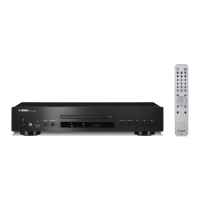
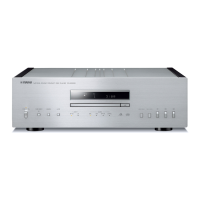
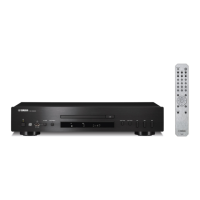
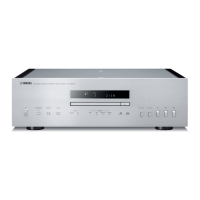
The Yamaha CD-S300 is a compact disc player designed to deliver high-quality audio playback from various sources, including audio CDs, data discs with MP3/WMA files, and iPod/USB devices. It combines traditional CD playback capabilities with modern digital media compatibility, offering a versatile listening experience.

Function Description

The primary function of the CD-S300 is to play compact discs. It supports standard audio CDs, as well as CD-R and CD-RW discs containing MP3 and WMA audio files. The player features both optical and coaxial digital outputs, allowing for flexible connection to a wide range of audio systems, including amplifiers and receivers. For analog connections, it provides RCA stereo outputs.

A key feature of the CD-S300 is its iPod/USB compatibility. Users can connect their iPod or USB mass storage class devices (such as flash memories or portable audio players) to the front-panel USB port to play MP3 and WMA files stored on these devices. This expands the player's utility beyond physical discs, catering to digital music libraries.

The player incorporates a "PURE DIRECT" mode, which enhances audio quality by turning off the digital output and the front panel display during playback. This minimizes potential noise interference from these components, resulting in a cleaner and more faithful audio reproduction. When PURE DIRECT mode is active, only essential indicators and messages are shown on the display.

Playback modes include Program Play, which allows users to create a custom sequence of up to 24 tracks from an audio CD. The unit also supports Random-Sequence Play, which shuffles the order of tracks for a varied listening experience. Repeat Play functions are available for single tracks, entire discs, or specific folders (for data discs and USB devices), enabling continuous playback of desired content. Additionally, an A-B Repeat function is available for audio CDs, allowing users to repeatedly play a specified section of a track.

The front panel display provides comprehensive information, including playback status, source type (CD, MP3, WMA), current time display (elapsed time, remaining time for track/disc/file), and playback mode indicators (Program, Random, Repeat). It also shows information like album name, artist name, and track title for CD TEXT discs and files with tag information.

Usage Features

Operating the CD-S300 is straightforward, with controls available on both the front panel and a supplied remote control. The front panel includes essential buttons for power, disc tray open/close, play, pause, stop, and track skip/search. A dedicated CD/USB button allows users to switch between CD mode and iPod/USB mode. The iPod/USB indicator changes color to show the connection status: off for CD mode, orange for connection ready, and green for playback ready.

For iPod/USB playback, users connect their device to the front port. For iPods, playback is typically controlled directly from the iPod itself, though basic functions like play, pause, stop, and skip can also be managed via the player's controls. For USB devices, filenames are displayed, and playback starts automatically by date and time of creation. Users can navigate folders and select tracks using the remote control's FOLDER and numeric buttons.

The remote control offers a full suite of functions, including direct track selection via numeric buttons, search (backward/forward), skip (backward/forward), and control over playback modes like Program, Repeat, and Random. A DIMMER button allows adjustment of the display brightness across four levels.

The CD-S300 also features "Advanced Setup" modes, which can be configured using a specific sequence of front panel buttons. These include "Play mode memory," which retains the current repeat and random playback settings even after the unit is turned off, and "Ready mode," which pauses playback after each track, allowing users to manually start the next track. These settings are particularly useful in retail or office environments where specific playback behaviors are desired.

Maintenance Features

The manual provides clear guidelines for maintaining the CD-S300 and ensuring its longevity. For general care, it recommends installing the unit in a well-ventilated, cool, dry, and clean environment, away from direct sunlight, heat sources, vibration, dust, moisture, and extreme temperatures. Adequate clearance around the unit (2.5 cm on top, rear, and sides) is advised for proper ventilation.

Cleaning the unit should be done with a clean, dry cloth, avoiding chemical solvents that could damage the finish. For compact discs, users are instructed to handle them carefully by the edges to prevent scratches and warping. Discs should be wiped clean with a dry cloth in a straight motion from the center outward, not in a circular motion. The use of disc cleaners, sprays, or chemical-based liquids is discouraged. When writing on the label side of a disc, a soft-tipped pen should be used. Discs not in use should be removed from the unit and stored in appropriate cases, and prolonged exposure to direct sunlight, high temperatures, or humidity should be avoided. The manual specifically warns against using any lens cleaners, as they may cause malfunction.

Safety instructions emphasize the importance of proper power connections and caution against user attempts to modify or repair the unit. Servicing should be referred to qualified personnel. The manual also includes a troubleshooting section to help users identify and resolve common operational issues, such as the unit not turning on, disc playback problems, or remote control malfunctions, before seeking professional assistance. This self-help guide covers issues like dirty or damaged discs, incorrect connections, and improper device compatibility.

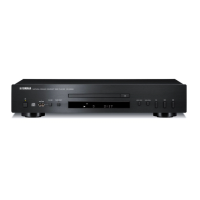
Yamaha CD-S300 Specifications

General IconGeneral
Frequency range2 - 20000 Hz
Audio formats supportedMP3, WMA
Signal-to-Noise Ratio (SNR)105 dB
Total Harmonic Distortion (THD)0.003 %
CD-RW playbackYes
Media types supportedCD, CD-R/RW
Device typeHiFi CD player
Product colorBlack
Compatible productsiPod
USB 2.0 ports quantity1
Dimensions (WxDxH)435 x 260 x 86 mm
Weight and Dimensions IconWeight and Dimensions
Depth260 mm
Width435 mm
Height86 mm
Weight3500 g

Related product manuals