EasyManua.ls Logo

Yamaha DVR-S60 - User Manual

Yamaha DVR-S60
31 pages
Print Icon
To Next Page IconTo Next Page
Loading...
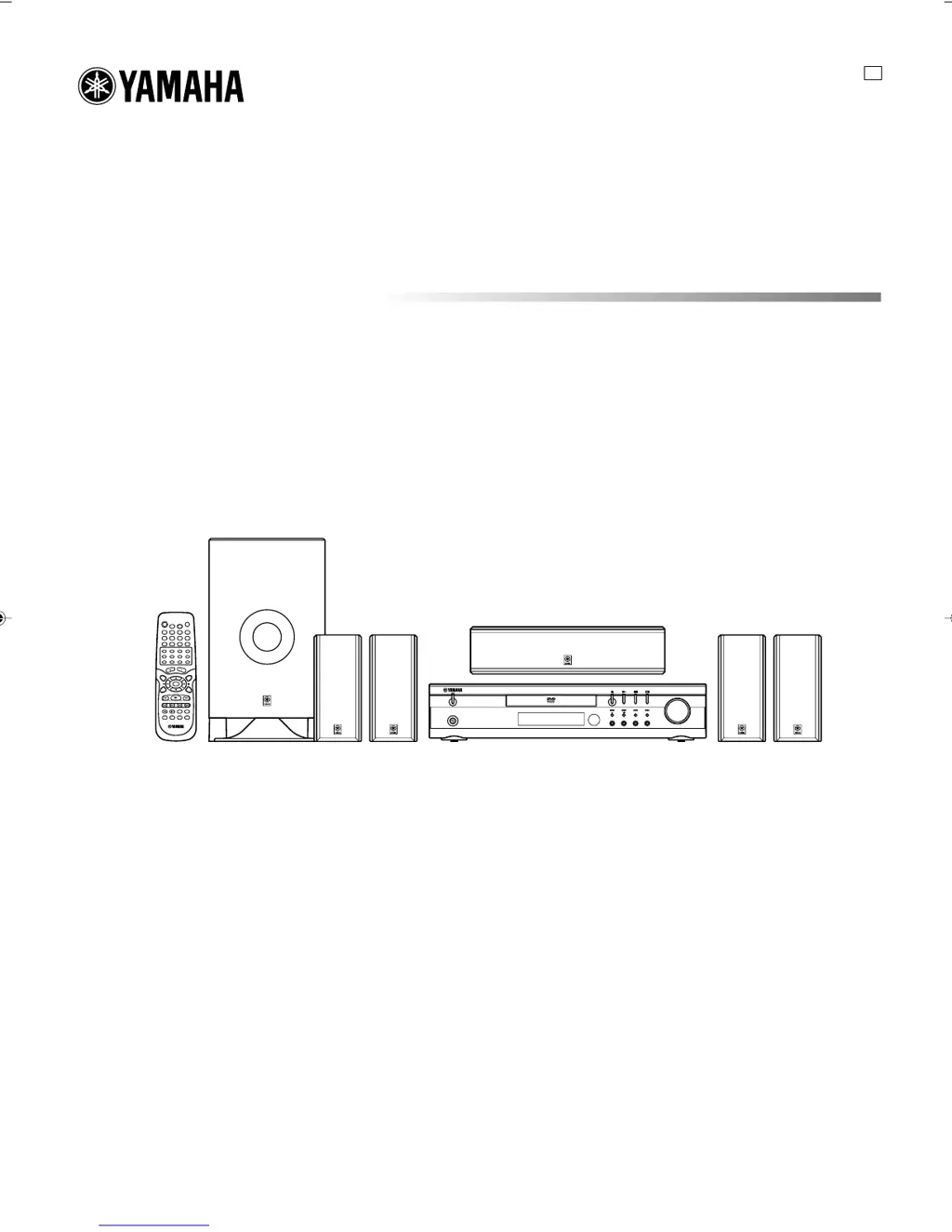
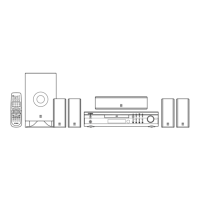
DVD HOME THEATER SOUND SYSTEM
DVX-S60
DVX-S60: DVR-S60 + NX-S60S + NX-S60C + SW-S60
U
PHONES
STANDBY/ON
FM MODE
TUNING
SURROUND BASS MUSIC INPUT
PRESET MEMORY
VOLUME
OWNER’S MANUAL
A1-60U-1 02.8.8, 3:37 PM1

Table of Contents

Questions and Answers

  • J
    jonesdarrenAug 13, 2025
    Why is there no picture on my Yamaha Home Theater System?
    • A
      alexcampbellAug 13, 2025
      There are several reasons why your Yamaha Home Theater System might not be displaying a picture. First, ensure that the correct source is selected. Also, check that a disc is loaded, and that it is a playable disc, verifying its logo, type, color system, and regional code. Finally, confirm that your TV is set to receive the signal from the unit by selecting the appropriate input function.
  • A
    Alan CaldwellAug 17, 2025
    How to fix Yamaha Home Theater System remote control that is not working?
    • J
      James DominguezAug 17, 2025
      If your Yamaha Home Theater System's remote control isn't working correctly, start by checking the batteries. Ensure they are not weak and are installed with the correct polarity (+ or –). Replace them if necessary. Also, make sure you are aiming the remote control directly at the remote control sensor on the unit.
  • D
    David RobinsonAug 20, 2025
    What to do if my Yamaha Home Theater System DVD player does not start play?
    • J
      Jessica WilliamsAug 20, 2025
      If your Yamaha Home Theater System's DVD player isn't starting, consider these potential causes: * Ensure a disc is loaded. * Verify that the loaded disc is playable, checking its logo, type, color system, and regional code. * Make sure the disc is loaded correctly, with the label side up. * Check if the disc is dirty; if so, clean or replace it. * If “PARENTAL” control is enabled, disable the parental lock function or adjust the rating level, remembering to reset it after playback.
  • G
    George MarshAug 25, 2025
    Why is there no sound from my Yamaha Home Theater System?
    • T
      Tara VegaAug 25, 2025
      If you're not getting any sound from your Yamaha Home Theater System, the issue could be that the incorrect source is selected; make sure to select the correct source. Also, check the volume control and ensure it isn't set to the minimum; increase the volume.
  • L
    Laura GarciaAug 28, 2025
    What to do if the operation or display is not normal on my Yamaha Home Theater System?
    • K
      Kenneth PatrickAug 28, 2025
      If the operation or display of your Yamaha Home Theater System is not normal, the memory may need to be reset. To do this: 1. Disconnect the power cable of the unit. 2. While pressing both the BASS and MUSIC buttons simultaneously, connect the power cable. 3. Resume operation.
  • T
    Taylor RoseAug 31, 2025
    What to do if the playback picture on my Yamaha Home Theater System is poor?
    • C
      Caroline HarveyAug 31, 2025
      If the playback picture quality on your Yamaha Home Theater System is poor, it might be due to loading an unplayable disc. Ensure you load a playable disc, and verify its compatibility by checking the disc logo, type, color system, and regional code.
  • W
    william60Sep 4, 2025
    What does it mean when “ ” appears on the TV screen connected to my Yamaha Home Theater System?
    • T
      Travis BarkerSep 4, 2025
      If you see “ ” on your TV screen while using your Yamaha Home Theater System, it indicates that the selected function is not available for the current disc. This could be because the feature is unavailable at the moment, restricted by the DVD software, or not supported by the DVD software (e.g., angles).
  • F
    Francisco RobinsonSep 8, 2025
    How to fix no picture displayed on the TV when using COMPONENT OUTPUT: PROGRESSIVE on my Yamaha Home Theater System?
    • R
      Robert CastroSep 8, 2025
      To resolve the issue of no picture displayed on the TV when using COMPONENT OUTPUT: PROGRESSIVE on your Yamaha Home Theater System, set the VIDEO OUT SELECT switch to INTERLACE, then turn the system off and on again.

Summary

Important Safety Instructions

Caution: Read This Before Operating Your System

Controls

Remote Control

Remote Control Layout

Identifies and describes the buttons and functions of the remote control.

Speaker Placement

Positioning the Speakers

Provides guidelines for positioning front, surround, center, and subwoofer speakers for optimal sound.

Mounting Front and Surround Speakers

Instructions for mounting speakers on walls or speaker stands.

Basic Connections

Speaker Connections

Detailed instructions and color coding for connecting speakers to the unit.

Antenna Connections

Instructions for connecting FM and AM antennas to the unit.

Connecting to TV with Video Pin Cable

Guide for connecting the unit to a TV using a standard video pin cable.

Additional Connection Examples

Connecting to TV with S-Video Cable

How to connect the unit to a TV using an S-video cable for better picture quality.

Connecting to TV with Component Video Cable

How to connect to a TV using component video cables for high-quality picture.

Progressive-Scan TV Connections

Guide for connecting to TVs supporting progressive scan via component video.

Basic Operation

Troubleshooting Common Issues

Troubleshooting steps for common operational or display issues.

Adjusting the Clock

Selecting the Surround Mode

Setting Up Dolby Pro Logic Mode

Detailed steps for setting up Dolby Pro Logic mode using the remote control and test tones.

Playable Discs

Disc Play

Last Memory Play (DVD)

How to save playback position and resume later.

Settings on the Set Up Menu

Common Procedures for Settings

General steps to access and navigate the setup menu.

Display Settings

Settings for TV type, component output, and progressive mode.

Parental Controls

Instructions for setting up parental lock levels, changing the password, and setting methods.

Various Disc Playing Functions

DVD Menu and Title Selection

How to access and navigate DVD main and title menus.

Disc Navigation and Search

Functions for skipping, searching by title, chapter, track, or time.

Advanced Playback Modes

Features like fast play, slow motion, pause, and frame-by-frame playback.

Selecting Subtitle Language

Selecting Audio Soundtrack Language

MP3 CD Operation

Listening to Video Sources

Listening to the Radio

Automatic and Manual Tuning

How to tune into FM or AM radio stations automatically or manually.

Timer Operation

Troubleshooting Guide

Specifications

Yamaha DVR-S60 Specifications

General IconGeneral
TypeDVD receiver
Dolby DigitalYes
DTSYes
Video outputsComposite, S-Video, Component
CD PlayerYes
Disc formatsDVD, CD, CD-R/RW
TunerAM/FM
Audio inputsAnalog, Optical
Audio outputsAnalog, Optical

Related product manuals