EasyManua.ls Logo

Yamaha MCR-B142 - User Manual

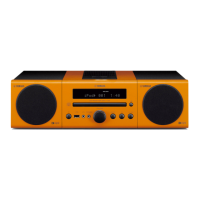
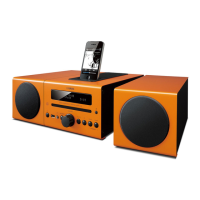
Yamaha MCR-B142
35 pages
Print Icon
To Next Page IconTo Next Page
Loading...
27
May
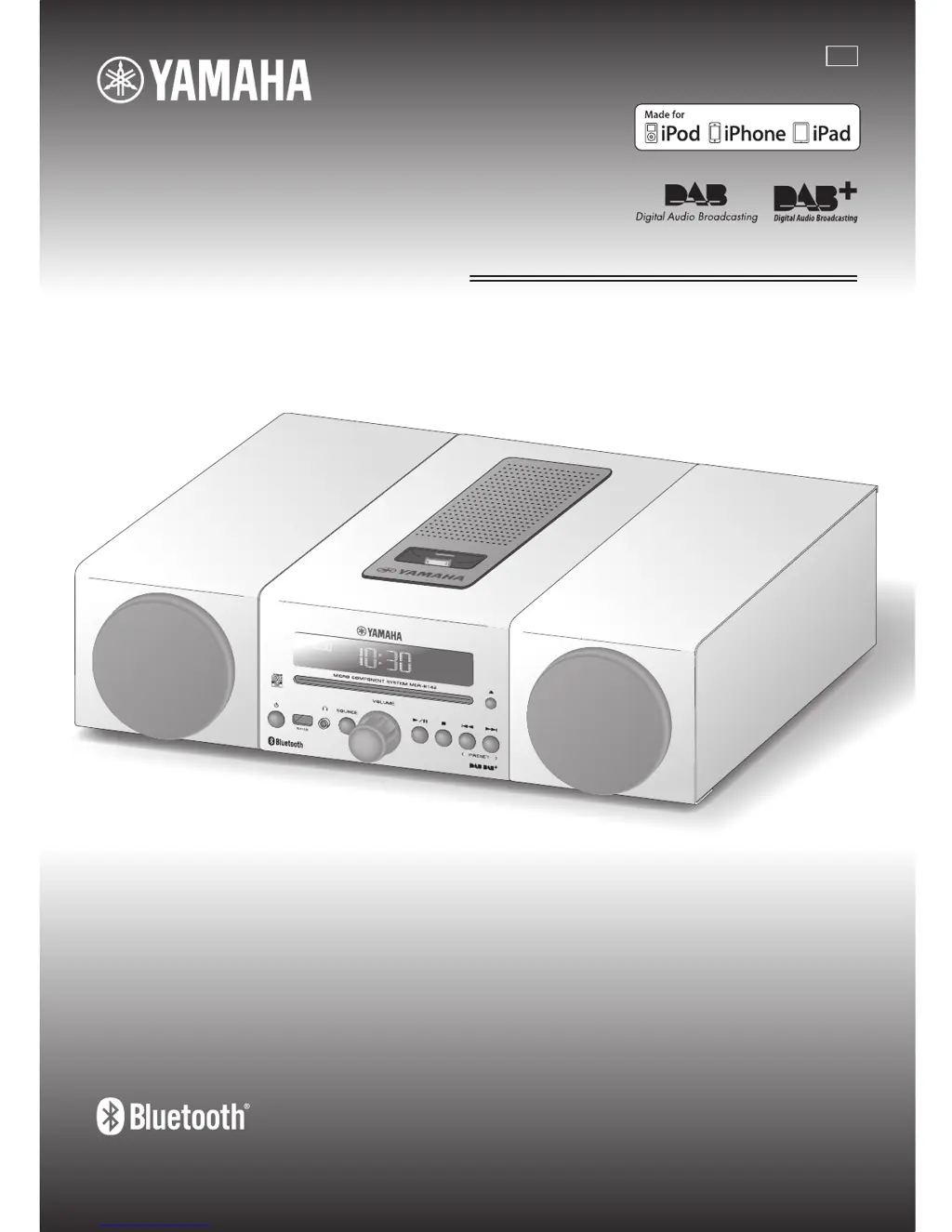
OWNER’S MANUAL
Micro Component System
MCR-B142
AB

Questions and Answers

  • C
    Christina ClarkSep 18, 2025
    Why playback does not start immediately on Yamaha Stereo System?
    • W
      whitephillipSep 19, 2025
      If playback on your Yamaha Stereo System doesn't start immediately after pressing play, or stops right away, the disc might be dirty. Wipe the disc clean. Also, ensure the disc is compatible with the unit. If the unit was moved from a cold to a warm place, condensation may have formed on the disc reading lens; wait an hour or two for the unit to adjust to room temperature and try again.
  • C
    Cassidy WarrenAug 25, 2025
    What to do if my Yamaha Stereo System sound suddenly turns off?
    • K
      Kelly RossAug 25, 2025
      If the sound on your Yamaha Stereo System suddenly turns off, it could be due to the sleep timer being set. Another possibility is that the automatic system-off function has activated. Turn the system on and play the source again.
  • J
    Jeff HernandezAug 25, 2025
    What to do if sound is cracked/distorted or there is abnormal noise on Yamaha MCR-B142 Stereo System?
    • W
      wwestAug 26, 2025
      If you are experiencing cracked or distorted sound, or abnormal noise from your Yamaha Stereo System, it could be due to excessive volume from the input source or the unit itself, especially the bass. Try adjusting the volume using the VOLUME control. If you are using an external device, lower its volume.
  • G
    Gail KelleyAug 26, 2025
    What to do if my Yamaha MCR-B142 turns the system off unexpectedly?
    • L
      lisa25Aug 27, 2025
      The automatic system-off function may be enabled on your Yamaha Stereo System. This function turns off the system automatically when the time specified for AUTO POWER OFF in the option menu has elapsed or when 60 minutes have passed without any operation after stopping USB device or CD playback.
  • L
    Laura WolfSep 23, 2025
    Why does my Yamaha MCR-B142 Stereo System display “no operation”?
    • S
      snyderpatriciaSep 23, 2025
      If the front panel display on your Yamaha Stereo System indicates “no operation,” and you can't insert or unload a disc, the option menu might be displayed, or the alarm may be playing. Press OPTION to exit the option menu, or press ALARM to stop the alarm.
  • J
    john35Sep 23, 2025
    Why does my Yamaha Stereo System say “CD No Disc” or “CD Unknown”?
    • H
      hbartlettSep 23, 2025
      If your Yamaha Stereo System displays “CD No Disc” or “CD Unknown” when you insert a disc, the disc might not be compatible. Ensure you're using a supported disc. The disc could also be dirty or have a foreign object on it; clean the disc or remove any foreign objects. Additionally, the disc may not contain playable files, or it might have been inserted upside down; insert the disc with the label facing up.
  • N
    Norma RuizSep 10, 2025
    Why has the clock setting been cleared on my Yamaha MCR-B142 Stereo System?
    • H
      Holly LynchSep 10, 2025
      If your Yamaha Stereo System clock resets, it's likely because the unit was without power for about an hour. Plug the power cable firmly back into the wall outlet and then reset the clock.
  • J
    Jesse OwensSep 12, 2025
    Why is my iPod not charging on my Yamaha MCR-B142 Stereo System?
    • S
      Susan GriffithSep 12, 2025
      If your iPod isn't charging when connected to your Yamaha Stereo System, make sure the iPod is firmly set in the iPod dock. Also, check that USB isn't selected as the audio source; choose a different source.
  • M
    Michael SuttonSep 3, 2025
    Why Yamaha MCR-B142 Stereo System alarm does not sound?
    • H
      hunterbenjaminSep 4, 2025
      If the alarm on your Yamaha Stereo System isn't sounding, the unit might be set to power saving mode. In the option menu, set POWER SAVING to NORMAL.
  • K
    Katherine GonzalezSep 1, 2025
    What causes the clock setting to be cleared on my Yamaha MCR-B142 Stereo System?
    • P
      Philip GloverSep 1, 2025
      If the clock setting on your Yamaha Stereo System has been cleared, it's likely because the unit was left for about one hour with the power cable disconnected from the wall outlet. Plug the power cable into the wall outlet firmly, and set the clock again.

Summary

General Safety Precautions

Connections

Connecting the Speakers and Antenna

Connect the supplied speakers and DAB/FM antenna to the unit for audio and broadcast reception.

iPod Connection

Connect your iPod to the iPod dock on the top panel for playback and charging.

iPad and USB Device Connection

Connect your iPad or USB device to the front panel USB port for playback and charging.

External Device Connection

Connect external audio devices via the 3.5 mm mini-plug cable to the AUX jack.

Names of Parts and Functions

Top and Front Panel Overview

Identifies and explains the functions of buttons and indicators on the unit's top and front panels.

Remote Control Functions

Details the buttons and their functions on the included remote control for system operation.

Clock Setting

Copy Clock Time from iPod

Set the unit's clock by copying the time from a connected iPod via the dock.

Set Clock Manually

Manually set the date and time for the unit's clock using the front panel controls.

Listening to Your iPod

Playing Music from Your iPod

Connect and play music from your iPod using the dock or USB port.

iPod Repeat and Shuffle Playback

Learn how to use repeat and shuffle playback modes for your iPod music.

Listening to CD and USB Devices

Playing CDs

Insert and play audio or data CDs, controlling playback with the remote or unit.

Playing USB Devices

Connect and play music files from a USB device, controlling playback via remote or unit.

Listening to Music from Bluetooth Component

Bluetooth Pairing Procedure

Register your Bluetooth device with the unit for wireless audio streaming.

Streaming Music via Bluetooth

Connect and play music wirelessly from your paired Bluetooth device.

Listening to DAB Stations

DAB Radio Preparation and Initial Scan

Connect the antenna and perform an initial scan to set up DAB radio reception.

Selecting DAB Stations

Tune into DAB stations using the remote control and view station information.

Presetting DAB Stations

Store up to 30 favorite DAB stations for quick access using the preset function.

Accessing Preset DAB Stations

Recall and listen to your stored favorite DAB stations using the preset buttons.

Listening to FM Stations

Selecting FM Stations

Tune into FM radio stations using automatic or manual tuning methods.

Presetting FM Stations

Store up to 30 favorite FM stations using auto preset or manual preset.

Listening to External Sources

Connecting External Sources

Connect external audio devices via the AUX jack for playback.

Useful Functions

Using the Option Menu

Access and adjust various system settings like dimmer, EQ, power saving, and clock/alarm.

Sleep Timer Function

Set the unit to automatically turn off after a specified period.

Setting the Alarm Function

Configure alarm settings including time, type, source, and volume for IntelliAlarm.

Managing the Alarm

Turn the alarm function on or off and understand how it operates.

DTA Controller App Integration

Troubleshooting

General Troubleshooting

Solutions for common problems like no sound, sudden shut-off, or display issues.

iPod Troubleshooting

Resolve issues related to iPod connection, charging, and playback detection.

Disc Playback Troubleshooting

Address problems with disc insertion, compatibility, and playback errors.

USB Device Playback Troubleshooting

Troubleshoot issues with USB device recognition, file playback, and power.

Bluetooth Connection Issues

Resolve problems with pairing, connection, and sound interruption for Bluetooth.

DAB Reception Problems

Troubleshoot issues with tuning, signal strength, and information display for DAB.

FM Reception Issues

Address noise, weak signals, and distorted sound during FM reception.

Remote Control Problems

Troubleshoot issues with the remote control's operation and range.

Disc and USB Device Compatibility

CD Information and Handling

Details compatible CD formats, handling precautions, and playback limitations.

USB Device Information

Specifies compatible USB devices, formats, and connection restrictions.

System Specifications

Player and Amplifier Specifications

Lists technical details for the iPod, iPhone, iPad, CD, and Amplifier sections.

Tuner and Speaker Specifications

Details specifications for the Tuner, Speaker, USB, and Bluetooth sections.

Bluetooth Technology and Usage

Safety and Laser Warnings

Warranty Information

Yamaha MCR-B142 Specifications

General IconGeneral
Bass reflexYes
Speaker type-
Frequency range50 - 20000 Hz
RMS rated power30 W
Woofer diameter110 mm
Total Harmonic Distortion (THD)0.07 %
Subwoofer driver diameter (imperial)4.5 \
TypeHome audio micro system
Cassette deckNo
Product colorYellow
Number of optical discs1 discs
Disc types supportedCD
Playback disc formatsCD audio
Audio formats supportedMP3, WMA
Supported radio bandsFM
Preset stations quantity30
Bluetooth version2.1+EDR
Speaker depth250.5 mm
Speaker power15 W
Speaker width129 mm
Speaker height125.5 mm
Apple docking compatibilityiPad, iPhone, iPod
Headphone connectivity3.5 mm
USB 2.0 ports quantity1

Related product manuals