EasyManua.ls Logo

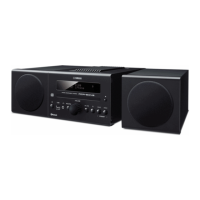
Yamaha MCR-B043D - User Manual

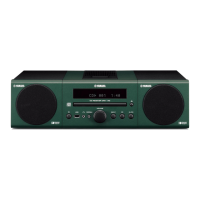
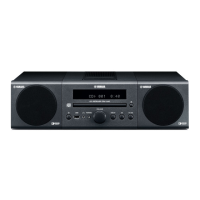
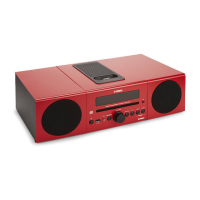
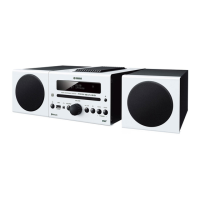
Yamaha MCR-B043D
32 pages
Print Icon
To Next Page IconTo Next Page
Loading...
AB
OWNER'S MANUAL
Micro Component System
MCR-B043D

Questions and Answers

  • M
    Monica GibbsAug 18, 2025
    What to do if my Yamaha Stereo System remote control does not work properly?
    • T
      trevorgarciaAug 18, 2025
      If the remote control isn't working, make sure you are within its operational range and that there are no obstacles between the remote control and the unit. Also, the remote control signal receiver on the unit may be exposed to direct sunlight or specific lighting. Try changing the lighting or the unit's orientation. Finally, the battery might be worn out, so replace it with a new one.
  • K
    Kevin McculloughAug 20, 2025
    What to do if my Yamaha MCR-B043D sound suddenly turns off?
    • M
      Makayla PorterAug 20, 2025
      If the sound suddenly turns off, the sleep timer may be activated. Also, the auto power standby function might have turned the unit off automatically. This happens when the time specified for AUTO PWR STDBY in the option menu has elapsed or when 20 minutes have passed without operation after stopping USB device or CD playback. Turn the unit on and play the source again.
  • R
    Rebekah MathisAug 23, 2025
    Why can't I establish a Bluetooth connection on my Yamaha Stereo System?
    • A
      Anthony MooreAug 23, 2025
      If you can't establish a Bluetooth connection, it might be because the unit isn't registered on the other component’s Bluetooth connection list. Also, check that BLUETOOTH is set to ON in the option menu.
  • J
    Jacob HernandezAug 26, 2025
    What to do if my Yamaha MCR-B043D sound is cracked/distorted or there is abnormal noise?
    • C
      cody44Aug 26, 2025
      If you are experiencing cracked or distorted sound, or noticing abnormal noise, it could be due to excessive volume from the input source or the unit itself, especially the bass. Try adjusting the volume using the VOLUME control. If using an external device, reduce its volume level.
  • D
    Donald WallaceAug 28, 2025
    What to do if my Yamaha MCR-B043D Stereo System unit does not operate properly?
    • E
      Emily HatfieldAug 28, 2025
      If the unit isn't operating correctly, it might have experienced a strong electrical shock, like lightning, or excessive static electricity, or the power supply may have dropped. Try restarting the unit by holding down the power button for about 10 seconds.
  • M
    mccormickmichaelAug 30, 2025
    What to do if MP3/WMA file in the USB device does not play on my Yamaha MCR-B043D?
    • J
      joerubioAug 30, 2025
      If MP3/WMA files in the USB device do not play, the USB device may not be recognized or the USB device does not contain playable files. Turn the unit off and reconnect the USB device to the unit.
  • Q
    qroySep 1, 2025
    Why is there too much noise coming from my Yamaha MCR-B043D?
    • S
      Sarah PotterSep 1, 2025
      Excessive noise could be due to an improperly connected antenna. Ensure the antenna is connected correctly. Also, the antenna might be too close to the unit or another electronic device. Try positioning it farther away.
  • K
    Kelly LaraSep 3, 2025
    What to do if my Yamaha Stereo System alarm does not sound?
    • N
      Nichole CarrSep 3, 2025
      If the alarm isn't sounding, the unit might be set to ECO standby. Set POWER SAVING to NORMAL in the option menu.
  • J
    Joseph JonesSep 6, 2025
    Why can't I make my Yamaha Stereo System paired with the other component?
    • J
      Joseph SanchezSep 6, 2025
      If you cannot pair this unit with another component, it may be because the other component does not support A2DP. The Bluetooth adaptor that you want to pair with this unit may have a password other than “0000”. This unit and the other component may be too far apart. There may be a device (microwave oven, wireless LAN, etc.) that outputs signals in the 2.4 GHz frequency band nearby. Also, check that BLUETOOTH is set to ON in the option menu.
  • R
    Roberto CurtisSep 8, 2025
    What to do if when I insert a disc, the front panel display indicates “CD No Disc” or “CD Unknown” on my Yamaha MCR-B043D?
    • J
      Judith TurnerSep 8, 2025
      If the display shows “CD No Disc” or “CD Unknown”, the disc may not be compatible, dirty, or have a foreign object on it. Also, the disc may not contain playable files or was inserted upside down. Use a supported disc, wipe the disc clean and insert the disc with the label facing upward.

Summary

Safety Warnings

Operating Precautions

Important guidelines for safe and proper operation of the unit, covering installation and usage.

Product Features

Key Functionalities

Highlights core features including Bluetooth, DAB radio, and advanced alarm functions.

About This Manual

Manual Conventions

Explains symbols and conventions used throughout the manual for clarity and understanding.

Names of Parts and Functions

Front Panel Overview

Identifies and describes the controls and indicators on the unit's front panel.

Front Panel Display Guide

Explains the information and indicators displayed on the unit's front display.

Remote Control Functions

Details the buttons and their functions on the included remote control unit.

Connections

Connecting Speakers and Antenna

Instructions for connecting the audio system's speakers and the DAB/FM antenna.

Connecting the Power Cable

Procedure for connecting the unit to an AC power outlet.

Other Connections

Details connections for USB devices and external audio sources via the AUX input.

Standby State Modes

Explains the different standby modes (ECO and Normal) and their configuration.

Adjusting the Clock (Option Menu)

Setting Date and Time

Step-by-step guide to setting the unit's internal clock and date via the option menu.

Listening to CD and USB Devices

Listening to a CD

Instructions for playing audio CDs and data CDs, including insertion and playback.

Folder Navigation

How to navigate through folders on data CDs and USB devices using the remote.

Displaying Playback Information

Shows how to view track, album, and artist details during playback on the front display.

Listening to a USB Device

Procedure for playing music files from a connected USB device.

Repeat and Shuffle Playback

Settings for repeat and shuffle playback modes applicable to CD and USB media.

Listening via Bluetooth

Playing Back from Bluetooth Component

Steps to pair and play music wirelessly from a Bluetooth-enabled device.

Connecting Paired Component

How to quickly reconnect to an already paired Bluetooth device.

Disconnecting Bluetooth Connection

Methods to safely disconnect an active Bluetooth wireless connection.

Listening to DAB Stations

Preparing for DAB Reception

Instructions to connect the antenna and prepare the unit for DAB tuning.

Performing Initial Scan

How to perform the initial scan to find receivable DAB stations.

Selecting DAB Stations

Methods for tuning into and selecting available DAB radio stations.

Presetting DAB Stations

Procedure to store favorite DAB stations for quick access using preset memory.

Deleting Stored DAB Presets

How to remove preset DAB stations from the unit's memory.

Selecting Preset DAB Stations

How to recall and listen to previously stored DAB radio stations.

Checking DAB Signal Strength

Using the Tune Aid feature to check and optimize signal quality for DAB stations.

Listening to FM Stations

Selecting an FM Station

Instructions for tuning into FM radio stations using automatic or manual methods.

Presetting FM Stations

How to store favorite FM stations for quick recall using preset memory.

Deleting Stored FM Presets

Procedure to remove preset FM stations from the unit's memory.

Selecting Preset FM Stations

How to access and listen to previously stored FM radio stations.

Listening to External Sources

Connecting External Devices via AUX

Steps to connect and play audio from external devices using the AUX input jack.

Useful Functions

Using the Option Menu

Guide to accessing and navigating the unit's option menu for various settings.

Using the Sleep Timer

How to set the unit to automatically turn off after a specified period.

Using the Alarm Function (IntelliAlarm)

Setting up the alarm with various audio sources or internal beep sounds.

Setting the Alarm

Detailed steps for configuring alarm time, type, source, and volume.

Managing Alarm On;Off

How to switch the alarm feature on or off and handle alarm sounds.

Troubleshooting

General Operation Problems

Solutions for common issues like no sound, distorted sound, or unit not operating.

CD Playback Issues

Troubleshooting steps for problems with CD insertion, compatibility, and playback.

USB Device Playback Issues

Solutions for problems with USB device recognition, compatibility, and file playback.

Bluetooth Connectivity Issues

Resolving problems related to Bluetooth pairing, connection, and audio playback.

DAB Reception Problems

Diagnosing and fixing issues with tuning into DAB stations, signal strength, and information.

FM Reception Problems

Troubleshooting common problems with FM radio reception, noise, and signal quality.

Remote Control Issues

Solutions for problems with the remote control not working properly, including range and battery.

Notes on Discs and USB Devices

CD Compatibility and Handling

Important notes on compatible CD types, handling discs, and proper care.

USB Device Compatibility

Information on compatible USB devices, mass storage class requirements, and file systems.

MP3 and WMA File Playback

Details on supported bitrates, sampling frequencies, and file limits for MP3/WMA playback.

Specifications

Player Section Specifications

Technical details for the CD, USB, and Bluetooth playback sections of the unit.

Tuner Section Specifications

Technical details for the DAB and FM radio tuner sections, including tuning ranges.

Speaker Section Specifications

Technical details regarding the speaker system, driver size, and response.

General and Power Specifications

General specifications including power supply, consumption, dimensions, and weight.

Guarantee Information

EEA and Switzerland Warranty

Details on warranty service and contact information for customers in the EEA and Switzerland.

Yamaha MCR-B043D Specifications

General IconGeneral
Wi-FiNo
BluetoothYes
Bluetooth version3.0+HS
Speaker depth251 mm
Speaker width129 mm
Speaker height126 mm
Bluetooth profilesA2DP, AVRCP
DAB III band range174 - 240 MHz
Apple docking compatibilityNot supported
Type-
Product colorGreen
Number of optical discs1 discs
Disc types supportedCD, CD-R, CD-RW
Playback disc formatsCD audio
Audio formats supportedMP3, WMA
FM band range87.5 - 108 MHz
Supported radio bandsDAB, DAB+, FM
Preset stations quantity60
Headphone outputs1
Headphone connectivity3.5 mm
Frequency range50 - 20000 Hz
RMS rated power30 W
Woofer diameter110 mm
Number of speakers2
Total Harmonic Distortion (THD)0.07 %
Volume controlRotary
Power sourceAC
Input voltage230 V
Input frequency50 Hz
Power consumption (standby)0.5 W
Weight and Dimensions IconWeight and Dimensions
Main unit weight2600 g
Main unit dimensions (WxDxH)180 x 276 x 130 mm

Related product manuals