EasyManua.ls Logo

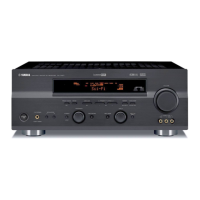
Yamaha RX-V559 - User Manual

Yamaha RX-V559
118 pages
Print Icon
To Next Page IconTo Next Page
Loading...
YAMAHA ELECTRONICS CORPORATION, USA
6660 ORANGETHORPE AVE., BUENA PARK, CALIF. 90620, U.S.A.
YAMAHA CANADA MUSIC LTD.
135 MILNER AVE., SCARBOROUGH, ONTARIO M1S 3R1, CANADA
YAMAHA ELECTRONIK EUROPA G.m.b.H.
SIEMENSSTR. 22-34, 25462 RELLINGEN BEI HAMBURG, GERMANY
YAMAHA ELECTRONIQUE FRANCE S.A.
RUE AMBROISE CROIZAT BP70 CROISSY-BEAUBOURG 77312 MARNE-LA-VALLEE CEDEX02, FRANCE
YAMAHA ELECTRONICS (UK) LTD.
YAMAHA HOUSE, 200 RICKMANSWORTH ROAD WATFORD, HERTS WD18 7GQ, ENGLAND
YAMAHA SCANDINAVIA A.B.
J A WETTERGRENS GATA 1, BOX 30053, 400 43 VÄSTRA FRÖLUNDA, SWEDEN
YAMAHA MUSIC AUSTRALIA PTY, LTD.
17-33 MARKET ST., SOUTH MELBOURNE, 3205 VIC., AUSTRALIA
©
2006 All rights reserved.
RX-V559
Printed in Malaysia WG73470
RX-V559
AV Receiver
Ampli-tuner audio-vidéo
OWNER’S MANUAL
MODE D’EMPLOI
BEDIENUNGSANLEITUNG
BRUKSANVISNING
GEBRUIKSAANWIJZING
ИНСТРУКЦИЯ ПО ЭКСПЛУАТАЦИИ
G
RX-V559_G_cv.fm Page 1 Tuesday, November 22, 2005 3:43 PM

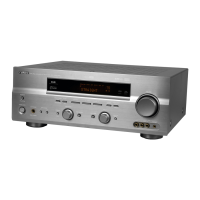
Table of Contents

Other manuals for Yamaha RX-V559

Questions and Answers

  • D
    Douglas SotoAug 16, 2025
    Why is no sound heard from the subwoofer of my Yamaha RX-V559 Receiver?
    • T
      Troy MillerAug 16, 2025
      If you're not getting any sound from the subwoofer connected to your Yamaha Receiver, check the “LFE/BASS OUT” setting in the “SET MENU”. If it's set to “FRNT” while playing a Dolby Digital or DTS signal, change it to “SWFR”. Also, if it's set to “SWFR” or “FRNT” when playing a 2-channel source, set it to “SWFR”.
  • M
    Monique Williams DVMAug 19, 2025
    What to do if my Yamaha RX-V559 Receiver fails to turn on?
    • T
      Timothy BrightAug 19, 2025
      If your Yamaha Receiver fails to turn on or enters standby mode shortly after being powered on, there are several potential causes. First, ensure the power cable is securely connected. If that's not the issue, check that the speaker impedance setting is correct for your speakers. Another possibility is that the protection circuitry has been activated; in this case, ensure all speaker wire connections are secure and that no wires are touching anything other than their respective connections. Finally, if the unit has been exposed to a strong electric shock, set it to standby mode, disconnect the power cable, wait 30 seconds, and then plug it back in.
  • B
    Brandy HenryAug 23, 2025
    What to do if my Yamaha RX-V559 Receiver sound suddenly goes off?
    • L
      Lori HoganAug 23, 2025
      If the sound from your Yamaha Receiver suddenly cuts out, it could be due to a few reasons. The protection circuitry might have been activated due to a short circuit, so check that the speaker impedance setting is correct. Alternatively, the sleep timer may have turned the unit off; if so, turn the unit back on and resume playback. Lastly, ensure the sound isn't muted by pressing MUTE or VOLUME +/– on the remote control to resume audio output.
  • M
    Ms. Cynthia Oconnor DVMAug 27, 2025
    How to fix a humming sound on my Yamaha RX-V559 Receiver?
    • S
      schmidtkellyAug 27, 2025
      A humming sound from your Yamaha Receiver often indicates incorrect cable connections. Ensure that all audio cables are firmly connected. If the humming persists, the cables themselves may be defective and require replacement.
  • D
    Dana RodriguezAug 31, 2025
    What to do if my Yamaha RX-V559 suddenly enters standby mode?
    • M
      Mark GoldenAug 31, 2025
      If your Yamaha Receiver suddenly enters standby mode, it's likely because the internal temperature has become too high, activating the overheat protection circuitry. To resolve this, wait about 1 hour for the unit to cool down, and then turn it back on.
  • A
    Andrew WestSep 3, 2025
    What to do if Dolby Digital or DTS sources cannot be played on my Yamaha Receiver?
    • D
      Daniel ArnoldSep 3, 2025
      If your Yamaha Receiver isn't playing Dolby Digital or DTS sources (and the Dolby Digital or DTS indicator isn't lit), first ensure that the connected component is set to output Dolby Digital or DTS digital signals by checking its operating instructions. Also, verify that the “INPUT MODE” on your receiver is set to “AUTO” or “DTS”, and not “ANALOG”.
  • M
    Mrs. Robin WagnerSep 7, 2025
    What causes my Yamaha RX-V559 to not operate properly?
    • J
      Jason MartinSep 7, 2025
      If your Yamaha Receiver isn't operating correctly, it could be due to the internal microcomputer freezing from an external electric shock (like lightning or static electricity) or a low-voltage power supply. Try disconnecting the power cable from the AC wall outlet, waiting about 30 seconds, and then plugging it back in.
  • K
    Kimberly WhiteNov 11, 2025
    Why does my Yamaha RX-V559 Receiver have no sound?
    • M
      Mitchell JohnsonNov 11, 2025
      If your Yamaha Receiver isn't producing sound, several factors could be at play. First, check all input and output cable connections to ensure they are properly connected; the cables themselves may be defective. Next, verify that you've selected the correct input source using the INPUT selector on the front panel or the input selector buttons on the remote control, as well as MULTI CH INPUT on the front panel or MULTI CH IN on the remote. Also, ensure the correct set of front speakers is selected via SPEAKERS A or B on the front panel or SPEAKERS on the remote. Finally, check that the volume isn't turned down or muted. If muted, press MUTE or VOLUME +/– on the remote to restore audio output, then adjust the volume. Also, if you are playing a source encoded in DTS, ensure that “INPUT MODE” ...

Summary

Features

Getting Started

Supplied accessories

Lists items included with the unit.

Installing batteries in the remote control

Step-by-step guide to insert batteries.

Controls and Functions

Front panel

Identifies and describes buttons and indicators on the unit's front.

Remote control

Identifies and describes buttons on the remote control.

Rear panel

Identifies and describes rear panel connections and terminals.

Connections

Placing speakers

Explains optimal speaker placement for surround sound.

Connecting speakers

Details how to connect speaker cables to the unit.

Information on jacks and cable plugs

Explains various audio and video jack types and their connections.

Connecting a TV

Illustrates how to connect the unit's output to a TV.

Connecting a DVD player, a DVD recorder, a VCR or an STB

Guides connecting video sources like DVD players.

Connecting a CD player, an MD player or a tape deck

Shows how to connect audio sources like CD players.

Connecting a YAMAHA iPod universal dock

Guide for connecting and using an iPod dock.

Connecting the FM and AM antennas

Instructions for connecting indoor and outdoor antennas.

Connecting the power cable

Step-by-step guide to connect the power cord.

Setting the speaker impedance

How to set speaker impedance for optimal performance.

Turning on and off the power

Procedure for powering the unit on and off.

Basic Setup

Playback

Using Audio Features

Using SILENT CINEMA

Enjoying multi-channel sound through headphones.

Selecting the night listening mode

Adjusts sound for low-volume listening.

Selecting the input mode

Choose signal type (AUTO, DTS, ANALOG).

Adjusting the speaker level

Balances output levels for each speaker.

Selecting the Compressed Music Enhancer mode

Improves sound quality of compressed audio.

Enjoying pure hi-fi stereo sound

Bypasses decoders for pure 2-channel PCM/analog sound.

Using Video Features

Displaying the input source information

Shows signal format, sampling frequency, etc.

Selecting the OSD mode

Controls on-screen display settings for menus.

Enjoying Surround Sound

Enjoying multi-channel sources in surround

Enables 6.1-channel playback with surround back speakers.

Using Virtual CINEMA DSP

Creates virtual surround effects without rear speakers.

Recording

FM;AM Tuning

Automatic tuning

Tunes to strong stations automatically.

Manual tuning

Tunes to stations manually, useful for weak signals.

Automatic preset tuning

Stores strong FM stations automatically.

Manual preset tuning

Stores up to 40 stations manually.

Exchanging preset stations

Swaps assignments of two preset stations.

Radio Data System Tuning (U.K. and Europe Models Only)

Selecting the Radio Data System program

Searches for stations by program type.

Displaying the Radio Data System information

Shows PS, PTY, RT, CT data from stations.

Sound Field Programs

Selecting sound field programs

Choose DSP programs to enhance audio experience.

Sound field program descriptions

Details features and sources for various DSP programs.

Changing sound field parameter settings

Adjusts DSP program parameters for custom sound.

Sound field program speaker layouts

Shows speaker output for each program type.

Set Menu

Sound menu

Manually adjusts speaker settings, sound quality, and tone.

Input menu

Reassigns jacks, selects input mode, or renames sources.

Option menu

Adjusts optional system parameters like display and memory.

Signal information

Checks audio signal details like format and sampling rate.

Advanced Setup

Speaker impedance

Sets unit impedance to match speakers.

Factory presets

Resets all parameters to initial factory settings.

Remote control AMP ID

Sets AMP ID for remote control recognition.

Remote control TUNER ID

Sets TUNER ID for remote control recognition.

Remote Control Features

Controlling this unit, a TV, or other components

Explains how to control the unit and other devices.

Controlling other components

Details remote control operations for various source types.

Setting the remote control code

Assigns codes to control components via remote.

Setting library codes

Selects codes for AMP/TUNER remote control identification.

Resetting all remote control codes

Clears all set codes to factory defaults.

Using Multi-Zone Configuration

Connecting Zone 2

Sets up a multi-zone audio system.

Controlling Zone 2

Operates Zone 2 using front panel or remote controls.

Using iPod

Setting the remote control code

Assigns remote control code for iPod V-AUX input.

Controlling iPod

Operations for controlling the iPod.

Controlling iPod using the OSD

Advanced iPod operations via on-screen display.

Resetting the System

Troubleshooting

General

General problems and their remedies.

Tuner

Troubleshooting for FM/AM reception issues.

Remote control

Troubleshooting for remote control malfunctions.

iPod

Troubleshooting iPod connection and playback issues.

Glossary

Audio information

Definitions of audio technologies and formats.

Video information

Definitions of video signal types and terms.

Sound field program information

Explains DSP modes like CINEMA DSP.

Specifications

Yamaha RX-V559 Specifications

General IconGeneral
Amplifier TypeDiscrete
Channels7.1
Total Harmonic Distortion (THD)0.06%
Frequency Response10 Hz - 100 kHz
Signal-To-Noise Ratio100 dB
Input Sensitivity/Impedance200 mV/47 kOhms
Audio D/A Converter192 kHz/24-bit
Surround Sound EffectsYes
Sound EffectsYes
Tuner BandsAM/FM
Preset Station Qty40
Built-in DecodersDolby Digital, DTS
Tuning RangeFM: 87.5-108MHz, AM: 530-1710kHz
Digital Audio InputsOptical, Coaxial
Connector TypeBanana plug
Dimensions (W x H x D)435 x 171 x 463mm

Related product manuals