EasyManua.ls Logo

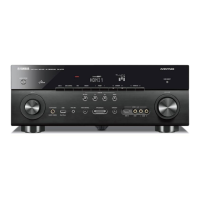
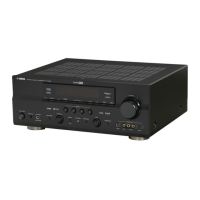
Yamaha RX-V659 - User Manual

Yamaha RX-V659
132 pages
Print Icon
To Next Page IconTo Next Page
Loading...
YAMAHA ELECTRONICS CORPORATION, USA
6660 ORANGETHORPE AVE., BUENA PARK, CALIF. 90620, U.S.A.
YAMAHA CANADA MUSIC LTD.
135 MILNER AVE., SCARBOROUGH, ONTARIO M1S 3R1, CANADA
YAMAHA ELECTRONIK EUROPA G.m.b.H.
SIEMENSSTR. 22-34, 25462 RELLINGEN BEI HAMBURG, GERMANY
YAMAHA ELECTRONIQUE FRANCE S.A.
RUE AMBROISE CROIZAT BP70 CROISSY-BEAUBOURG 77312 MARNE-LA-VALLEE CEDEX02, FRANCE
YAMAHA ELECTRONICS (UK) LTD.
YAMAHA HOUSE, 200 RICKMANSWORTH ROAD WATFORD, HERTS WD18 7GQ, ENGLAND
YAMAHA SCANDINAVIA A.B.
J A WETTERGRENS GATA 1, BOX 30053, 400 43 VÄSTRA FRÖLUNDA, SWEDEN
YAMAHA MUSIC AUSTRALIA PTY, LTD.
17-33 MARKET ST., SOUTH MELBOURNE, 3205 VIC., AUSTRALIA
©
2006 All rights reserved.
RX-V659
Printed in Malaysia WG73740
RX-V659
AV R e c e i ve r
OWNER’S MANUAL
U
RX-V659_U_cv.fm Page 1 Wednesday, November 23, 2005 11:09 AM

Table of Contents

Questions and Answers

  • M
    Michelle BryantNov 28, 2025
    How to fix no sound on Yamaha Receiver?
    • M
      Mary SimpsonNov 28, 2025
      If there is no sound from your Yamaha Receiver, there might be a few reasons: 1. Check the cable connections, they might be incorrect. If the problem persists, the cables may be defective, so connect the cables properly. 2. You may not have selected the appropriate input source. Select an appropriate input source using the INPUT selector on the front panel (or the input selector buttons on the remote control) and MULTI CH INPUT on the front panel (or MULTI CH IN on the remote control). 3. Ensure the front speakers are properly selected using SPEAKERS A and/or B on the front panel or SPEAKERS on the remote control. 4. The volume could be turned down. Turn up the volume. 5. The sound might be muted. Press MUTE or VOLUME +/– on the remote control to resume audio output and then adjust t...
  • J
    Julia MitchellAug 23, 2025
    Why does the sound suddenly go off on my Yamaha Receiver?
    • A
      April RuizAug 25, 2025
      If the sound suddenly cuts off on your Yamaha Receiver, consider these potential causes: 1. The protection circuitry may have been activated due to a short circuit. Check that the speaker impedance setting is correct. 2. The sleep timer might have turned off the unit. Turn on the unit and play the source again. 3. The sound could be muted. Press MUTE or VOLUME +/– on the remote control to resume audio output.
  • K
    kgravesAug 25, 2025
    What to do if my Yamaha Receiver fails to turn on?
    • C
      cooperselenaAug 25, 2025
      If your Yamaha Receiver fails to turn on or enters standby mode soon after being powered on, ensure the power cable is firmly connected. An incorrect speaker impedance setting can also cause this, so set it to match your speakers. Check speaker wire connections to ensure they are secure and not touching anything else, as the protection circuitry might be activated. If the unit has experienced a strong electric shock, set it to standby, disconnect the power cable, wait 30 seconds, and then reconnect it.
  • A
    Amanda MoonAug 26, 2025
    Why does my Yamaha Receiver suddenly enter standby mode?
    • C
      Christopher MillerAug 27, 2025
      If your Yamaha Receiver suddenly goes into standby mode, it could be due to the internal temperature becoming too high, which activates the overheat protection circuitry. To resolve this, wait about 1 hour for the unit to cool down before turning it back on.
  • J
    Jennifer AdkinsAug 27, 2025
    Why is my Yamaha Receiver remote control not working?
    • P
      Phillip BerryAug 27, 2025
      If your Yamaha Receiver's remote control isn't working properly, ensure you are within a maximum range of 6 meters and no more than 30 degrees off-axis from the front panel. Reposition the unit if direct sunlight or lighting is striking the remote control sensor. Check if the remote control code is correctly set, referring to the “LIST OF REMOTE CONTROL CODES”. Also, verify that the library code of the remote control and the remote control ID of this unit match; try setting another code for the same manufacturer using the “LIST OF REMOTE CONTROL CODES”.
  • J
    Jessica KellySep 18, 2025
    Why is my Yamaha RX-V659 humming?
    • I
      ian34Sep 18, 2025
      If you are hearing a humming sound from your Yamaha Receiver, it may be due to incorrect cable connections. Connect the audio cables firmly; if the problem persists, the cables may be defective.
  • L
    Lisa WarnerSep 14, 2025
    How to eliminate crackling noises from Yamaha Receiver?
    • K
      Katie BrownSep 15, 2025
      If you hear continuous crackling and hissing noises from your Yamaha Receiver, these noises may result from lightning, fluorescent lamps, motors, thermostats, and other electrical equipment. To mitigate this, use an outdoor antenna and a ground wire.
  • S
    Sabrina AndersonSep 16, 2025
    Why can't I play Dolby Digital or DTS sources on my Yamaha RX-V659 Receiver?
    • J
      James WadeSep 16, 2025
      If Dolby Digital or DTS sources cannot be played on your Yamaha Receiver (the Dolby Digital or DTS indicator in the front panel display does not light up), ensure that the connected component is set to output Dolby Digital or DTS digital signals by following its operating instructions. Also, check that “INPUT MODE” is set to “AUTO” or “DTS”, and not “ANALOG”.
  • B
    Beth Russell MDSep 7, 2025
    How to stop humming sound on Yamaha RX-V659?
    • J
      Jennifer ParkSep 7, 2025
      If you hear a humming sound from your Yamaha Receiver, it may be due to incorrect cable connections. Connect the audio cables firmly. If the problem persists, the cables may be defective.
  • C
    Charles GrossSep 4, 2025
    What does 'CHECK SP WIRES' mean on Yamaha RX-V659 Receiver?
    • K
      Kevin BennettSep 4, 2025
      If “CHECK SP WIRES” appears on your Yamaha Receiver's front panel display, it indicates that the speaker cables are short-circuited. To resolve this, make sure all speaker cables are connected correctly.

Summary

IMPORTANT SAFETY INSTRUCTIONS

Explanation of Graphical Symbols

Explains symbols used in the manual to alert users to potential hazards or important information.

FEATURES

Amplifier and Tuner Features

Highlights the unit's power amplifier capabilities and sophisticated AM/FM tuner functions.

Audio Processing and Connectivity Features

Details sound field programs, XM Radio support, iPod control, and other advanced features.

GETTING STARTED

Supplied Accessories and Remote Control Setup

Lists package contents and provides instructions for installing remote control batteries.

CONTROLS AND FUNCTIONS

Front Panel Controls

Details the buttons, jacks, and displays on the front panel of the unit.

CONTROLS AND FUNCTIONS

Remote Control Functions

Explains the functions of each button on the remote control.

CONTROLS AND FUNCTIONS

Front Panel Display Indicators

Details the various indicators and their meanings on the front panel display.

CONTROLS AND FUNCTIONS

Rear Panel Connections

Identifies and describes the various jacks and terminals on the rear panel of the unit.

CONNECTIONS

Speaker Placement and Connection Basics

Provides guidelines for speaker placement and basic connection principles.

CONNECTIONS

Audio and Video Jacks and Cable Plugs

Explains the different types of audio and video jacks and their corresponding cable plugs.

CONNECTIONS

Connecting a TV

Illustrates how to connect the unit to a television using various video outputs.

CONNECTIONS

Connecting Video Sources (DVD, VCR, STB)

Details how to connect DVD players, recorders, VCRs, and set-top boxes.

CONNECTIONS

Connecting Audio Sources (CD, MD, Tape, Turntable)

Explains how to connect CD players, MD players, tape decks, and turntables.

CONNECTIONS

Connecting iPod via Universal Dock

Guides users on connecting a YAMAHA iPod universal dock for iPod playback.

CONNECTIONS

Connecting External Amplifiers and Power Cable

Explains connecting external amplifiers and the power cable, plus speaker impedance setup.

CONNECTIONS

Connecting Multi-Channel Sources

Details connecting multi-channel sources like players or decoders to MULTI CH INPUT jacks.

CONNECTIONS

Connecting Game Consoles and Portable Devices

Guides connecting game consoles, video cameras, or portable audio players via front panel VIDEO AUX jacks.

CONNECTIONS

Connecting FM and AM Antennas

Explains how to connect the supplied indoor FM and AM antennas.

CONNECTIONS

Power Cable and Voltage Selector

Instructions for plugging the power cable into the AC wall outlet and setting the voltage selector.

CONNECTIONS

Setting Speaker Impedance

Explains how to set the speaker impedance to match the connected speakers (4 or 6 ohm).

CONNECTIONS

Powering the Unit On and Off

Provides instructions for turning the main unit and the main zone on and off.

AUTO SETUP

Optimizer Microphone Connection and Placement

Explains how to connect and position the optimizer microphone for the auto setup process.

PLAYBACK

Basic Playback Operations

Outlines the basic steps to start playing audio and video sources.

USING AUDIO FEATURES

SILENT CINEMA for Headphones

Explains SILENT CINEMA for enjoying multi-channel sound through headphones.

USING AUDIO FEATURES

Audio Output Control and Listening Modes

Describes muting audio output and selecting night listening modes for improved low-volume listening.

USING AUDIO FEATURES

Input Mode and Sleep Timer

Guides on selecting input modes and setting the sleep timer for automatic shut-off.

USING AUDIO FEATURES

Speaker Level and Compressed Music Enhancer

Details adjusting speaker levels and using the Compressed Music Enhancer for audio quality.

USING AUDIO FEATURES

Multi-Channel and iPod Input Selection

Guides on selecting multi-channel input and iPod components for playback.

USING AUDIO FEATURES

Stereo and Unprocessed Audio Playback Modes

Explains modes for 2-channel stereo, unprocessed sources, and pure hi-fi stereo sound.

USING VIDEO FEATURES

Displaying Input Source Information

Explains how to display format, sampling frequency, and other data of the current input signal.

USING VIDEO FEATURES

OSD Modes and Background Video Playback

Guides on selecting OSD modes and combining video sources with audio sources.

ENJOYING SURROUND SOUND

Multi-Channel Surround Playback

Details how to enjoy 6.1/7.1-channel playback using specific decoders for surround sources.

ENJOYING SURROUND SOUND

2-Channel Sources in Surround

Explains how to play 2-channel sources back on multi-channels using various modes.

ENJOYING SURROUND SOUND

Virtual CINEMA DSP for Enhanced Surround

Describes Virtual CINEMA DSP for enjoying surround effects without actual surround speakers.

RECORDING

Recording Procedures and Notes

Outlines the basic steps for recording audio and video sources, including important considerations.

FM;AM TUNING

Automatic Tuning

Explains how to tune into FM/AM stations using the automatic tuning method.

FM;AM TUNING

Manual Tuning

Details how to tune into FM/AM stations manually when signals are weak.

FM;AM TUNING

Automatic Preset Tuning

Describes how to store FM stations automatically into preset memory.

FM;AM TUNING

Preset Tuning Options and Manual Storage

Covers options for automatic preset tuning and manual station storage.

FM;AM TUNING

Selecting Preset Stations

Guides on selecting stored preset stations by group and number.

FM;AM TUNING

Exchanging Preset Station Assignments

Describes how to swap the assignments of two preset stations.

XM SATELLITE RADIO TUNING

Selecting XM Channel Search Mode

Explains the three search modes (All Channel, Category, Preset) for finding XM channels.

XM SATELLITE RADIO TUNING

All Channel Search Mode Operation

Details how to search for XM channels across all available channels.

XM SATELLITE RADIO TUNING

Activating XM Satellite Radio and Basic Setup

Guides on activating XM service and setting up the antenna for optimal reception.

XM Search Modes (Category and Preset)

Explains how to search for XM channels within specific categories or recall preset channels.

XM SATELLITE RADIO TUNING

Basic XM Satellite Radio Operations

Covers basic operations like selecting XM input and searching for channels.

XM SATELLITE RADIO TUNING

Setting XM Satellite Radio Preset Channels

Explains how to store preferred XM channels as presets for easy recall.

XM SATELLITE RADIO TUNING

Displaying XM Satellite Radio Information

Guides on displaying XM channel info on the unit's front panel and the connected video monitor's OSD.

SOUND FIELD PROGRAMS

Selecting Sound Field Programs

Explains how to choose and apply different sound field programs to enhance audio.

SOUND FIELD PROGRAMS

Sound Field Program Descriptions (Movie;Video)

Details various sound field programs for movie/video sources, including features and sources.

SOUND FIELD PROGRAMS

Changing Sound Field Parameter Settings

Guides on adjusting specific parameters for sound field programs to customize the audio experience.

SOUND FIELD PROGRAMS

Sound Field Parameter Descriptions (DSP LEVEL, INIT.DLY)

Explains parameters like DSP LEVEL and INIT.DLY for adjusting sound field characteristics.

SOUND FIELD PROGRAMS

Sound Field Program Speaker Layouts

Illustrates speaker output configurations for various sound field programs and audio signal types.

SET MENU

Menu Structure (Auto, Manual, Sound, Input)

Introduces the SET MENU and its main sub-menus for system configuration.

SET MENU

Option Menu Parameters

Lists optional system parameters for adjustment, including display, memory guard, initialization, and XM settings.

SET MENU

Using the SET MENU for Adjustments

Provides step-by-step instructions on navigating and adjusting parameters within the SET MENU.

SET MENU

Front Speaker Settings (FRONT SP)

Sets front speaker size (SMALL/LARGE) affecting low-frequency signal routing.

SET MENU

Speaker Configuration Settings (Center, Surround, Presence)

Configures speaker settings like center, surround, and presence speakers, including signal routing.

SET MENU

Bass Out, Crossover, Subwoofer Phase, and Priority Settings

Configures LFE/Bass Out, Crossover, Subwoofer Phase, and Presence/Surround Back priority.

SET MENU

Speaker Level and Distance Adjustments

Manually balances speaker output levels and adjusts speaker distance/delay for optimal sound.

SET MENU

Front Speaker Settings (FRONT SP)

Sets front speaker size (SMALL/LARGE) affecting low-frequency signal routing.

SET MENU

LFE Level, Dynamic Range, and Audio Settings

Adjusts LFE level, dynamic range compression, muting, audio delay, and tone bypass.

SET MENU

Input Menu and I;O Assignment

Allows manual reassignment of input/output jacks and selecting input modes for components.

SET MENU

Input Mode and Source Renaming

Sets input mode (AUTO/LAST) and enables renaming of input sources for clarity.

SET MENU

Volume Trim, Option Menu, and Display Settings

Adjusts volume trim, accesses optional parameters, and configures display settings.

SET MENU

OSD, Memory Guard, and Parameter Initialization

Manages OSD appearance, prevents setting changes, and resets sound field parameters.

SET MENU

Zone and XM Radio Settings

Configures multi-zone speaker settings and XM Radio display/antenna options.

ADVANCED SETUP

Accessing the Advanced Setup Menu

Guides on entering and navigating the advanced setup menu using front panel controls.

ADVANCED SETUP

Speaker Impedance, Presets, and Remote Control Setup

Configures speaker impedance, resets to factory presets, and sets remote control IDs for various components.

REMOTE CONTROL FEATURES

Controlling the Unit and TV

Explains how to use the remote control to operate the AV receiver and a TV.

REMOTE CONTROL FEATURES

Controlling Other Components

Details how to control other AV components (DVD, VCR, Tuner, iPod) using the remote.

REMOTE CONTROL FEATURES

Setting the Remote Control Code

Explains how to set the appropriate remote control code for each input source component.

REMOTE CONTROL FEATURES

Setting Remote Control Library Codes

Details setting AMP ID and TUNER ID library codes for simultaneous operation of multiple Yamaha devices.

REMOTE CONTROL FEATURES

XM ID Codes and Resetting All Codes

Configures XM ID codes and resets all remote control codes to factory defaults.

USING MULTI-ZONE CONFIGURATION

Zone 2 Amplifier Setup (External;Internal)

Explains how to use external or internal amplifiers for Zone 2 speakers.

USING MULTI-ZONE CONFIGURATION

Controlling Zone 2 via Front Panel

Guides on controlling Zone 2 audio using the unit's front panel controls.

USING MULTI-ZONE CONFIGURATION

Remote Control Modes for Zone 2 Operation

Explains how to set the remote control to operate Zone 2 and control Zone 2 functions.

USING iPod

iPod Remote Control Setup and Basic Control

Guides on assigning codes for iPod control and performing basic iPod operations.

USING iPod

Controlling iPod via On-Screen Display (OSD)

Provides detailed instructions for navigating and controlling iPod features via the On-Screen Display.

RESETTING THE SYSTEM

Resetting to Factory Defaults

Explains how to reset all unit parameters to their initial factory settings.

TROUBLESHOOTING

General Troubleshooting

Lists common problems and their solutions for the unit's general operation.

TROUBLESHOOTING

Sound Output and Speaker Issues

Addresses problems with sound output, muting, speaker balance, and lack of sound from specific speakers.

TROUBLESHOOTING

Tuner and XM Satellite Radio Issues

Covers tuner reception problems and common XM Satellite Radio error messages.

TROUBLESHOOTING

Remote Control and iPod Issues

Solves problems with remote control operation and iPod connectivity/playback.

TROUBLESHOOTING

AUTO SETUP Error Messages

Lists and explains error messages encountered during the AUTO SETUP procedure.

GLOSSARY

Audio Technology Definitions

Defines various audio technologies and formats like Dolby, DTS, and Neural Surround.

GLOSSARY

Video and Audio Signal Definitions

Explains video signal types (Component, Composite, S-video) and audio concepts (LFE, PCM).

GLOSSARY

Sound Field Program Definitions

Defines audio processing technologies like CINEMA DSP, SILENT CINEMA, and Virtual CINEMA DSP.

SPECIFICATIONS

Audio, Video, and Tuner Specifications

Lists technical specifications for audio, video, FM/AM tuner sections.

General Specifications

Lists general specifications such as power supply, consumption, dimensions, and weight.

APPENDIX-i

List of Remote Control Codes

Provides a comprehensive list of remote control codes for various brands and device types.

Yamaha RX-V659 Specifications

General IconGeneral
Channels7.1
Component Video Inputs3
Optical Digital Inputs4
Coaxial Digital Inputs2
Dolby DigitalYes
DTSYes
Weight12.3 kg
Response Bandwidth10 Hz - 100 kHz
Signal-To-Noise Ratio100 dB
Input Impedance47 kOhm
Input Sensitivity200 mV
Audio D/A Converter192 kHz/24-bit
Surround Sound EffectsYes
Sound EffectsNight Listening Enhancer
Tuner Presets40
HDMI SwitchingYes
Frequency Response10 Hz - 100 kHz
Total Harmonic Distortion0.04%
Built-in DecodersDolby Digital, DTS, Dolby Pro Logic II
Tuning RangeFM: 87.5 MHz - 108.0 MHz, AM: 530 kHz - 1710 kHz
Video Inputs/OutputsComposite, S-Video, Component
Digital Audio Outputs1 Optical, 1 Coaxial
Surround Sound ModesDolby Digital, DTS, Dolby Pro Logic II, DTS Neo:6
Dimensions (W x H x D)435 x 171 x 438 mm

Related product manuals