EasyManua.ls Logo

Yamaha RX-V767 - User Manual

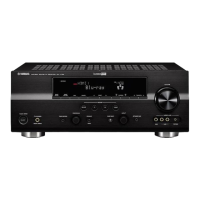
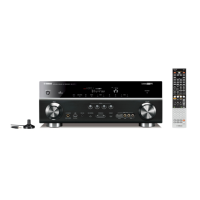
Yamaha RX-V767
125 pages
Print Icon
To Next Page IconTo Next Page
Loading...
Owner’s Manual
AV Receiver English for Europe

Table of Contents

Other manuals for Yamaha RX-V767

Questions and Answers

  • R
    Ryan WhiteheadJul 26, 2025
    What to do if my Yamaha RX-V767 remote control does not work?
    • M
      Michael BrownJul 26, 2025
      If your Yamaha Receiver's remote control isn't working, there are several potential causes: * **Distance/Angle:** Ensure you are within 6 meters of the receiver and no more than 30 degrees off-axis. * **Interference:** Adjust the lighting angle or reposition the unit if direct sunlight or strong lighting is affecting the remote control sensor. * **Weak Batteries:** Replace all the batteries in the remote. * **Remote ID Mismatch:** Match the remote control ID of the unit and the remote control.
  • M
    Michael AdamsAug 3, 2025
    How to fix Yamaha RX-V767 remote control when it does not learn new functions?
    • M
      Miranda BaldwinAug 3, 2025
      If your Yamaha Receiver remote control isn't learning new functions, here's what you can try: * **Weak Batteries:** Replace the batteries in both remote controls. * **Distance Issues:** Ensure the remote controls are at a proper distance from each other. * **Full Memory:** Delete unnecessary functions from the remote to free up memory.
  • M
    Mrs. Laura Moore MDAug 10, 2025
    Why is my Yamaha RX-V767 Receiver remote control not working?
    • L
      lwilliamsAug 10, 2025
      If your Yamaha Receiver's remote control isn't working, first, ensure you're within a 6-meter range and a 30-degree angle from the front panel. Strong sunlight or certain lights may interfere, so adjust the lighting or reposition the unit. Weak batteries can also be the culprit; try replacing them. Finally, check that the remote control ID matches the receiver's ID.
  • S
    Samantha PenaAug 18, 2025
    Why Yamaha RX-V767 remote control can't control external components?
    • U
      usullivanAug 18, 2025
      If you cannot control external components with your Yamaha Receiver remote control, the remote control code may not be set correctly. Set the remote control code correctly using “Remote control code search” on the CD-ROM. Also, try setting another code for the same manufacturer using “Remote control code search” on the CD-ROM. Even if the remote control code is correctly set, there are some models that do not respond to the remote control.

Summary

Introduction

Features and Capabilities

Overview of the unit's primary capabilities and functions.

Using the TV OSD to Operate the Unit

Guide to controlling the unit using the on-screen display menus.

About This Manual

Information regarding the manual's creation, content, and regional availability.

Supplied Accessories

List of parts included with the unit for setup and operation.

Part Names and Functions

Identification and explanation of the front and rear panel components.

Connections

Connecting Speakers

Instructions for connecting various speaker configurations, including layout.

Speaker Layout

Visual guides for optimal placement of speakers for different channel configurations.

Connecting External Components

Guide to connecting various external audio/video devices using different cable types.

Cable Plugs and Jacks

Overview of available input/output jacks and their corresponding cable types.

Connecting a TV Monitor

How to connect the unit to HDMI or non-HDMI compatible TV monitors.

Connecting BD;DVD Players and Other Devices

Procedures for connecting playback devices like BD/DVD players via various inputs.

Connecting a Multi-Format Player or an External Decoder

Connecting components with multi-channel analog output for advanced audio playback.

Connecting an External Amplifier

How to connect an external amplifier to enhance speaker output using PRE OUT terminals.

Connecting a SCENE Link Playback-Compatible Device

Linking Yamaha components for synchronized playback using REMOTE IN/OUT jacks.

Using the Trigger Function to Link External Component Power

Automating power on/off of external components via the TRIGGER OUT jack.

Connecting Audio;Video Recording Devices

Transmitting audio/video signals to recording devices via AV OUT jacks.

Connecting the FM;AM Antennas

Proper connection of supplied FM and AM antennas for optimal reception.

Setting Up Speaker Parameters Automatically (YPAO)

Automatic speaker calibration using the YPAO system for optimal sound.

Playback

Basic Playback Procedure

Step-by-step guide to turning on components and selecting sources for playback.

Selecting the Active HDMI OUT Jack

How to choose which HDMI output jack is active for signal output.

Adjusting Tone Control

Adjusting treble and bass levels for desired sound tone.

Changing Input Settings with a Single Key (SCENE Function)

Using the SCENE function to switch input, sound program, and HDMI OUT with one button.

Enjoying Desired Sound Field Effects

Exploring various sound programs and decoders for enhanced listening experiences.

Selecting Sound Programs and Sound Decoders

Choosing sound programs based on source material for optimal audio playback.

Using the TV Display to Control the Unit

Navigating and controlling unit settings using the on-screen display via TV.

Configuring Settings Specific to an Input Source (OPTION Menu)

Adjusting parameters like Tone Control, Adaptive DRC, and CINEMA DSP for each input source.

Confirming and Operating Input Sources from the Content Window

Managing iPod/iPhone playback and FM/AM tuning via the on-screen Content window.

FM;AM Tuning

How to tune into FM and AM radio stations, including manual and preset methods.

Playing Back Tunes from Your iPod;iPhone

Connecting and playing music from iPod/iPhone devices using the Universal Dock.

Playing Back Tunes from Bluetooth Components

Wireless audio playback from Bluetooth-compatible devices via a Bluetooth receiver.

Pairing Bluetooth Components

Steps to pair Bluetooth devices with the unit for wireless connection.

Setup

Configuring Input Sources (Input Menu)

Customizing input source names, icons, and associated settings for easier identification.

Editing the SCENE Function (SCENE Menu)

Modifying SCENE settings, including names, icons, and linked component operations.

Setting Sound Program Parameters (Sound Program Menu)

Adjusting sound field elements like DSP Level, Reverb Time, and Room Size for desired acoustics.

Setting Various Functions (Setup Menu)

Configuring general unit settings, including speakers, sound, video, and HDMI.

Manages Settings for Speakers

Detailed manual configuration of speaker parameters like Power Amp Assign, Configuration, and Distance.

Setting the Audio Output Function of This Unit

Adjusting audio output settings such as Lipsync, Dynamic Range, and Max Volume.

Setting This Unit’s Video Output Function

Configuring video output settings, including Analog-to-analog conversion and Processing.

Setting HDMI Functions

Managing HDMI Control, ARC, TV Audio Input, Audio Output, and Standby Through features.

Controlling Other Components with the Remote Control

Programming the unit's remote control to operate external components.

Extended Functionality (Advanced Setup Menu)

Accessing advanced settings for initialization and extended functions.

Initializing Various Settings for This Unit

Resetting unit settings to default factory values for DSP, Video, or all parameters.

Using the HDMI Control Function

Enabling and using HDMI Control for synchronized operation of connected devices.

Using Multi-Zone Configuration

Setting up a multi-zone audio system for playback in different rooms.

Appendix

Troubleshooting

A guide to diagnosing and resolving common operational problems with the unit.

HDMI

Troubleshooting specific problems related to HDMI connections and signals.

Tuner (FM;AM)

Resolving issues with FM and AM radio reception and tuning.

iPod;iPhone

Troubleshooting common problems encountered when connecting and using iPod/iPhone devices.

Bluetooth

Diagnosing and resolving issues with Bluetooth wireless connections and playback.

Remote Control

Troubleshooting problems related to the remote control's functionality and learning capabilities.

Audio Information (Glossary)

Glossary defining audio technologies like Lipsync, Bi-amplification, Dolby, and DTS formats.

Video Information (Glossary)

Glossary defining video signal types such as Component, Composite, Deep Color, and HDMI.

Video Conversion

Table detailing available analog-to-HDMI and analog-to-analog video conversion options.

Information on HDMI

Details on HDMI signal compatibility for audio and video, including supported resolutions.

About Trademarks

Information about registered trademarks related to audio technologies and interfaces.

Specifications

Technical specifications of the unit, including input/output jacks, power, dimensions, and audio/video features.

Index

An alphabetical listing of topics and their corresponding page numbers for quick reference.

Yamaha RX-V767 Specifications

General IconGeneral
Audio output channels7.1 channels
Signal-to-Noise Ratio (SNR)100 dB
Total Harmonic Distortion (THD)0.06 %
S-Video inputs quantity1
Component video (YPbPr/YCbCr) in2
HDMIYes
Dimensions (WxDxH)435 x 366 x 171 mm
Product colorBlack
Power consumption (standby)0.2 W
Power consumption (typical)400 W
Weight and Dimensions IconWeight and Dimensions
Weight11200 g

Related product manuals