EasyManua.ls Logo

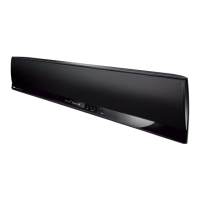
Yamaha YSP-5600 - User Manual

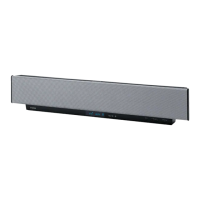
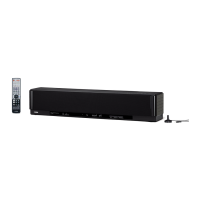
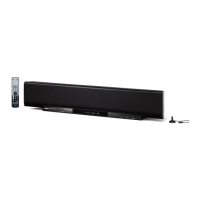
Yamaha YSP-5600
112 pages
Print Icon
To Next Page IconTo Next Page
Loading...
Digital Sound Projector
Owner’s Manual
Read the supplied booklet “Quick Reference Guide” before using the unit.
English
for Europe model

Table of Contents

Other manuals for Yamaha YSP-5600

Questions and Answers

  • D
    delgadoandreSep 10, 2025
    Why is there no sound or too small sound from a specific channel on my Yamaha Speakers?
    • J
      John AlvaradoSep 10, 2025
      If you're experiencing no sound or very low sound from a specific channel on your Yamaha Speakers, it could be due to a few reasons. The output level of that channel might be muted, so raise the output level. Alternatively, the beam setting might be inappropriate, so adjust the beam setting accordingly. Lastly, if the source is being played in stereo, switch to 3D surround/surround playback mode.
  • M
    Matthew WareAug 22, 2025
    How to fix Yamaha Speakers remote control that is not working?
    • J
      Jason WhiteheadAug 23, 2025
      If your Yamaha Speakers remote control isn't working, make sure you're within a 6-meter range and within 30 degrees off-axis from the front panel. Also, ensure that direct sunlight or lighting isn't interfering with the remote control sensor by repositioning the unit. If these steps don't work, replace all the batteries in the remote.
  • D
    droseAug 25, 2025
    How to troubleshoot Yamaha Speakers that fail to turn on?
    • C
      Courtney RogersAug 25, 2025
      If your Yamaha Speakers fail to turn on, or turn off soon after being powered on, check the following: Ensure the AC power supply cable is firmly connected to the AC wall outlet. If that doesn't work, the internal microcomputer may have frozen due to an external electric shock or low voltage; disconnect the AC power supply cable from the outlet, wait 30 seconds, and plug it back in. Finally, check if “PANEL LOCK” is set to “ON” and, if so, set it to “OFF”.
  • H
    Haley SteeleAug 26, 2025
    How to fix HDMI control function that isn't working on Yamaha Speakers?
    • F
      francoangelaAug 27, 2025
      If the HDMI control function isn't working properly on your Yamaha Speakers, check if “HDMI Control” is set to “Off”. If it is, set it to “On”.
  • J
    Jeffrey LeeAug 27, 2025
    How to solve “Not connected” displayed with “Wireless (Wi-Fi)” configuration on Yamaha Speakers?
    • C
      Cynthia WrightAug 27, 2025
      If “Not connected” is displayed with the “Wireless (Wi-Fi)” configuration on your Yamaha Speakers, and you're unable to connect to the wireless router, the wireless router’s MAC address filter may be enabled. Check the wireless router (access point) settings and try a different connection method.
  • N
    Nicholas ReedAug 29, 2025
    What to do if my Yamaha Speakers suddenly turn off?
    • T
      tamaraowensAug 29, 2025
      Your Yamaha Speakers might be turning off due to a few reasons. First, the internal temperature may be too high, activating the overheat protection. Wait about 1 hour for the unit to cool down, ensuring adequate ventilation and that the unit is not covered. Alternatively, the Auto Power Standby function may be enabled. If so, either turn the power back on and play the source again, or disable the Auto Power Standby function in the settings. Finally, the network standby function might have terminated the Bluetooth connection. Try resuming the Bluetooth connection or disabling the network standby function.
  • K
    Kathy JonesSep 18, 2025
    Why can't I view or playback files on my PC through my Yamaha Speakers?
    • J
      James PottsSep 18, 2025
      If you can't view or play back files from your PC on your Yamaha Speakers, the files may not be supported by the unit or the media server. Use a file format supported by both the unit and the media server.
  • A
    Austin MillerSep 12, 2025
    Why can't I clearly hear sounds from above on my Yamaha Speakers?
    • N
      Nicholas YoungSep 12, 2025
      If you're having trouble clearly hearing sounds from above with your Yamaha Speakers, the angle of sound beams from the height channels may not be set correctly. Use 3D surround sound playback mode, and then set “Height L” and “Height R” for “Vertical Angle” in the setup menu to positions where audio can be heard more clearly. Also, make sure you are using 3D surround sound playback mode. If the ceiling is too high or there are items protruding from it, change the unit’s or your listening position, and then perform AUTO SETUP again.
  • E
    Edwin JonesSep 8, 2025
    How to fix digital or high-frequency noises from Yamaha Speakers?
    • J
      jennifermartinSep 8, 2025
      If your Yamaha Speakers are producing noises due to digital or high-frequency equipment, the unit may be placed too close to that equipment. Move the equipment away from the unit.
  • C
    Courtney PinedaSep 5, 2025
    Why is the Yamaha Speakers menu screen not displayed?
    • J
      James JacobsonSep 5, 2025
      If the menu screen of your Yamaha unit is not displayed, the input switch of the TV might not be set correctly. Set the TV’s input source to this unit.

Summary

Yamaha YSP-5600 Preparations

General Setup Procedure

Step-by-step guide to prepare the unit for operation, covering installation and initial connections.

Installation Guide

Detailed instructions on positioning the unit for optimal surround sound effects and mounting options.

Connecting a TV

How to connect the unit to a TV, including support for Audio Return Channel (ARC).

Connecting Playback Devices

Instructions for connecting external audio/video sources like Blu-ray players via HDMI or optical cables.

Initial Settings

Guide to initial configuration, including TV menu display and language selection.

Auto Setup for Surround Effects (IntelliBeam)

Using the IntelliBeam function to automatically adjust sound beams for optimal listening environments.

Operating by TV Remote (HDMI Control)

Using the TV's remote control to operate the unit via HDMI control functions.

Yamaha YSP-5600 Playback

Basic Operation for Playback

Fundamental steps for turning on the unit, selecting sources, and adjusting volume for audio playback.

Yamaha YSP-5600 Networks

Connecting to a Network

Guide to establishing wired and wireless network connections, including WPS and manual setup.

Yamaha YSP-5600 Settings

Setup Menu

Accessing and navigating the unit's main configuration menu via the TV screen.

Network Settings

Configuring network connection type, IP address, MAC filter, standby, name, and update options.

Bluetooth Settings

Enabling/disabling Bluetooth, managing transmission, device search, and MAC address.

Settings for Each Input Source (Option Menu)

Customizing settings like Treble, Bass, Volume Trim, Audio Delay, and Audio Assign per input source.

Advanced Setup

Enabling precise configuration of unit functions, including volume limits and panel key disablement.

Updating the Units Firmware

Procedures for updating the unit's firmware via network or USB flash drive.

Yamaha YSP-5600 Appendix

Troubleshooting Guide

Provides solutions for common problems related to the unit's operation, sound, and connectivity.

Yamaha YSP-5600 Specifications

General IconGeneral
Audio decodersDTS 96/24, DTS Digital Surround, DTS-ES, DTS-HD HR, DTS-HD Master Audio, Dolby Digital, Dolby Digital EX, Dolby Digital Plus, Dolby TrueHD
Equalizer modesJazz
RMS rated power128 W
Audio output channels7.1 channels
Movie modesAction, Science Fiction
Docking connector type-
Apple docking compatibilityYes
Product colorBlack
Soundbar speaker RMS power88 W
HDMI in4
Bluetooth version2.1+EDR
HDMI ports quantity5
Number of HDMI outputs1
Connectivity technologyWired & Wireless
Power consumption (standby)0.3 W
Power consumption (typical)68 W
Weight and Dimensions IconWeight and Dimensions
Depth93 mm
Width1100 mm
Height212 mm
Soundbar weight11340 g
Subwoofer depth- mm
Subwoofer width114.3 mm

Related product manuals