EasyManua.ls Logo

Yealink T19P-E2 - User Manual

Yealink T19P-E2
21 pages
Print Icon
To Next Page IconTo Next Page
Loading...
1
Yealink T19P E2, T41P, T42G, T46G, T48G,
T41S, T42S, T46S, T48S, T52S, T54S, T53,
T53W, T54W, T57W manual
A. General information
1. Introduction
Welcome!
This manual helps you to optimize the usage of the IP telephone in combination with the PBX. Please
use this manual at initial operation. Some features differ from the features described in the
manufacturer's documentation.
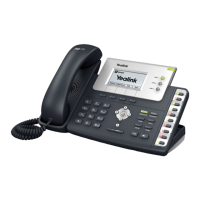
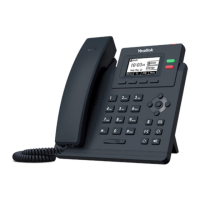
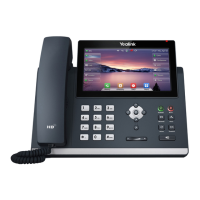
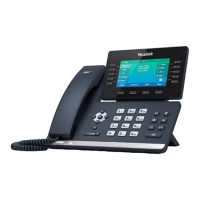
The following pages describe the Yealink T19P E2, T41P, T42G, T46G, T48G, T41S, T42S, T46S,
T48S, T52S, T54S, T53, T53W, T54W, T57W system telephones.
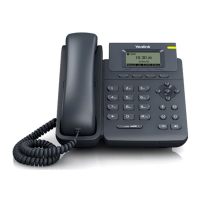
Yealink T19P E2
Yealink T41P
Yealink T41S
Yealink T42G
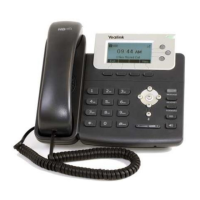
Yealink T42S
Yealink T46G
Yealink T46S
Yealink T48G
Yealink T48S
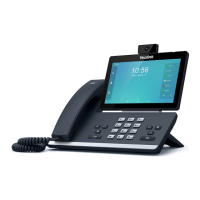
Yealink T52S

Other manuals for Yealink T19P-E2

Questions and Answers

  • G
    Gary JonesAug 18, 2025
    Why doesn't my Yealink T19P-E2 get an IP address?
    • C
      Calvin IrwinAug 18, 2025
      If your Yealink Telephone isn't getting an IP address, check the following: * Ensure the Ethernet cable is securely plugged into the internet port and is not loose. * Verify the Ethernet cable is not damaged. * Confirm that the IP address and related network parameters are set correctly. * Make sure your network switch or hub is working. * Ensure the Wi-Fi feature is disabled.
  • J
    Jennifer MccartyAug 20, 2025
    Why does my Yealink T19P-E2 display “No Service”?
    • M
      Madison GomezAug 20, 2025
      If your Yealink Telephone displays “No Service”, ensure that an account is actively registered on the IP phone at Menu->Status->More->Accounts.
  • H
    Hannah AguilarAug 23, 2025
    Why does my Yealink Telephone have no power?
    • B
      Brian BaldwinAug 23, 2025
      If your Yealink Telephone has no power: * Reboot your IP phone. * Replace the power adapter.
  • E
    Eduardo StephensAug 26, 2025
    What to do if the LCD screen is blank on my Yealink Telephone?
    • T
      Teresa KellerAug 26, 2025
      If the LCD screen on your Yealink Telephone is blank, verify the following: * Ensure the phone is properly plugged into a functional AC outlet. * Confirm the phone is plugged into a socket controlled by a switch that is on. * If plugged into a power strip, try plugging it directly into a wall outlet. * If your phone is PoE powered, ensure you are using a PoE-compliant switch or hub.
  • S
    Steven WellsAug 27, 2025
    How to solve IP conflict problem on Yealink T19P-E2 Telephone?
    • E
      Eugene HortonAug 28, 2025
      To resolve an IP conflict on your Yealink Telephone, you can: * Reset another available IP address for the IP phone. * Check network configuration via the phone's user interface at Menu->Settings->Advanced Settings (default password: admin)->Network->WAN Port->IPv4 (or IPv6). If Static IP is selected, choose DHCP instead.
  • P
    Paul SchneiderAug 30, 2025
    Why doesn’t my Yealink T19P-E2 upgrade firmware successfully?
    • M
      Matthew HowellAug 30, 2025
      If your Yealink Telephone isn’t upgrading firmware successfully, check the following: * Ensure that the target firmware is not the same as the current firmware. * Ensure that the target firmware is applicable to the IP phone model. * Ensure that the current or the target firmware is not protected. * Ensure that the power is on and the network is available during the upgrade. * Ensure that the web browser is not closed or refreshed when upgrading firmware via the web user interface.
  • J
    Jonathan DonaldsonSep 2, 2025
    Why do I get poor sound quality during a call on my Yealink T19P-E2?
    • T
      Tina AndersonSep 2, 2025
      Poor sound quality during a call on your Yealink Telephone can be due to several factors: * Users being too far from the microphone or too close to sensitive microphones. * Packet loss and jitter due to network congestion. * Noisy equipment causing interference. Turn off any noisy equipment. * Line issues. Try disconnecting the old line and redialing to see if another line provides a better connection.
  • A
    Aaron JohnstonSep 4, 2025
    Why doesn’t my Yealink Telephone display time and date correctly?
    • P
      pamela28Sep 4, 2025
      If your Yealink Telephone doesn’t display the correct time and date: * Check if the IP phone is configured to obtain the time and date from the NTP server automatically. * If your phone is unable to access the NTP server, configure the time and date manually.
  • M
    Monica ConnerSep 7, 2025
    Why doesn’t my Yealink T19P-E2 Telephone update the configuration?
    • C
      Cynthia PerkinsSep 7, 2025
      If your Yealink Telephone isn’t updating its configuration: * Ensure that the configuration is set correctly. * Reboot the phone, as some configurations require a reboot to take effect. * Ensure that the configuration is applicable to the IP phone model. * Be aware that the configuration may depend on support from a server.
  • P
    Pedro ParkerSep 9, 2025
    Why does the Bluetooth headset affect Yealink T19P-E2’s voice quality?
    • J
      Jacob BrownSep 9, 2025
      Your Yealink Telephone's voice quality may be affected if you use a Bluetooth headset while the 2.4 GHz band is enabled or in an environment with many other Bluetooth devices.

Summary

General Information

Introduction

Welcome message and overview of the manual's purpose for optimizing IP telephone usage.

Used Symbols

Security

Notes on Security

General guidelines for safe transport, storage, usage, and cleaning to prevent risks.

Encryption

Information on activating SRTP for encrypting telephone calls and associated fees.

Initial Operation

Requirements and Information

Details the need for a broadband connection and laptop connectivity options for setup.

Adding an Extension

Information on preconfigured telephones and finding details for installing new extensions.

Operation

Basic Functions

Overview of keys and basic functions for various Yealink phone models.

Outgoing Call

Procedure for making external and internal calls, including dialling and ending calls.

Incoming Call

Describes the options for answering incoming calls using receiver, speaker, or headset.

Call Waiting, Toggle & Hold

Details how to manage multiple calls, toggle between them, and put calls on hold.

Call Transfer

Explains attended, unattended, and blind transfer methods for calls.

Call Forwarding

Covers permanent, busy, delayed, and unavailable call forwarding scenarios.

Three-Way Calls

Step-by-step guide to initiating and managing conference calls with multiple participants.

Do Not Disturb (DND)

How to activate and use the DND function to reject incoming calls automatically.

Callback

Explains the Completion of Calls on No Reply (CCNR) function for automatic callbacks.

Voicemail

Guides on initial setup, accessing, and managing voice mail messages.

Hot Desking

Describes the function for cancelling user registration and registering new users to a device.

Advanced Telephone Functions

Overview of Advanced Functions

Introduces advanced features accessible via the phone, Ncontrol, or the administration portal.

Function Keys and Codes

Details configuration of freely assignable function keys and their limits for various Yealink models.

Extension and Telephone Number Management

Managing busy lamp fields for extensions and initiating calls.

Intercom Function

Enables direct communication with other extensions using the intercom feature.

Additional Functions via Codes

Using specific codes for accessing advanced telephone system features.

IP Address

Finding the Telephones IP Address

Instructions on how to find the IP address, MAC address, and firmware information on the phone.

Finding Help for Your Telephone System

Yealink T19P-E2 Specifications

General IconGeneral
Network10/100 Mbps Ethernet
PoEYes
ProtocolSIP
Wall MountableYes
SIP Accounts1
Lines1
Display132x64 pixel graphical LCD
Voice CodecsG.711(A/µ), G.729AB, G.726, iLBC

Related product manuals