Need help?
Do you have a question about the Yealink T46U and is the answer not in the manual?
Lists the items included in the box, such as phone stand, handset cord, Ethernet cable, quick start guide, and optional accessories.
Explains how to set up the phone using the desk mount or the optional wall mount bracket for optimal positioning.
Guides on connecting the handset, optional headset, and USB flash drives to the phone.
Details the options for connecting the phone to the network and power sources (AC power and PoE).
Explains phone firmware updates, success indicators, and error indicators with troubleshooting contact.
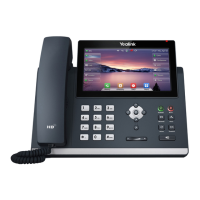
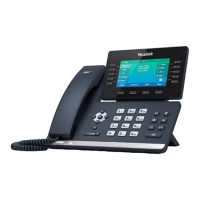
Identifies and describes the main physical features and keys of the Yealink T46U IP phone.
Provides a comprehensive guide to the various icons displayed on the phone's screen and their meanings.
Details the information shown on the phone's idle screen, including extension, time, and date.
Explains how to view phone status, network details, device information, and SIP account status.
Covers how the time and date are set and how to change their display format in phone preferences.
Covers various methods to make calls, including from keypad, history, directory, redialing, international calls, and switching audio modes.
Explains the different ways to answer an incoming call on the phone.
Details the procedures for performing blind, semi-attended, and attended call transfers.
Outlines the methods for ending a call using handset, headset, or speakerphone.
Guides on how to set up and manage conference calls on the IP phone.
Explains how to enable and disable Do Not Disturb mode and its effect on incoming calls.
Describes how to view and access the call history list and select specific calls.
Details how to access and search the corporate directory for contacts.
Explains how to access and listen to voicemail messages on the phone.
Guides on connecting and using RJ9, USB, and wireless headsets with the phone.
Explains how to connect and use the Bluetooth dongle for headsets or mobile phones.
Details how to connect and use the Wi-Fi dongle for wireless network connectivity.
Provides crucial information regarding emergency calls and registered addresses.
Offers safety precautions, including warnings about opening the handset or base.
Provides instructions on how to properly clean the phone handset and base.
Gives advice on environmental conditions to avoid for optimal phone performance.
Explains the proper disposal procedures for the electronic equipment.
Outlines the warranty period, coverage, and conditions for the IP phone.
The Yealink T46U IP Phone is a sophisticated communication device designed for business environments, offering a range of features to enhance productivity and streamline communication. It functions as a standard IP phone but with advanced capabilities, including support for various accessories and integration with Cloud Voice services.
The primary function of the Yealink T46U IP Phone is to facilitate voice communication over an internet protocol (IP) network. It supports making and receiving calls, managing multiple calls, and utilizing various call features such as transfer, hold, redial, and conference calls. The phone is designed to integrate with Cloud Voice, ensuring that it's always updated with the latest firmware and ready for use with your assigned Cloud Voice number.
The device features a large color screen that displays essential information such as the extension number, time, date, and the functions of the soft keys. It provides visual cues for call status, network connectivity, and other operational modes through a series of icons. The phone can be connected to a network via an Ethernet cable, with options for both AC power and Power over Ethernet (PoE), offering flexibility in deployment.
For enhanced connectivity, the Yealink T46U supports USB flash drives for data transfer or storage, and it can connect to various headsets (RJ9, USB, and wireless via adapter) for hands-free communication. It also has Bluetooth capabilities, allowing it to pair with Bluetooth headsets or mobile phones, enabling users to handle calls through the headset or sync mobile contacts to the phone. Additionally, a Wi-Fi dongle can be connected to enable wireless network connectivity.
The Yealink T46U IP Phone offers a user-friendly interface with a keypad, line keys, and dedicated function keys for common actions like headset, mute, message, hold, redial, and transfer. Soft keys on the display provide context-sensitive options, adapting to the current phone status or menu.
Users can make calls by entering a number directly on the keypad, selecting a contact from the call history, or choosing from the directory. The phone supports international calls by pressing and holding the '0' key to get a plus sign (+) before entering the country code and number. When a call comes in, the phone rings, and the screen displays caller information. Calls can be answered by picking up the handset, pressing the speakerphone or headset key, or pressing the Answer soft key.
The phone allows for multiple calls, enabling users to place an active call on hold to make a new one. Call transfer options include blind transfer (direct transfer without consultation), semi-attended transfer (transferring when the target phone is ringing), and attended transfer (transferring after speaking to the recipient). Conference calls can be set up by dialing the first participant, pressing the "Conf" soft key, then dialing subsequent participants. During a conference, options to hold, split, mute, or end the call are available.
The phone maintains a call history of placed, answered, missed, and forwarded calls, which can be easily accessed and used to redial contacts. A corporate directory, managed by Cloud Voice, allows users to search for and dial contacts directly from the phone.
Users can view the phone's status, including network details (IP address, MAC address), device details (model, firmware version), and SIP account registration status. The time and date are automatically set by Cloud Voice but can be adjusted in phone preferences.
The DND feature allows users to reject incoming calls automatically. When DND is active, an icon appears on the screen, and missed calls are indicated.
When a new voicemail arrives, the phone plays an alert tone, the power indicator LED flashes red, and a prompt message with an icon appears on the screen. Voicemail can be accessed by pressing the "Mail" key or "Connect" soft key.
The phone seamlessly integrates with various accessories:
The Yealink T46U IP Phone is designed for straightforward maintenance to ensure its longevity and optimal performance.
The handset and base should be cleaned with a damp (not wet) cloth or an anti-static wipe. It is crucial to avoid using household polish, as this can damage the product. A dry cloth should also be avoided to prevent static shock.
To ensure proper functioning and durability, the phone should not be exposed to direct sunlight. It should be placed on a dry, flat surface, away from carpets or fibers that could obstruct airflow, ensuring adequate ventilation. The device should not be submerged in water or used in damp or humid conditions, such as bathrooms. It is also important to keep the phone away from fire, explosive, or other hazardous conditions.
When connected to the network, the phone automatically updates its firmware, ensuring it runs the latest software version. This process may take some time, and users are advised to be patient. A specific symbol indicates successful updates, while another symbol indicates an issue, prompting users to contact support.
In case of issues, such as a failed firmware update or other malfunctions, users are advised to contact customer support. The manual explicitly states not to open the handset or base, as this could expose users to high voltages or other risks and should only be handled by qualified personnel for repairs.
The phone offers two options for power and network connections: AC power with a power adapter or Power over Ethernet (PoE). Users should follow the instructions provided by their system administrator to determine the appropriate connection method.
It is important to note that the Cloud Voice number is registered to a specific address for emergency services (999 or 112 calls). If the phone is used at a different location, the registered address will not automatically change, and the administrator should be informed to update it. Emergency calls may also be affected by power or network failures.
By adhering to these usage and maintenance guidelines, users can ensure reliable and efficient operation of their Yealink T46U IP Phone.
 General
| Display | 4.3" 480 x 272-pixel color display with backlight |
|---|---|
| Resolution | 480 x 272 pixels |
| SIP Accounts | Up to 16 |
| Opus Codec | Yes |
| Wall Mountable | Yes |
| Network | Dual Gigabit Ethernet ports |
| PoE | Yes (IEEE 802.3af) |
| Audio Features | HD voice, full-duplex speakerphone with AEC |
| Connectivity | Dual-port Gigabit Ethernet, USB ports |
| Bluetooth | Yes (optional) |
| Wi-Fi | Yes (optional) |
| Expansion Module | Supports Yealink EXP20, EXP40, EXP50 |
| USB Ports | 2 x USB 2.0 |
| Codecs | Opus, G.722, G.711(A/μ), G.729AB, G.726, iLBC |
| Supported Protocols | SIP, TLS, SRTP |
| Languages | Supports multiple languages |


 To Next Page