EasyManua.ls Logo

Yealink T33G - User Manual

Yealink T33G
9 pages
Print Icon
To Next Page IconTo Next Page
Loading...
Yealink T33G
User Guide
Table of Contents
Dialing .............................................................................................................2
Dial phone number or extension ......................................................... 2
Your Phone Calling Features.....................................................................2
Basics ..........................................................................................................2
Change Views ......................................................................................2
End Calls ................................................................................................ 2
Hold Calls ..............................................................................................2
Transfer Calls ........................................................................................ 2
Transfer Call Direct to Voicemail .....................................................2
Conference Calls ................................................................................. 3
Forward Calls ........................................................................................3
Intercom .................................................................................................3
Do Not Disturb .....................................................................................3
Menu .......................................................................................................3
Redial ...................................................................................................... 3
Park and Unpark Calls (If Enabled) .................................................4
Broadcast Paging and Intercom Features ......................................... 4
Broadcast Paging ................................................................................4
Intercom ................................................................................................. 4
Viewing Recent Calls .............................................................................. 4
View Recent Calls List ........................................................................ 4
Directory .....................................................................................................4
View Organization Directory ............................................................4
Busy Lamp Field (BLF) ............................................................................4
View Phone Status .............................................................................. 4
Speed Dial .............................................................................................4
Intercept Call Ringing to BLF ............................................................4
Transfer Call to BLF .............................................................................4
Speed Dial Keys ...................................................................................5
Line Appearances ...............................................................................5
Additional Phone Features ....................................................................6
Muting the Microphone......................................................................6
Change Volume ...................................................................................6
Change Ringtone ................................................................................6
Access Voice Messages .................................................................... 6
Call Forwarding ........................................................................................6
Activate Call Forwarding ...................................................................6
Deactivate Call Forwarding ..............................................................6
Call Waiting ................................................................................................ 7
Activate Call Waiting for All Calls .................................................... 7
Deactivate Call Waiting for All Calls ............................................... 7
Cancel Call Waiting for a Single Call .............................................. 7
Speed Dial 8 (1-digit codes) ................................................................... 7
Set Up/Update Speed Dial 8 (1-Digit Codes) ................................ 7
Place Call Using Speed Dial 8 ......................................................... 7
Speed Dial 100 (If Enabled) ................................................................... 7
Set Up/Update Speed Dial 100 (2-Digit Codes) .......................... 7
Place Call Using Speed Dial 100 ..................................................... 7
Initial Voicemail Set Up...........................................................................8
Access Voicemail and Voice Portal .....................................................8
From Your Own Phone ....................................................................... 8
From Another Phone Within Your Group .......................................8
From a Phone Outside of Your Group ............................................8
Voice Messaging Main Menu ....................................................................9
“Play Message” options .........................................................................9
Voice Portal Main Menu .............................................................................9
Yealink-T33G-220314-UGTelNet Worldwide, Inc. • telnetww.com • (800) 508-1254


Other manuals for Yealink T33G

Question and Answer IconNeed help?

Do you have a question about the Yealink T33G and is the answer not in the manual?

Summary

Dialing

Dial phone number or extension

Instructions for dialing a phone number or extension on the Yealink T33G phone.

Your Phone Calling Features

Overview of various calling features available on the Yealink T33G phone.

Quick Dial Calling Features

Call Forwarding

Guide to forwarding calls to another number or voicemail.

Activate Call Forwarding

Steps to activate call forwarding for incoming calls.

Deactivate Call Forwarding

Steps to deactivate call forwarding.

Call Waiting

Activate Call Waiting for All Calls

How to activate call waiting for all incoming calls.

Speed Dial

Accessing Voicemail and Your Voice Portal

Overview

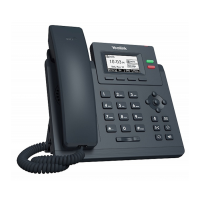
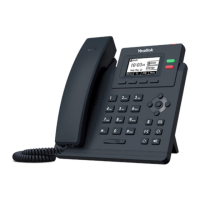
The Yealink T33G is an IP phone designed for business communication, offering a comprehensive suite of features for dialing, call management, and voicemail access. It integrates seamlessly into a TelNet Worldwide, Inc. communication system, providing users with a robust tool for daily office operations.

Function Description:

The primary function of the Yealink T33G is to facilitate voice communication over an internet protocol network. It supports standard telephony features such as making and receiving calls, as well as advanced functionalities like call forwarding, conferencing, and intercom. The device is equipped with a graphical display and a full keypad for intuitive navigation and operation. It also supports Busy Lamp Field (BLF) keys, allowing users to monitor the status of other lines and quickly initiate calls or intercept ringing calls. Voicemail and a personal voice portal are integral parts of the system, enabling users to manage messages and greetings efficiently.

Usage Features:

Dialing and Call Management:

The phone allows users to dial phone numbers or extensions by lifting the handset and entering the digits, or by using the speakerphone function. It supports local, long-distance, international, and internal extension dialing.

  • Ending Calls: Calls can be ended by pressing the dedicated "End Call" softkey, replacing the handset, or pressing the speakerphone button. For multiple calls, users can end the active call and then resume a held call.
  • Holding Calls: During an active call, users can press the "Hold" softkey to place the call on hold and then "Resume" to retrieve it. Blinking line keys also indicate a held call and can be used to resume it.
  • Transferring Calls: The T33G supports both attended and blind transfers. For an attended transfer, users press "Trans," dial the other party, and then press "Trans" again after hearing the ring-back or speaking with the party. For a blind transfer, users press "Trans," dial the other party, and then press "B Trans." Calls can also be transferred directly to voicemail using a dedicated line key.
  • Conference Calls: To initiate a conference call, users make or receive a call, press the "Conf" softkey, dial the third party, and then press "Conf" again after the third party answers. Participants can be removed from the conference using the "Split" softkey.
  • Call Forwarding: The phone offers various call forwarding options, including "Always Forward," "Busy Forward," and "No Answer Forward." These can be configured through the phone's menu or by using specific quick dial codes. Users can set a forwarding number or extension and enable/disable these features as needed.
  • Intercom: The intercom feature allows users to connect directly to a co-worker's speakerphone by pressing "Interco" and dialing the extension. Incoming intercom calls are signaled by a beep and automatically connect to the speakerphone.
  • Do Not Disturb (DND): Pressing the "DND" softkey disables ringing and directs incoming calls to voicemail. Pressing it again re-enables ringing.
  • Redial: The last call placed can be redialed by pressing the "Redial Key" once or twice. A list of recent calls can also be accessed using the down navigation key for redialing.
  • Park and Unpark Calls: If enabled, calls can be placed on public hold using "GPark" and retrieved from any phone using a blinking "Unpark" line key or by entering the parked extension.
  • Broadcast Paging: This feature allows users to page all phones on the local network by pressing the "Paging" line key and speaking. Phones not on active calls will be alerted and receive the page via speakerphone.

Directory and Recent Calls:

  • Viewing Recent Calls: The down navigation arrow provides access to a list of all recent calls, including missed, placed, and received calls. Calls can be dialed directly from this list.
  • Organization Directory: The up navigation arrow allows users to view the organization directory, search for contacts, and dial them directly.

Busy Lamp Field (BLF) and Speed Dial:

  • BLF Keys: These optional add-on keys allow users to monitor the status of other lines (idle or on a call).
  • Speed Dial via BLF: Simply pressing a BLF key can initiate a call to the monitored line.
  • Intercepting Calls: If a BLF key is blinking for an incoming call, pressing it can intercept or pick up that call.
  • Transferring Calls to BLF: During an active call, users can press "Trans," search for a BLF, and then press the desired BLF to transfer the call.
  • Speed Dial Keys: Unused line keys can be configured as speed dials. Users can create a speed dial by pressing and holding an unused line key, changing the type to "Speed Dial," entering the phone number, and saving. A label can also be added. To remove a speed dial, change the type to "N/A." To use a speed dial, simply press the configured key.
  • Speed Dial 8 (1-digit codes): Users can set up 1-digit speed dial codes by dialing *74, entering the 1-digit code followed by the 10-digit phone number and #. To place a call, press the 1-digit code and then "Call."
  • Speed Dial 100 (2-digit codes): For 2-digit speed dial codes, users dial *75#, enter the 2-digit code followed by the 10-digit phone number and #. To place a call, press # plus the 2-digit code and then "Call."

Voicemail and Voice Portal:

  • Initial Voicemail Setup: First-time users press the voicemail button and "Connect," then follow prompts to enter a new 6-digit passcode (not sequential or repeating digits), re-enter it, and record their name.
  • Accessing Voicemail: Voicemail can be accessed from the user's own phone by pressing the voicemail button and "Connect," or by dialing *86 and "Call." Users enter their passcode to access the Voice Messaging Main Menu.
  • Accessing from Other Phones: From another phone within the group, users dial their phone number or extension, press * during the greeting, and enter their passcode. From outside the group, users dial the Voice Portal general access number, enter their mailbox number and passcode.
  • Voice Messaging Main Menu: This menu offers options to listen to messages, manage greetings (busy, no answer, extended away), compose messages, delete all messages, and access message deposit settings or the Voice Portal Main Menu.
  • "Play Message" Options: While listening to messages, users can skip back/forward, pause/resume, jump to beginning/end, save, delete, or play the next message. Additional options include replying to or forwarding messages, and calling back the caller.
  • Voice Portal Main Menu: This menu provides access to the voice mailbox, greetings menu, passcode change, and exit options.

Additional Phone Features:

  • Muting the Microphone: During a call, pressing the mute key mutes the microphone. Pressing it again unmutes.
  • Changing Volume: Call volume can be adjusted using the volume keys during a call. Ringer volume can be adjusted using the volume keys when the phone is idle or ringing.
  • Changing Ringtone: Users can change the incoming call ringtone by navigating through the "Menu," "Basic," "Sound," and "Ring Tones" options, selecting "Common," and choosing a desired ringtone.

Maintenance Features:

The manual emphasizes the importance of using a surge protector with the phone to ensure its longevity and proper functioning. While specific cleaning or hardware maintenance instructions are not detailed, the general nature of IP phones suggests standard electronic device care. The document also highlights critical information regarding VoIP E911 service, advising users to review the TelNet 911 Emergency Service Advisory Notification to understand potential limitations, especially during power or broadband outages. This information serves as a crucial maintenance-related advisory for user safety and service continuity. The system's reliance on network connectivity implies that maintaining a stable internet connection is essential for the phone's operation.

Yealink T33G Specifications

General IconGeneral
Resolution320x240 pixels
Network10/100 Mbps Ethernet
PoEYes
SIP Accounts4
Wall MountableYes
Opus CodecYes
Audio FeaturesHD Voice, full-duplex speakerphone with AEC
Headset SupportYes, RJ9
Local Phonebook1000 entries
Display2.4-inch 320x240-pixel color display

Related product manuals