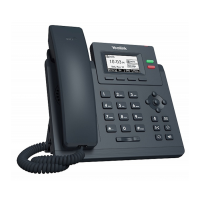
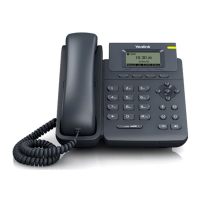
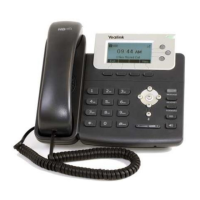
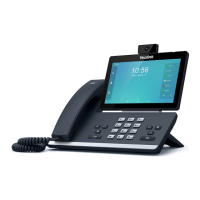
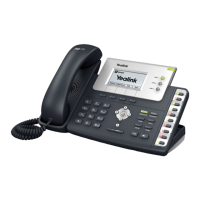
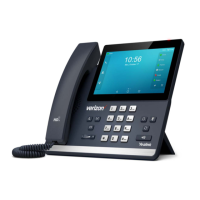
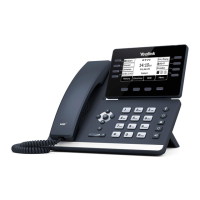
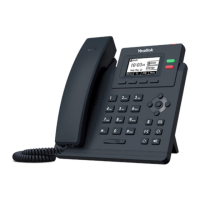
Yealink T33G
Desktop Telephone
This guide covers the basic features and typical
operation of the Yealink model T33G desktop phone.
About Your Phone
The Yealink T33 phone provides a helpful color display
screen, message/power indicator LED, and very helpful
buttons and keys.
Your phone provides a number of single-purpose buttons
called keys that allow quick, one-button task operations.
Along the top of the phone there are four keys to the right
and four keys below the display screen as shown here:
The keys to the right of the screen are programmable Line
Keys. Each can be set per the configuration of the phone
and/or configured as speed dials or 'favorites'. In the
example above, there are two line keys that have been
configured on the top two buttons.
The four keys that display along the bottom of the screen
are called Soft Keys. The text displayed on the screen
directly above each button identifies what happens when
pressed. These are context sensitive and display useful
options depending on the current call status or use of the
phone. For example, when the phone is idle they are
typically labeled History, Dir(ectory), DND, and Menu. If
you are in an avtive call, the Soft Keys change to display
options like Hold, T(rans)fer, End (Call), Options, etc.
The four-way navigation pad allows the user to move
through the phone’s menu system and make selections,
and the four arrow keys also double as shortcuts. Pressing
UP displays the call history, pressing DOWN displays the
number directory, LEFT and RIGHT select the line
appearance key to use for making an outgoing call.
The + and - buttons below the 4-way keypad adjust the call
audio volume while in a call, and when not in a call they will
adjust the ringer volume.
There are five more buttons along the right side of the
phone that include:
Mute the audio microphone
Use a headset (if connected)
Access Voicemail and messages
Redial the last number
Activates/Deactivates Speakerphone
The lower section of the phone includes the dialpad,
navigation pad, the volume button, and task buttons.
Examples provide typical steps for usage of the standard configuration setup. Contact customer service for assistance with customized configurations.
888.538.3960 | GoMomentum.com/support


 To Next Page
 Loading...