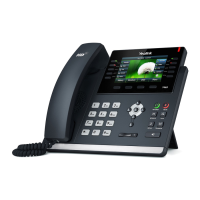
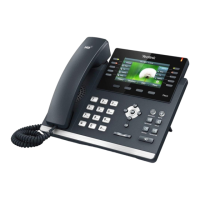
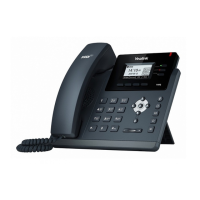
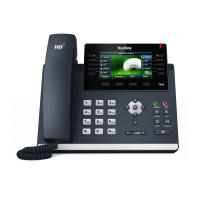
Placing a Call
• Lift handset, press or press
• Dial a number, extension or press a
speed dial
Answering a Call
• Lift handset OR
• Press or
Hold
• While on a call, press Hold
Retrieving a Held Call
• Press Resumeto retrieve the call
Redial
• Press twice to redial the last
number
• Press once to get to the placed
calls list
Do Not Disturb
• Press DND
Turning Off DND
• Press DND Again
Park
• While on a call, press More
• Press Park
Retrieving a Held Call
• To retrieve the Parked Call, press the
red Park button or dial the extension
given
Conference Calls
• While on a call, press Conference
• Dial number or press a speed dial
• Press Conference again and all parties
will be connected
Transferring a Call
Blind Transfer
• While on a call, press Transfer
• Dial number or press a speed dial
• Hang up to complete the transfer
Consult Transfer
• press Transfer
• Dial number or press a speed dial
• Talk to the person
• Hang up to complete the transfer
Transfer to Voicemail
• press Transfer
• Dial *+extension
• Hang up
Audio Control
• Press to Change the
ringer volume while your phone is on
the hook
• Pick up the handset and Press
to Change the volume
of the handset
• Press then Press
to Change the volume
of the Speaker phone
• Press then Press
to Change the volume of the headset
Message Waiting Light
Located in the Upper Right Corner of phone,
New voicemails will light this up red
Forwarding Calls
• Press Menu
• SelectFeatures
• Choose CallForwarding
• Choose the type of forwarding:
o AlwaysForward- All calls
forward all the time
o Busyforward– Only forwards
when line is in use
o NoAnswerForward- Calls are
forwarded if not answered after a
period of time
• Turn the forwarding on
• Type in a number to forward to
• Press Save
Turning off Call Forwarding
• Press Menu
• SelectFeatures
• Choose CallForwarding
• Choose the type of Forwarding
• SelectOff
Ringtones
• Press Menu
• SelectBasic
• Select Sound
• Choose Ringtones
• Choose the tone you want
• SelectSave
Call History
• Press History
• Scroll through the list
• Select an entry
• Select the Person to call back or press
options to get call detail such as
duration, add to Contacts, edit info,
blacklist contact or Delete
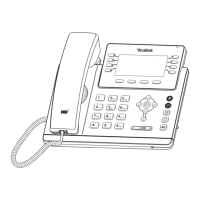
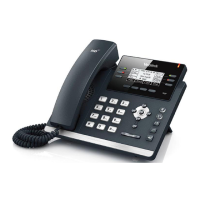
PHONE USER GUIDE – Yealink T44W

 Need help?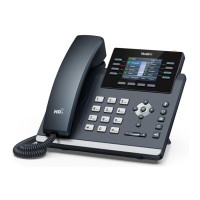

 To Next Page
 General