EasyManua.ls Logo

Yealink T40G - User Manual

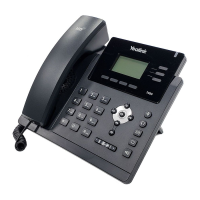
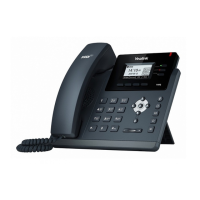
Yealink T40G
132 pages
Print Icon
To Next Page IconTo Next Page
Loading...

Table of Contents

Other manuals for Yealink T40G

Questions and Answers

  • A
    Andrea NealAug 18, 2025
    Why doesn't my Yealink Telephone get an IP address?
    • Y
      ypeckAug 18, 2025
      If your Yealink Telephone isn't getting an IP address, check the following: * Ensure the Ethernet cable is securely plugged into the internet port and is not loose. * Verify the Ethernet cable is not damaged. * Confirm that the IP address and related network parameters are set correctly. * Make sure your network switch or hub is working. * Ensure the Wi-Fi feature is disabled.
  • S
    Sierra JonesAug 20, 2025
    Why does my Yealink Telephone display “No Service”?
    • J
      Jonathan CobbAug 20, 2025
      If your Yealink Telephone displays “No Service”, ensure that an account is actively registered on the IP phone at Menu->Status->More->Accounts.
  • J
    jennifer35Aug 23, 2025
    Why does my Yealink Telephone have no power?
    • P
      Penny BakerAug 23, 2025
      If your Yealink Telephone has no power: * Reboot your IP phone. * Replace the power adapter.
  • U
    ubatesAug 26, 2025
    What to do if the LCD screen is blank on my Yealink Telephone?
    • S
      slopezAug 26, 2025
      If the LCD screen on your Yealink Telephone is blank, verify the following: * Ensure the phone is properly plugged into a functional AC outlet. * Confirm the phone is plugged into a socket controlled by a switch that is on. * If plugged into a power strip, try plugging it directly into a wall outlet. * If your phone is PoE powered, ensure you are using a PoE-compliant switch or hub.
  • T
    Thomas LeachAug 28, 2025
    How to solve IP conflict problem on Yealink Telephone?
    • J
      Jennifer CollinsAug 28, 2025
      To resolve an IP conflict on your Yealink Telephone, you can: * Reset another available IP address for the IP phone. * Check network configuration via the phone's user interface at Menu->Settings->Advanced Settings (default password: admin)->Network->WAN Port->IPv4 (or IPv6). If Static IP is selected, choose DHCP instead.
  • A
    Andrea SimpsonAug 30, 2025
    Why doesn’t my Yealink Telephone upgrade firmware successfully?
    • K
      Kevin ThomasAug 30, 2025
      If your Yealink Telephone isn’t upgrading firmware successfully, check the following: * Ensure that the target firmware is not the same as the current firmware. * Ensure that the target firmware is applicable to the IP phone model. * Ensure that the current or the target firmware is not protected. * Ensure that the power is on and the network is available during the upgrade. * Ensure that the web browser is not closed or refreshed when upgrading firmware via the web user interface.
  • A
    Angela ReedSep 2, 2025
    Why do I get poor sound quality during a call on my Yealink Telephone?
    • D
      Deborah YoungSep 2, 2025
      Poor sound quality during a call on your Yealink Telephone can be due to several factors: * Users being too far from the microphone or too close to sensitive microphones. * Packet loss and jitter due to network congestion. * Noisy equipment causing interference. Turn off any noisy equipment. * Line issues. Try disconnecting the old line and redialing to see if another line provides a better connection.
  • R
    Raymond RamirezSep 4, 2025
    Why doesn’t my Yealink Telephone display time and date correctly?
    • W
      William BerrySep 4, 2025
      If your Yealink Telephone doesn’t display the correct time and date: * Check if the IP phone is configured to obtain the time and date from the NTP server automatically. * If your phone is unable to access the NTP server, configure the time and date manually.
  • O
    ohuffmanSep 7, 2025
    Why doesn’t my Yealink Telephone update the configuration?
    • K
      Kristen MillerSep 7, 2025
      If your Yealink Telephone isn’t updating its configuration: * Ensure that the configuration is set correctly. * Reboot the phone, as some configurations require a reboot to take effect. * Ensure that the configuration is applicable to the IP phone model. * Be aware that the configuration may depend on support from a server.
  • M
    Mr. Brandon FisherSep 9, 2025
    Why does the Bluetooth headset affect Yealink Telephone’s voice quality?
    • D
      David ValdezSep 9, 2025
      Your Yealink Telephone's voice quality may be affected if you use a Bluetooth headset while the 2.4 GHz band is enabled or in an environment with many other Bluetooth devices.

Summary

Technical Support

Yealink WIKI

Access user guides, FAQs, and product documents.

Yealink Ticketing System

Submit technical issues for prompt support.

Before You Begin

Related Documentation

Links to other guides for comprehensive phone information.

Getting Started

Hardware Overview

Details Yealink T4 series phone hardware differences.

Screen and Icons

Explains screen elements and status icons for navigation.

Entering Characters

How to input text using touchscreen or keypad.

Line Key Icons

Explains icons associated with line keys for functionality.

Call Features

Placing and Answering Calls

Learn to initiate and receive calls.

Managing Active Calls

Handle calls on hold, mute microphone, or end calls.

Call Transfer and Conference

Forward calls and conduct multi-party calls.

Call Pickup and Parking

Answer calls for others or park calls for later retrieval.

Call Recording and Voice Mail

Record calls and manage voice messages.

Directory

Local Directory

Manage phone contacts and groups.

Favorites and Blacklist

Organize frequent contacts and block callers.

Mobile and Google Contacts

Sync and manage contacts from external accounts.

Call History

Review past call records.

Customizing Your Phone

Password and Security

Change admin password and set phone lock.

Display Settings

Personalize phone appearance (wallpaper, screensaver, brightness).

Audio Settings

Adjust volume, ringtones, and key tones.

Soft Keys and Keypad

Customize soft key functions and key behavior.

Optional Accessories with Your Phone

Headset Usage

Connect and use various headset types for calls.

Bluetooth Connectivity

Pair and manage Bluetooth devices.

Wireless Network Setup

Connect the phone to available Wi-Fi networks.

Maintaining Your Phone

Troubleshooting and Warnings

Understand and resolve phone issues and status warnings.

Rebooting and Resetting

Restart the phone or restore it to factory settings.

Configuration Updates

Apply system configuration changes.

Appendix - Menu Structure

For the T48 S;T48 G Phone

Visual map of the T48S/T48G phone's menu system.

For the T46 S;T46 G Phone

Visual map of the T46S/T46G phone's menu system.

For the T42 S;T42 G;T41 S;T41 P;T40 P;T40 G Phone

Visual map of the phone's menu system for other models.

Yealink T40G Specifications

General IconGeneral
SIP Accounts3
Wall MountableYes
Opus CodecNo
Display2.3 inch 132x64-pixel graphical LCD
NetworkDual-port Gigabit Ethernet
PoEYes
Headset SupportYes, RJ9 port
Power AdapterOptional
Voice CodecsG.722, G.711(A/μ), G.729AB, G.726
Local Phonebook1000 entries

Related product manuals