EasyManua.ls Logo

Yealink WPP20 - User Manual

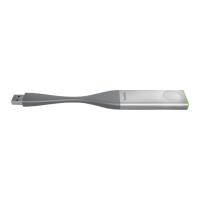
Yealink WPP20
4 pages
Print Icon
To Next Page IconTo Next Page
Loading...
www.yealink.com
Quick Start Guide
快速入门指南
Wireless Presentation Pod 无线传屏助手
WPP20
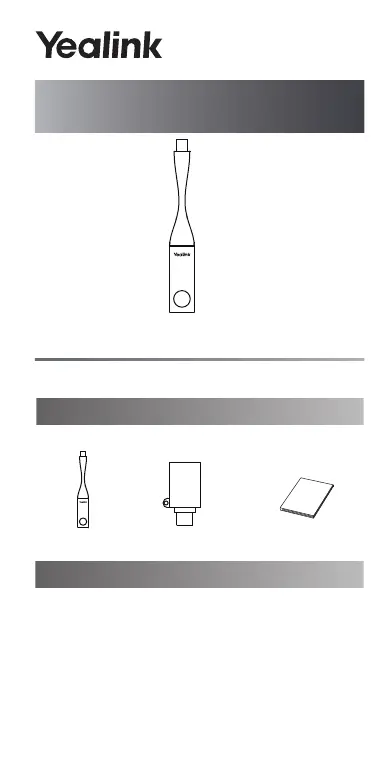
Package Contents
If you find anything missing, contact your system administrator.
Quick Start Guide
WPP20
Pairing WPP20 to Video Conferencing System
If you purchase video conferencing system and WPP20
together, they are already paired. Just connect the WPP20 to
your computer for sharing content.
If the model of your video conferencing system is
VC500/VC800, make sure a WF50 Wi-Fi USB dongle is
connected to the system before you use the WPP20.
If you purchase the WPP20 separately, you need to pair video
conferencing system and WPP20 manually.
To pair video conferencing system and WPP20 manually:
1. Connect the WPP20 to the USB port on the video
conferencing system.
V1.2
English|简体中文
Type-C Adapter

Other manuals for Yealink WPP20

Questions and Answers

  • S
    Sara JacksonSep 23, 2025
    Why are the time and date wrong on my Yealink Conference System?
    • P
      Patrick RichardsonSep 23, 2025
      If the time and date are wrong on your Yealink Conference System, it may be because the system fails to obtain the time and date from the SNTP server automatically. Contact your network administrator. You can also manually configure the time and date.
  • N
    Nancy BradleyAug 23, 2025
    What to do if I forget the administrator password for my Yealink WPP20?
    • J
      Jeff DuranAug 25, 2025
      If you forget the administrator password for your Yealink Conference System, and cannot access the advanced settings, you will need to reset your system.
  • A
    Amber HaasAug 25, 2025
    Why can't the far site hear me on my Yealink WPP20 Conference System?
    • K
      Kathy MccannAug 26, 2025
      If the far site cannot hear your audio during a call using the Yealink Conference System, ensure your audio input device is correctly connected and that the speaker at the far site isn't covered or damaged. Also, check if your microphone is muted and ask the far site to verify their volume isn't set to 0.
  • C
    Craig WilliamsAug 27, 2025
    Why is the voice quality poor on my Yealink Conference System?
    • M
      Mr. Ryan HendersonAug 27, 2025
      If you are experiencing poor voice quality, such as intermittent voice, echo, or other noise, with your Yealink Conference System, try adjusting your distance from the microphone. Ensure the audio pickup device is stationary. Network congestion or old cables may also be factors; contact your network administrator or replace old cables.
  • S
    srobinsonAug 27, 2025
    Why is the audio unclear on my Yealink Conference System during a call?
    • T
      tannercookAug 27, 2025
      If you cannot hear the audio clearly during a call on your Yealink Conference System, try adjusting the speaker volume. If the audio from the far site is muffled, they may be in a highly reverberant room—advise them to speak closer to their phone. Check your audio codec priority, enable noise suppression, and ensure the device is clean and free of dust.
  • J
    Jennifer ShortSep 15, 2025
    Why can't I hear the ringtone on my Yealink WPP20 Conference System?
    • B
      Brooke JamesSep 15, 2025
      If you cannot hear the ring tone when receiving a call on your Yealink Conference System, the volume might be set to 0. Try adjusting the volume.
  • J
    Jennifer SpencerSep 12, 2025
    Why can't I hear audio on my Yealink Conference System during a call?
    • J
      Jonathan Stark Jr.Sep 13, 2025
      If you cannot hear audio during a call on your Yealink Conference System, there are a couple of things to check. First, make sure the volume isn't set to 0. If the volume is up, the far site might have muted their microphone, so you may want to contact them to check.
  • S
    Scott JohnsonSep 14, 2025
    Why is there no picture on the monitor for my Yealink Conference System?
    • S
      Stephanie SchmidtSep 14, 2025
      If there is no picture on the monitor connected to your Yealink Conference System, the system may be in sleep mode. Press any key on the remote control to wake up the system. Alternatively, the system may be powered off, so ensure that the system is powered on. Also, check that the HDMI cable is correctly connected to the system, according to the Quick Start Guide.
  • K
    Katrina WestSep 5, 2025
    Why can't I hear the ring tone on my Yealink WPP20 Conference System?
    • A
      Anthony CookSep 5, 2025
      If you cannot hear the ring tone when receiving a call on your Yealink Conference System, adjust the volume.
  • H
    hscottSep 2, 2025
    Why can't I share content on my Yealink WPP20?
    • A
      allenedwinSep 2, 2025
      If you cannot share content from your Yealink Conference System, ensure your PC is properly connected and turned on. If you're using a VCH50/VCH51 video conferencing hub or WPP20 wireless presentation pod, try replacing it. If using a WPP20, ensure it's connected to the video conferencing system to obtain the Wi-Fi profile and that the wireless AP feature of the video conferencing system is enabled.

Summary

Package Contents

Pairing WPP20 to Video Conferencing System

Starting or Stopping Sharing Content

Regulatory Notices

Operating Ambient Temperatures

Specifies operating and storage temperature and humidity ranges for the device.

Warranty Information

Outlines product warranty limitations and third-party claims.

Symbol Explanations

Explains symbols such as DC voltage and the WEEE warning.

Safety Instructions

General Safety Requirements

Provides general precautions for device handling, storage, and maintenance.

Environmental Safety

Advises on proper placement and environmental conditions for safe device operation.

Operating Safety Requirements

Details requirements for safe operation, including accessory use and power.

Troubleshooting

About Yealink

Technical Support

Yealink WPP20 Specifications

General IconGeneral
InterfaceWLAN
USB version2.0
Connectivity technologyWireless
Wi-FiYes
Wi-Fi bandDual-band (2.4 GHz / 5 GHz)
Wi-Fi standards802.11b, 802.11g, Wi-Fi 4 (802.11n), Wi-Fi 5 (802.11ac)
Top Wi-Fi standardWi-Fi 5 (802.11ac)
Security algorithmsWPA-PSK, WPA2-PSK
Networking standardsIEEE 802.11ac, IEEE 802.11b, IEEE 802.11n
Maximum data transfer rate- Mbit/s
Mac operating systems supportedMac OS X 10.10 Yosemite, Mac OS X 10.11 El Capitan, Mac OS X 10.12 Sierra, Mac OS X 10.13 High Sierra, Mac OS X 10.14 Mojave
Windows operating systems supportedWindows 10, Windows 7, Windows 8
Output voltage5 V
Power consumption (typical)2.5 W
InternalNo
Component forLaptop
Product colorGray
Harmonized System (HS) code85176990
Weight and Dimensions IconWeight and Dimensions
Depth183.2 mm
Width26 mm
Height9 mm

Related product manuals