Need help?
Do you have a question about the YESKAMO 2MP and is the answer not in the manual?
Detailed steps for connecting the camera wirelessly via the MIPC app.
Instructions for establishing a wired connection using an Ethernet cable.
How to select dates and view recorded videos or snapshots.
Overview of various camera settings like About, Day/Time, and System Upgrade.
How to change the video resolution for live streaming and recording.
Instructions on camera direction control and details on paid cloud storage.
Guide on attaching the camera bracket to a surface and securing the camera.
Steps to enable and customize motion detection alerts in the app.
Solutions for common issues when connecting the camera to Wi-Fi.
How to resolve offline camera status and reset forgotten passwords.
Fixes for problems with video recording and two-way audio functionality.
This document provides a comprehensive user manual for the Yeskamo Wireless PTZ Camera, covering its features, installation, operation, and troubleshooting.
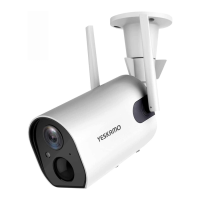
The Yeskamo Wireless PTZ Camera is a security camera designed for monitoring various environments. It features Pan-Tilt-Zoom (PTZ) capabilities, allowing users to remotely control the camera's direction to view different areas. The camera is equipped with a light sensor, lens, IR light for night vision, a microphone for audio input, and a loudspeaker for audio output, enabling two-way audio communication. It supports both wireless (Wi-Fi) and wired (Ethernet) connections for flexible installation. The camera is designed to record video, detect motion, and send notifications to the user's mobile device. It also supports local video storage via an SD card and cloud storage services.
1. Wireless and Wired Connection Options: The camera offers two primary connection methods. For wireless setup, users download the MIPC app, register an account, and add the camera by scanning a QR code or manually entering its ID and password. The app then guides the user through Wi-Fi setup, requiring them to select their Wi-Fi network and input the password. A crucial step involves pressing the camera's reset button for 1-2 seconds to initiate wireless configuration. For a more stable connection, a wired option is available, where the camera is connected to a router via an Ethernet cable.
2. Mobile App Operation (MIPC App): The MIPC app is the central interface for controlling and managing the camera.
3. Camera Installation: The camera comes with a mounting bracket and screws for installation on a stable surface such as a table, wall, or floor. The bracket is fixed with screws, and the camera is then attached to the bracket. The design allows for easy removal and adjustment of the installation angle.
1. Reset Functionality: The camera includes a reset button. Pressing and holding it for 10-12 seconds restores the camera to its factory settings. This is useful for troubleshooting connection issues or if the password is forgotten.
2. Firmware Updates: The MIPC app provides a "System Upgrade" feature, allowing users to update the camera's firmware to ensure it has the latest features and security patches.
3. SD Card Management: The app allows users to check the status and capacity of the inserted SD card and format it if necessary. It's important to turn off the device before inserting or removing an SD card to prevent damage.
4. Troubleshooting Support: The manual includes a comprehensive FAQ section addressing common issues such as motion detection notifications, camera sound setup, viewing on a computer, Wi-Fi connection problems, forgotten passwords, offline camera status, network connection breaks, and recording issues. For further support, Yeskamo provides email and phone contact information for customer service in both the US and UK.
5. Safety Precautions: The manual emphasizes reading instructions carefully, avoiding product modification or disassembly, using the product within standard temperature and humidity ranges, testing before installation, and not placing objects on the camera. It also advises against setting up the device in environments prone to mud, sand, water, drops, bumps, or external factors like fire, earthquakes, lightning, or voltage disturbances, which could cause damage. The company disclaims responsibility for malfunctions or damages due to improper storage or protection.
 General
| Video Compression | H.264 |
|---|---|
| Motion Detection | Yes |
| Power Supply | DC 12V/1A |
| Resolution | 2MP (1920x1080) |
| Image Sensor | CMOS |
| Lens | 3.6mm |
| Connectivity | Wi-Fi |
| Storage | MicroSD card (up to 128GB) |
| Operating Temperature | -20°C to 60°C |


 To Next Page