EasyManua.ls Logo

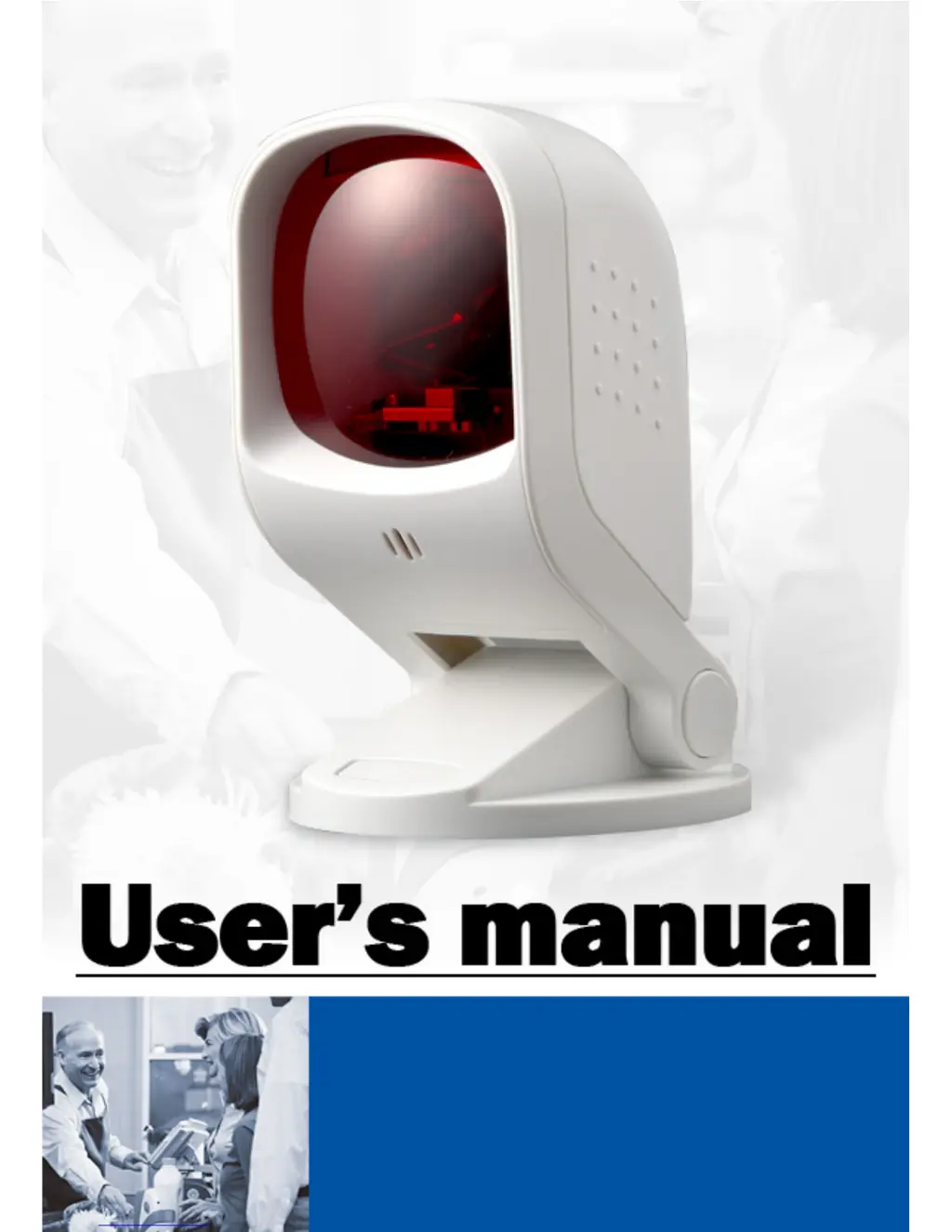
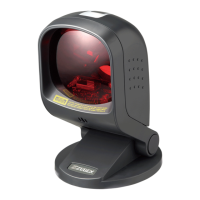
Zebex Z-6170 - User Manual

Zebex Z-6170
28 pages
Print Icon
To Next Page IconTo Next Page
Loading...

Other manuals for Zebex Z-6170

Questions and Answers

  • K
    Karen ArcherAug 10, 2025
    What to do if Zebex Z-6170 is read but not accepted by POS system?
    • W
      William TaylorAug 10, 2025
      If your Zebex Barcode Reader is on but not accepted by the POS system, check the following: * Ensure the communication cable is connected to the serial port of your POS system, referring to your POS system's manual to locate it. * Verify that the communication settings of the system and scanner match, adjusting them to be equal on both devices. * Confirm that the communication cable suits your POS system; contact your dealer for the correct cable if needed.
  • D
    David TranAug 16, 2025
    How to fix Zebex Z-6170 Barcode Reader when it's on but can't read barcodes?
    • J
      Jason GrayAug 16, 2025
      If your Zebex Barcode Reader scanner is on but cannot read barcodes and the LED is red, here's what you can do: * Clean the scanner window. * Enable the barcode type in the Programming Guide if it is not enabled. * Check if the barcode type you presented to the scanner is supported.
  • Q
    qkennedyAug 22, 2025
    What to do if Zebex Z-6170 Barcode Reader does not accept more than two or three barcode labels?
    • L
      Latoya GreenAug 22, 2025
      If the Zebex Barcode Reader does not accept more than two or three barcode labels, it might be due to: * No proper handshaking with the POS system. Switch on the POS system and check the connection and communication settings. * The scanner continuously seeing a barcode. Remove all barcode labels out of the scan volume of the scanner and try again. * No proper handshaking between the scanner and the host. Make sure that all cables are connected and your POS system is ready to receive data.
  • B
    Brian DonovanAug 27, 2025
    Why is my Zebex Barcode Reader motor not rotating?
    • B
      Blake AdamsAug 28, 2025
      If your Zebex Barcode Reader is on, but the motor isn't rotating, and a barcode cannot be read, with the LED intermittently flashing red, the scanner may have entered sleep mode. To resolve this, press the switch on top of the scanner to wake it up, or use the wake protocol.
  • P
    Patricia JohnsonSep 3, 2025
    What does it mean when my Zebex Z-6170 has both red and blue LED lights flashing?
    • M
      Mr. Thomas ArnoldSep 3, 2025
      If both the red and blue LED light up (appearing the color purple) and remain flashing on your Zebex Barcode Reader, it indicates that the scanner has failed the self-test. Immediately disconnect the scanner from its power source and contact your dealer.

Summary

Laser Safety

4. Installing the Device

4.1 Using Suction Cup

Details on how to attach the scanner using the included suction cup for stable placement.

4.2 Using Mounting Screw

Instructions for permanently fixing the scanner using the device's mounting holes.

5. Adjusting Scan Angle

6. Connection

6.2 Connecting to the Host

Step-by-step guide on connecting the scanner's interface cable to the host system.

6.3 Power Connection

Details on providing power to the scanner, either directly from the host or via an external adapter.

7 Setting Up the Scanner

8 How to Scan in Different Mode

13 Trouble Shooting

14 Maintaining the Scanner

Zebex Z-6170 Specifications

General IconGeneral
BrandZebex
ModelZ-6170
CategoryBarcode Reader
LanguageEnglish

Related product manuals