For internal use only
24. The application prompt a message about the successful activation.
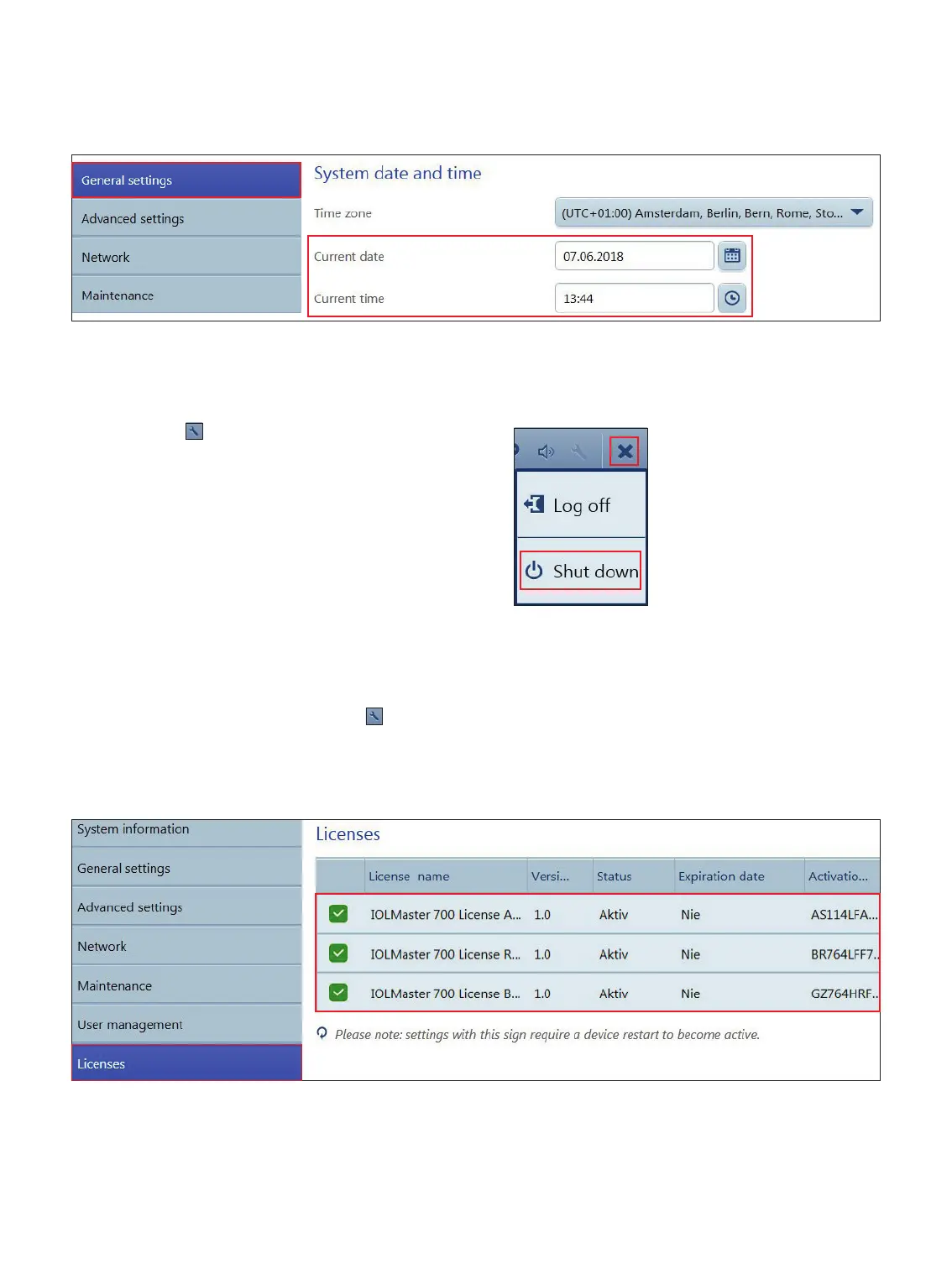
25. In the Settings screen, select “General Settings”, check the date and time for correctness and change them if
necessary. (Figure 11)
30. At the Patient screen, click Settings icon
.
31. In the Settings screen, select the Licenses tab. (Figure 2)
32. Verify the License is available and Active. (Figure 13)
26. Click “X” icon
and “Shut down” the device (Figure 12).
27. Switch ON the device by pushing the soft button.
28. At the Log In screen, select Administrator. (Figure 1)
29. Enter Administrator Password, then click Log in. (Figure 1)
Figure 11
Figure 13
Figure 12






 To Next Page