EasyManua.ls Logo

Zeiss Lumera 700 - User Manual

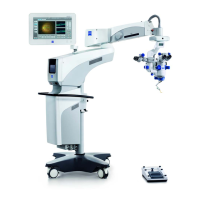
Zeiss Lumera 700
2 pages
Print Icon
To Next Page IconTo Next Page
Loading...
Lumera
®
700
Basic Instructions
Attention: Refer to the User Manual for additional warnings, safety information, labeling and detailed operating instructions.
This basic instruction sheet is only a complement to the User manual (G-30-1673-en).
Switch the power on by pressing the on/off switch
This will be on the wall for a ceiling mounted microscope, or on the base unit for a floor mounted microscope.
Foot Pedal:
Once the microscope is booted up and showing the Main Menu, place the foot pedal horizontally flat on the floor in order to establish
a connection with the microscope. You should then see a symbol in the top right hand corner indicating the foot pedal is connected to
the microscope and the amount of power left in the battery.
The foot pedal should be hung up on the appropriate bar when not used to maintain battery power for a long as possible.
IF THE FOOT PEDAL POWER SHOULD FAIL, ATTACH TO THE MICROSCOPE USING THE CABLE PROVIDED.
Activate User Profile
The microscope will default to the last user profile used. Check it is the correct one for each surgeon.
To change to a different user, click on User in the main Menu, click the drop down box under User and select the user
required. Once selected click the Activate icon at the bottom. If you do not the microscope will default to the previous user
and their profile.
Refer to:
Version 8.1
Page 194
G-30-1673-en
Configure User Settings
Set Up Profile
In the User Menu, click on the paper with the + symbol to enter a Surgeon Name, then click save icon at the bottom.
Then on the Surgery Profile Icon, select Anterior or Posterior. Lastly click Activate icon at the bottom.
Only if using Posterior with RESIGHT, click on the configuration (spanner) icon, then click on Posterior profile icon and finally click on the “R” to
link the RESIGHT into the posterior profile. Click save icon at the bottom. Posterior profile will now activate whenever RESIGHT is positioned
under the microscope.
Light Settings
In the main menu, click on Light icon, then click OPMI light icon. The light intensity can then be adjusted on the left hand side with the up
and down arrow icons.
The Red Reflex to Full Field can also be adjusted on the horizontal bar using the left and right arrow keys. On this bar position 1 indicates
full red reflex and position 3 no red reflex. Click save icon once finished.
Always use the minimum light intensity possible
Excessive light intensity or long radiation exposure times
may lead to retinal injury in the patient's eye
Refer to:
Version 8.1
Page 178 G-30-
1673-en
Refer to:
Version 8.1
Page 184
G-30-1673-
Question and Answer IconNeed help?

Do you have a question about the Zeiss Lumera 700 and is the answer not in the manual?

Summary

Switching On and Foot Pedal Operation

User Profile Management

Activate User Profile

Select and activate the desired user profile from the main menu for personalized microscope settings.

User Settings Configuration

Set Up Profile

Create and save new surgeon profiles, selecting surgical profiles like Anterior or Posterior.

Light Settings

Adjust light intensity and red reflex settings, with a warning about potential retinal injury from excessive light.

Advanced Settings and Controls

Foot Control Panel Configuration

Assign specific functions to buttons on the foot control panel for optimized surgical workflow.

Hand Grip Customization

Configure functions for the hand grip buttons to suit individual surgeon preferences and workflow.

Overhead Display Setup

Activate and adjust the overhead display's brightness using the up/down arrows.

Camera Settings and White Balance

Perform white balance and customize camera brightness and color values.

Video Recording Configuration

Set image format (JPG/Tiff) and storage location (USB/Network) for recordings.

Troubleshooting and Shut-down

Trouble Shooting

Resolve foot pedal connection issues, screen problems, and reset to default settings.

Shut-down Procedure

Properly turn off the microscope via the main power switch to preserve lamp life.

Summary

Switching On and Foot Pedal Operation

User Profile Management

Activate User Profile

Select and activate the desired user profile from the main menu for personalized microscope settings.

User Settings Configuration

Set Up Profile

Create and save new surgeon profiles, selecting surgical profiles like Anterior or Posterior.

Light Settings

Adjust light intensity and red reflex settings, with a warning about potential retinal injury from excessive light.

Advanced Settings and Controls

Foot Control Panel Configuration

Assign specific functions to buttons on the foot control panel for optimized surgical workflow.

Hand Grip Customization

Configure functions for the hand grip buttons to suit individual surgeon preferences and workflow.

Overhead Display Setup

Activate and adjust the overhead display's brightness using the up/down arrows.

Camera Settings and White Balance

Perform white balance and customize camera brightness and color values.

Video Recording Configuration

Set image format (JPG/Tiff) and storage location (USB/Network) for recordings.

Troubleshooting and Shut-down

Trouble Shooting

Resolve foot pedal connection issues, screen problems, and reset to default settings.

Shut-down Procedure

Properly turn off the microscope via the main power switch to preserve lamp life.

Overview

The Lumera 700 is a sophisticated surgical microscope designed to provide high-quality visualization and advanced features for various surgical procedures. Its operation is guided by a user-friendly interface, accessible through a main menu and various sub-menus, allowing for extensive customization to suit individual surgeon preferences and specific surgical needs.

Function Description

The primary function of the Lumera 700 is to provide magnified, illuminated, and clear views of the surgical field. It achieves this through a combination of advanced optics, adjustable illumination, and integrated digital imaging capabilities. The microscope is designed to be either ceiling-mounted or floor-mounted, with the power switch located on the respective unit.

A key component of its operation is the foot pedal, which serves as a primary control interface. Once connected, the foot pedal allows for hands-free adjustment of various microscope functions, enhancing efficiency and sterility during surgery. The microscope also features an integrated overhead display, which provides crucial information and settings at a glance, further aiding the surgeon.

The Lumera 700 supports the creation and management of multiple user profiles, allowing different surgeons to save and quickly recall their preferred settings. This personalization extends to various aspects of the microscope's operation, including light intensity, red reflex settings, foot control panel assignments, handgrip functions, and camera settings.

For documentation and educational purposes, the device incorporates video recording capabilities. Surgeons can capture images and videos of surgical procedures, with options to customize image format, storage location (USB or network), and patient details.

Usage Features

Switching On: To begin operation, the power is switched on via the on/off switch located on either the ceiling-mounted or floor-mounted unit.

Foot Pedal Connection and Usage: Upon booting up, the foot pedal should be placed horizontally on the floor to establish a connection with the microscope. A symbol on the top right of the screen indicates a successful connection and the battery level. When not in use, the foot pedal should be hung on an appropriate bar to preserve battery power. In case of battery failure, a cable is provided to directly connect the foot pedal to the microscope.

User Profile Activation: The microscope defaults to the last used user profile. To change profiles, navigate to the "User" option in the Main Menu, select the desired surgeon from the drop-down list, and then click the "Activate" icon.

Configuring User Settings:

  • Creating a New Profile: In the User Menu, click the paper icon with a "+" symbol, enter the surgeon's name, and then click the save icon.
  • Selecting Surgery Profile: On the Surgery Profile Icon, choose "Anterior" or "Posterior," and then click "Activate."
  • RESIGHT Integration (Posterior Profile): For posterior profiles using RESIGHT, click the configuration (spanner) icon, then the Posterior profile icon, and finally the "R" to link RESIGHT. Save the settings.
  • Light Settings: In the Main Menu, select the "Light" icon, then the "OPMI light" icon. Light intensity can be adjusted using the up and down arrows on the left. The "Red reflex to Full field" setting is adjusted via a horizontal bar using left and right arrow keys, with position 1 indicating full red reflex and position 3 indicating no red reflex. Save changes once complete. It is crucial to use the minimum light intensity possible to prevent retinal injury.

Foot Control Panel Customization: In the Main Menu, under "Additional Settings," select "Foot Control Panel." Each button on the panel can be clicked and assigned a specific function. Once optimized, save the settings.

Handgrip Customization: Similar to the foot pedal, the handgrip functions can be customized. In "Additional Settings," select "Handgrip," and assign functions to each button. Save the settings after customization.

Overhead Display Configuration: In "Additional Settings," select "Overhead Display." The display can be switched on, and its brightness adjusted using up and down arrows. Save the settings.

Camera Settings: In the Main Menu, click the "Camera" icon, then "White Balance." The system will prompt the user to hold a plain white paper under the microscope to perform white balance. Tabs 2 and 3 of the camera page allow for customization of brightness and color values.

Video Recording:

  • Configuration (Optional): In the Main Menu, select tab 2, then "System Settings," and click the "Recording" icon. Image format (JPG or Tiff) and storage location (USB or Network) can be selected. Save changes.
  • Recording Images/Videos: Click the "Recording" icon in the Main Menu. Click the "Change" button to input patient details. Select either the image or video icon. Video recording can then be controlled using the icons at the bottom.

Maintenance Features

Troubleshooting Connectivity Issues: If the foot pedal fails to connect, either use the provided cable for a direct connection to the microscope or, in the Main Menu, navigate to tab 2, then "System Settings," and click the "Pairing" icon.

Addressing Blank Screen: If the screen is blank, it might be due to accidentally touching the "/" button next to the on/off switch.

Restoring Default Settings: To revert to a surgeon's default settings, press the reset button located above the overhead display.

Preserving Lamp Life: To extend the lamp's lifespan, turn off the microscope by moving it upwards until it beeps. To turn it on again, lower it slightly.

Shut-down: To power off the microscope, use the main power switch.

Zeiss Lumera 700 Specifications

General IconGeneral
TypeSurgical Microscope
IntegrationIntegrated HD video camera
Apochromatic opticsYes
Integrated HD video cameraYes
IlluminationLED
MagnificationMotorized
FocusMotorized
Objective LensF=200 mm
Camera PortYes

Related product manuals