EasyManua.ls Logo

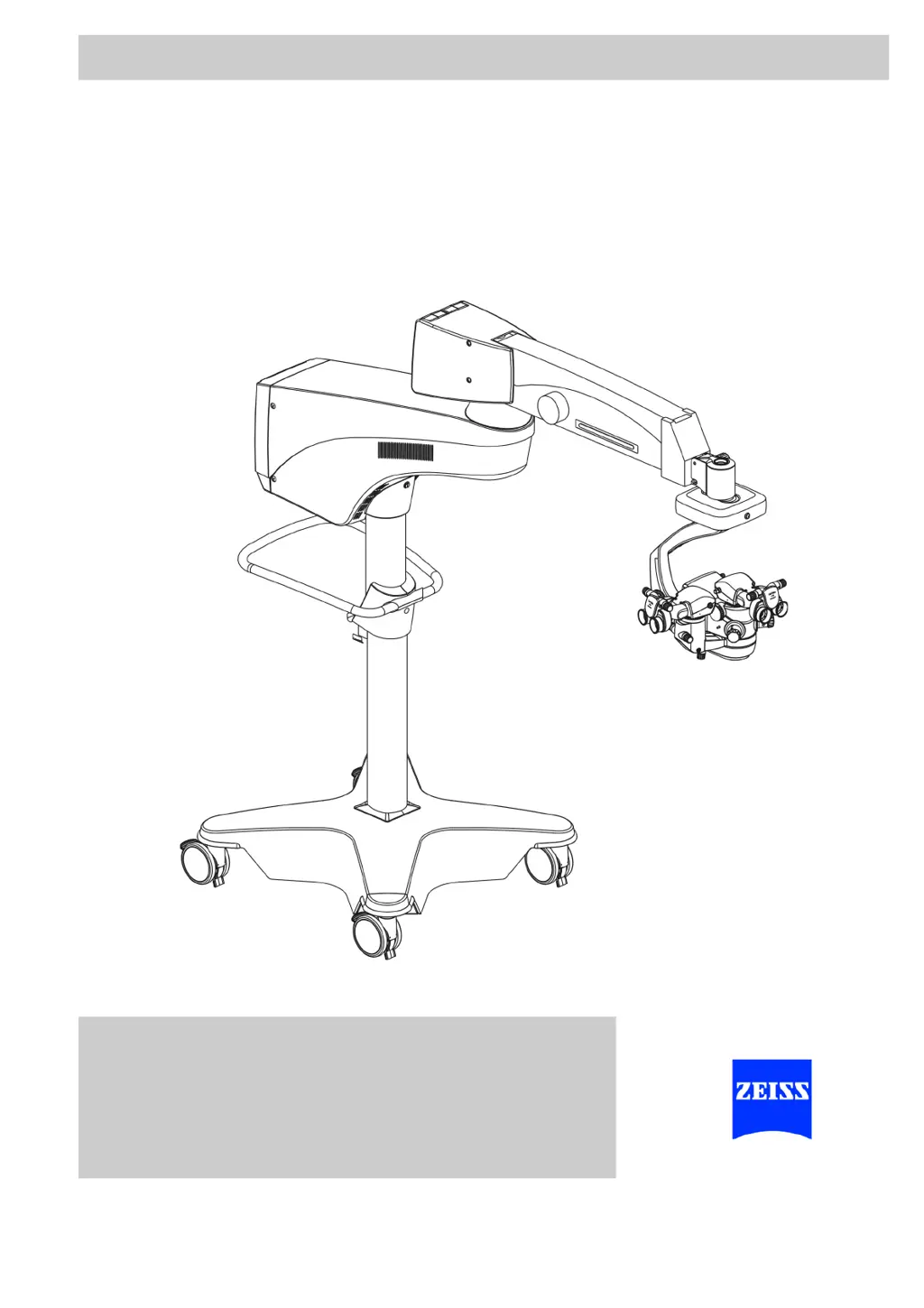
Zeiss opmi lumera 700 - User Manual

Zeiss opmi lumera 700
294 pages
Print Icon
To Next Page IconTo Next Page
Loading...
Carl Zeiss
lmjf=irjbo^
®
=TMM
çå=cäççê=pí~åÇ
User Manual
G-30-1673-en
Version 3.0
2010-07-01

Table of Contents

Other manuals for Zeiss opmi lumera 700

Questions and Answers

  • I
    iortizAug 18, 2025
    Why is there no electrical function in my Zeiss Microscope?
    • A
      Angela CarrAug 18, 2025
      If your Zeiss Microscope has no electrical function, there could be several reasons: * The power plug might not be properly connected. Ensure that the power plug is securely connected. * The stand power switch may not be switched on. Check if the power switch is illuminated green; if not, press the power switch. * The automatic circuit breaker in the stand power switch may be triggered. Try pressing the power switch. If it trips again, contact ZEISS Service. * There might be a power supply failure, in which case you should contact your in-house electrician.
  • E
    esandersAug 20, 2025
    How to fix faulty illumination on Zeiss surgical microscope?
    • A
      Anita RyanAug 20, 2025
      If the illumination on your Zeiss surgical microscope is faulty, consider the following: * The brightness level might be set too low. Increase the brightness on the stand or the 14-function foot control panel. * The lamp may be aging, reducing the amount of light. You can switch halogen lamps or change the Superlux Eye light source lamp module. * The light guide might not be correctly inserted. Ensure that you push the light guide in as far as it will go. * The lamp reflector for the halogen lamp might not be sitting correctly in the lamp bulb. Press the lamp reflector into the lamp bulb.
  • J
    Joseph BellAug 23, 2025
    What to do if data cannot be saved on Zeiss opmi lumera 700?
    • M
      Marvin WilliamsAug 23, 2025
      If you are unable to save data on your Zeiss Microscope, check the following: * The USB storage device may be defective. Ensure it is working correctly; if not, replace it. * The USB storage format might not be supported. Use USB storage devices with FAT32 or NTFS. * There may be insufficient storage capacity. Delete unnecessary data, and note the available storage space display. * There might be no network connection. Establish a network connection. * There might be no network authorization. Ensure the network and directories are shared, and adjust the read and write permissions.
  • M
    millermariaAug 27, 2025
    Why is my Zeiss Microscope 14-function foot control panel not working?
    • J
      Julia JohnsonAug 28, 2025
      If your Zeiss Microscope's 14-function foot control panel is not functioning, here are some things to check: * The batteries may be dead. Replace the batteries. * If using rechargeable batteries, they may be dead. Replace the rechargeable batteries. * There may be a failure of individual button functions. Reconfigure the button functions, if configurable. * There may be a radio link failure/fault. Establish a cable connection. * The 14-function foot control panel's position sensor may always detect the rest position. Establish a cable connection. * There may be a weak radio signal. Establish a cable connection. * There may be no pairing with the stand. Perform pairing.
  • T
    Timothy ElliottAug 30, 2025
    How to improve red reflex in Zeiss Microscope?
    • E
      Eric GonzalezAug 30, 2025
      If the red reflex in your Zeiss Microscope is too dark or non-existent, consider the following: * The red reflex illumination might not be activated. Switch the red reflex illumination on. * The objective lens may be soiled. Clean the objective lens. * The light guide might not be correctly inserted. Push the light guide in as far as it will go. * The lamp reflector for the halogen lamp might not be sitting correctly in the lamp bulb. Press the lamp reflector into the lamp bulb. * The surgical microscope might not be oriented correctly. Place the device in the working position so that the main microscope axis coincides with the optical axis of the patient’s eye.
  • M
    margaret48Sep 1, 2025
    Why are functions being triggered unintentionally on my Zeiss Microscope?
    • C
      Cindy WatkinsSep 1, 2025
      If functions are being triggered unintentionally on your Zeiss Microscope, consider these potential causes: * A button on the 14-function foot control panel may be mechanically stuck after being pressed. Place the 14-function foot control panel in its rest position and reconfigure the button functions if possible. * The 14-function foot control panel may be sending an erroneous activation signal. Place the 14-function foot control panel in its rest position and reconfigure the button functions if possible. * The wrong 14-function foot control panel may be in use. Check the marking to ensure it matches the stand, and perform pairing if necessary.
  • M
    Michael WilkersonSep 3, 2025
    Why is the illumination too bright in my Zeiss Microscope?
    • M
      Mark OnealSep 4, 2025
      If the illumination in the surgical field of your Zeiss Microscope is too bright: * The brightness level might be set too high. Decrease the brightness on the stand or on the 14-function foot control panel. * There may be a defective light control. Activate manual mode.
  • D
    Daniel WigginsSep 6, 2025
    How to fix dark or noisy video image on Zeiss opmi lumera 700?
    • C
      Crystal BrowningSep 6, 2025
      If the image on the video monitor is too dark or has a high level of noise on your Zeiss Microscope: * There may be insufficient light. Increase the brightness level of the illumination. * The incorrect light metering method may be selected for the integrated camera. Activate the "Integral" light metering method. * If using external cameras, remove the fixed stop from the external camera adapter.
  • Z
    zhangdianaSep 8, 2025
    What to do if data cannot be displayed on Zeiss opmi lumera 700?
    • K
      Karen WilliamsSep 8, 2025
      If data cannot be displayed or played back on your Zeiss Microscope, consider the following: * A non-supported file format may have been imported or saved to the LAN. Use supported file formats. * Video with an incorrect video system may have been imported or saved to the LAN. Set the device to the video system for your country (PAL or NTSC) and restart the device. * The USB storage device may have been removed and reinserted. Select the desired patient file.
  • M
    Mary KingSep 10, 2025
    What to do if Zeiss Microscope shows error during system start?
    • M
      Michael TaylorSep 12, 2025
      If your Zeiss Microscope shows an error during system start, it may be because a button was pressed during the system start. Restart the system, making sure not to press any buttons during the process.

Summary

Safety Measures

Key Safety Information

Explains hazard symbols, information symbols, and their meanings for safe operation.

Requirements for Operation

Details prerequisites for using the device safely before, during, and after operation.

Preventing Phototoxic Injury

Describes measures to prevent eye damage from light exposure during procedures.

Device Labels and Symbols

Identifies and explains various labels and symbols found on the microscope and suspension system.

System Overview

Surgical Microscope Components

Details the various parts and features of the surgical microscope unit.

XY Coupling Components

Explains the components and function of the XY coupling mechanism.

Floor Stand Components

Describes the parts and functions of the floor stand supporting the microscope.

Foot Control Panel Components

Details the design, controls, and storage of the foot control panel.

Preparations for Use

Surgical Microscope Configuration

Guides on replacing components, connecting accessories, and balancing the system.

System and Accessory Connection

Instructions for connecting the system to power and accessories.

System Positioning and Alignment

Procedures for relocating, positioning, and aligning the system in the OR.

Sterile Operation Preparation

Steps for preparing the device for sterile use, including asepsis caps and drapes.

Operation

System Power-Up and Initial Checks

Procedures for powering the system on/off and performing a function test.

System Configuration

Guides for system-specific and user-specific settings and configurations.

Control and Foot Panel Operation

Details on using the 5.7" control panel, symbols, and configuring the foot control panel.

Light Source and Illumination Control

Instructions for configuring light sources, illumination modes, and accessories.

Typical Surgical Procedure

Provides a general overview of the typical steps during a surgical procedure.

Malfunctions and Troubleshooting

Main Function Failures

Guidance on handling failures in main functions like XY, focus, zoom, and light.

System Malfunctions

Lists common system problems, their causes, remedies, and related pages.

Error Messages and Remedies

Details error messages displayed on the control panel and their corresponding remedies.

Care and Maintenance

System Maintenance Intervals

Outlines regular preventive maintenance activities and their recommended intervals.

Device Cleaning and Sterilization

Instructions for cleaning optical and mechanical surfaces, and sterilization procedures.

Lamp Replacement Procedures

Step-by-step guides for changing halogen and xenon lamps.

Monitor Support Arm Counterbalancing

Procedures for readjusting the monitor support arm for proper positioning.

System Data

Technical Specifications

Provides detailed optical, electrical, and mechanical data for the system.

System Combinations and Ordering

Lists compatible system devices and ordering information for accessories.

Approval and Ambient Data

Details system approvals, requirements, and operating ambient conditions.

Annex and Options

Integrated Video Recording

Information on the optional video recording function via USB port.

Data Storage and Management

Guides on storage options, password protection, and managing patient data.

Control Panel and Monitor Functions

Explains button functions on the control panel and menu functions on the video monitor.

Network and Device Configuration

Details network interface setup and device configuration for networking.

Operation Checklist and Recording

Checklist for pre-use verification and procedures for recording photos and videos.

Importing and Exporting Patient Data

Instructions for importing and exporting images, videos, and patient data.

Indexes

List of Technical Terms

Definitions of technical terms used in the manual.

List of Abbreviations

An alphabetical list of abbreviations and their explanations.

Keyword Index

Numerics Index

Index entries for numerical terms and references.

Index A-B

Index entries starting with letters A and B.

Index C-F

Index entries starting with letters C through F.

Index S-X

Index entries starting with letters S through X.

Zeiss opmi lumera 700 Specifications

General IconGeneral
BrandZeiss
Modelopmi lumera 700
CategoryMicroscope
LanguageEnglish

Related product manuals