HDS4x2 User Guide, Rev 1.1, 08-31-07
10
Advanced Control Features
Front panel display intensity and modes
The HDS4x2 has three intensity levels that can be adjusted, they are:
BRIGHT - This is the level of brightness seen when a front panel button is pressed.
DIM - This is the intensity level reached after the display auto-dims.
OFF - This is the level of the standby LED when the HDS4x2 is in standby mode.
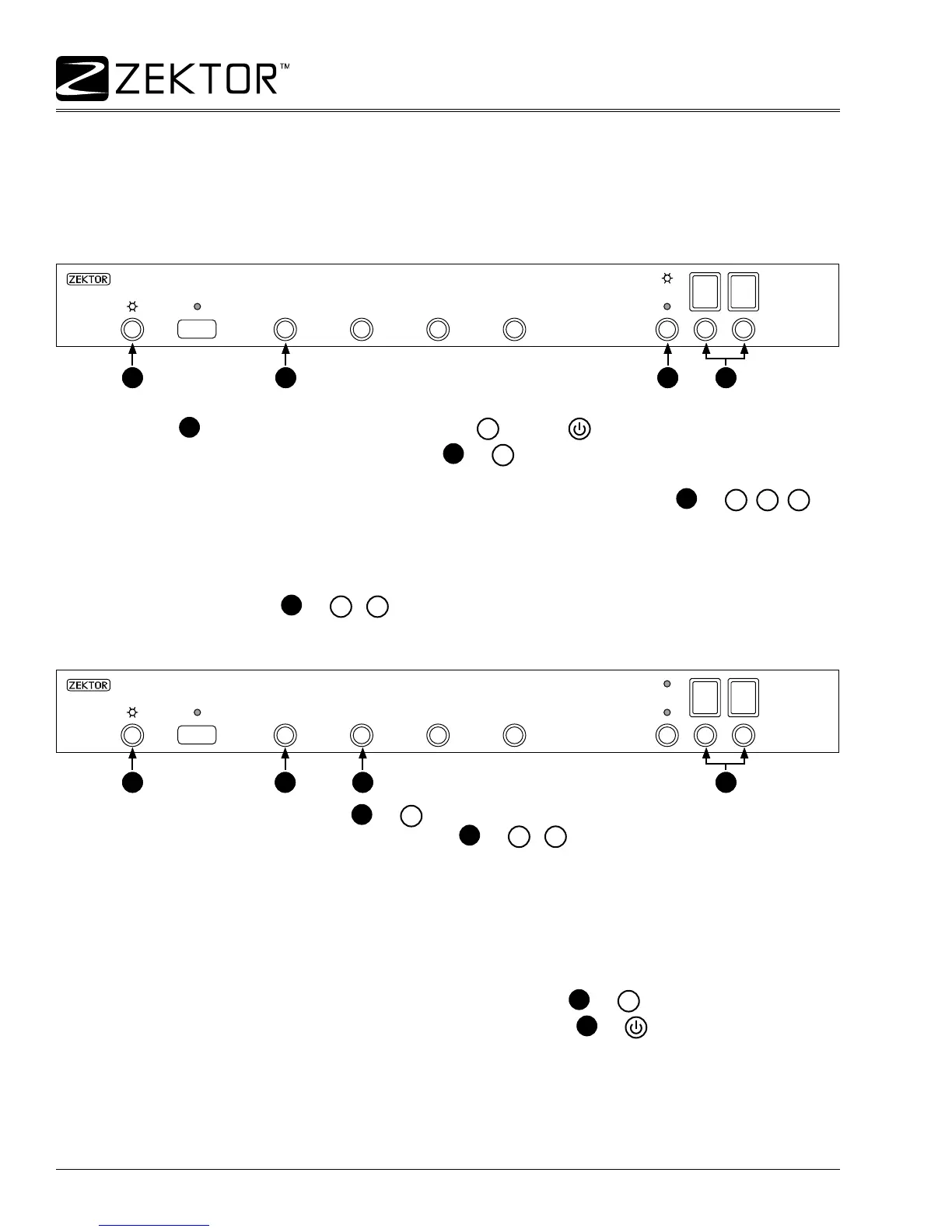
To change the LEDs intensity, or operating modes: “Enter the setup mode” by pressing and holding the power
toggle button
1
until the display ashes, or by pressing
SET
and then on the remote.
Once the front panel is ashing, press the ‘1’ button
2
, or
1
on the remote. The display will now indicate
the intensity of the BRIGHT level.
To toggle between the BRIGHT, DIM and OFF adjustments use the breakaway button
3
, or
A/V
,
AUD
,
VID
on
the remote. The RED and BLUE LEDs indicate which adjustment level is being displayed:
BLUE - Adjust BRIGHT level.
RED - Adjust DIM level.
BLUE & RED - Adjust OFF level.
Use the zone select buttons
4
, or
O1
-
O2
on the remote, to raise and lower the intensity of the display.
The HDS4x2 can be setup to operate in four different display modes: OFF, LOW, HIGH, AUTODIM.
To change modes, press the ‘2’ button
7
, or
2
on the remote. The display will indicate the current operat-
ing mode of the HDS4x2. Use the zone select buttons
8
, or
O1
-
O2
on the remote, to toggle between the
different operating modes, the current operating mode is displayed using the input selection LEDs.
The modes are:
OF - OFF LEDs are always off.
LO - LOW LEDs are always at the DIM intensity.
H1 - HIGH LEDs are always at the BRIGHT intensity.
AU - AUTODIM LEDs dim from BRIGHT to DIM when not in use.
You can change back to the intensity setting by pressing the ‘1’ button
6
, or
1
on the remote.
When all adjustments have been made, press the Power Toggle button
5
, or on the remote, to return to
normal operations.
1 2 3 4
Enter / Exit
setup mode
Select front panel
control mode
Toggle intensity settings Adjust intensities
1 2 3 4
Enter / Exit
setup mode
Select front panel
control mode
Toggle intensity settings Adjust intensities
7 8
Select “Modes”
65
Exit setup
Select “Intensities”
Choose mode
7 8
Select “Modes”
65
Exit setup
Select “Intensities”
Choose mode



 To Next Page