HDS4x2 User Guide, Rev 1.1, 08-31-07
12
Advanced Control Features
Disabling front panel buttons
To enable or disable the front panel buttons:
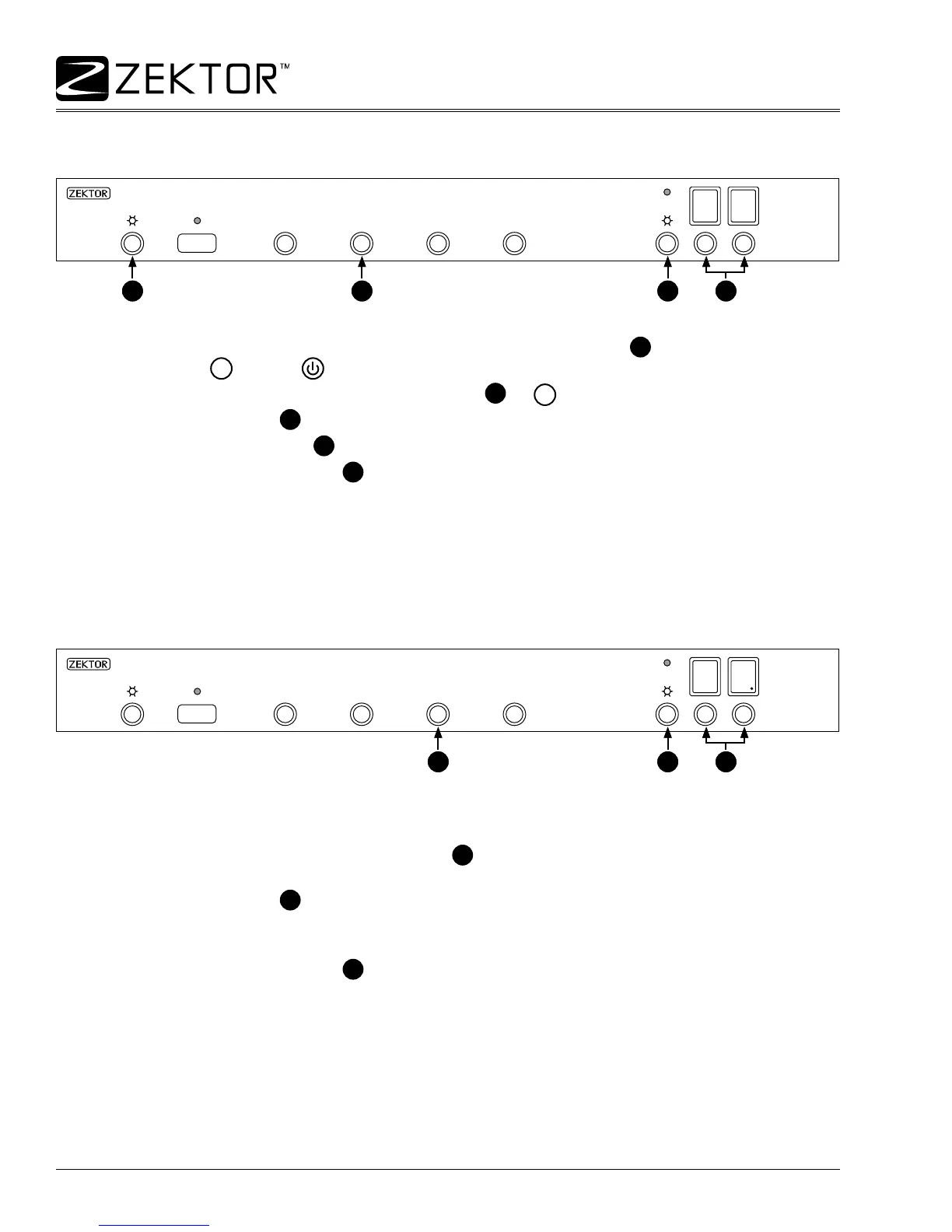
“Enter the setup mode”, by pressing and holding the power toggle button
1
until the display ashes, or
by pressing
SET
and then on the remote.
Once the front panel is ashing, press the ‘2’ button
2
, or
2
on the remote.
Use the Zone buttons
4
, to scroll to the 01 setting.
Use the Breakaway button
3
, to turn on the RED LED.
Press the Power Toggle button
1
, exit the setup mode and return to normal operations, or continue
onto the next section entitled: “Disabling individual front panel buttons”.
NOTE: Even with the front panel buttons disabled, you will still be able to enter the setup mode by holding
the Power Toggle button. This allows you to re-enable the front panel buttons even though the buttons them-
selves are disabled.
Disabling individual front panel buttons
To enable / disable individual front panel buttons, start by disabling all the front panel buttons, by performing
‘1’ through ‘4’ of the above steps. Then proceed:
After the front panel is disabled, you can now re-enable individual buttons by selecting the “Button en-
able / disable” mode, by pressing the ‘3’ button
5
. The decimal point on Zone 2 will light up to indicate
the new mode selection.
Use the Zone buttons
7
to select the number of the button you want to enable or disable.
Use the Breakaway button to enable or disable the selected button. Turn on the BLUE LED to enable a
button, or turn on the RED LED to disable a button.
Press the Power Toggle button
1
, to exit the setup mode and return to normal operations.
The buttons are numbered from left to right, 1-8.
01 = Power Toggle, 02-05 = Input Select Buttons, 06 = Breakaway, 07-08 = Zone Select Buttons.
1.
2.
3.
4.
5.
1.
2.
3.
4.
1 2 3 4
Enter / Exit
setup mode
Select “Control settings”
Toggle setting on/off Select setting
1 2 3 4
Enter / Exit
setup mode
Select “Control settings”
Toggle setting on/off Select setting
5 6 7
Select “Button enable / disable” Mode
Enable / Disable
selected button
Select button
number
5 6 7
Select “Button enable / disable” Mode
Enable / Disable
selected button
Select button
number



 To Next Page