6
Network Requirements
Please note the following requirements for WiFi connection of your Zeptive devices:
➢ Connects to 2.4 Ghz band
➢ Requires consistent and strong WiFi
➢ SSID must be broadcast (not hidden)
➢ Must be on a network that does not utilize a captive portal
➢ Requires ability to utilize dynamic IP addresses (no static IP)
➢ Requires WPA/WPA2-PSK encryption or an open network. Devices will not work with WPA2 Enterprise.
➢ Check with your IT department to see if MAC address filtering, SSL packet inspections, content
filtering are being used. Let Zeptive support know if you need your device MAC addresses.
➢ These ports are required to be open: TCP 443, 9443
➢ Is this domain accessible: https://console.zeptive.com
Online vs Offline Status (Wireless Device Only)
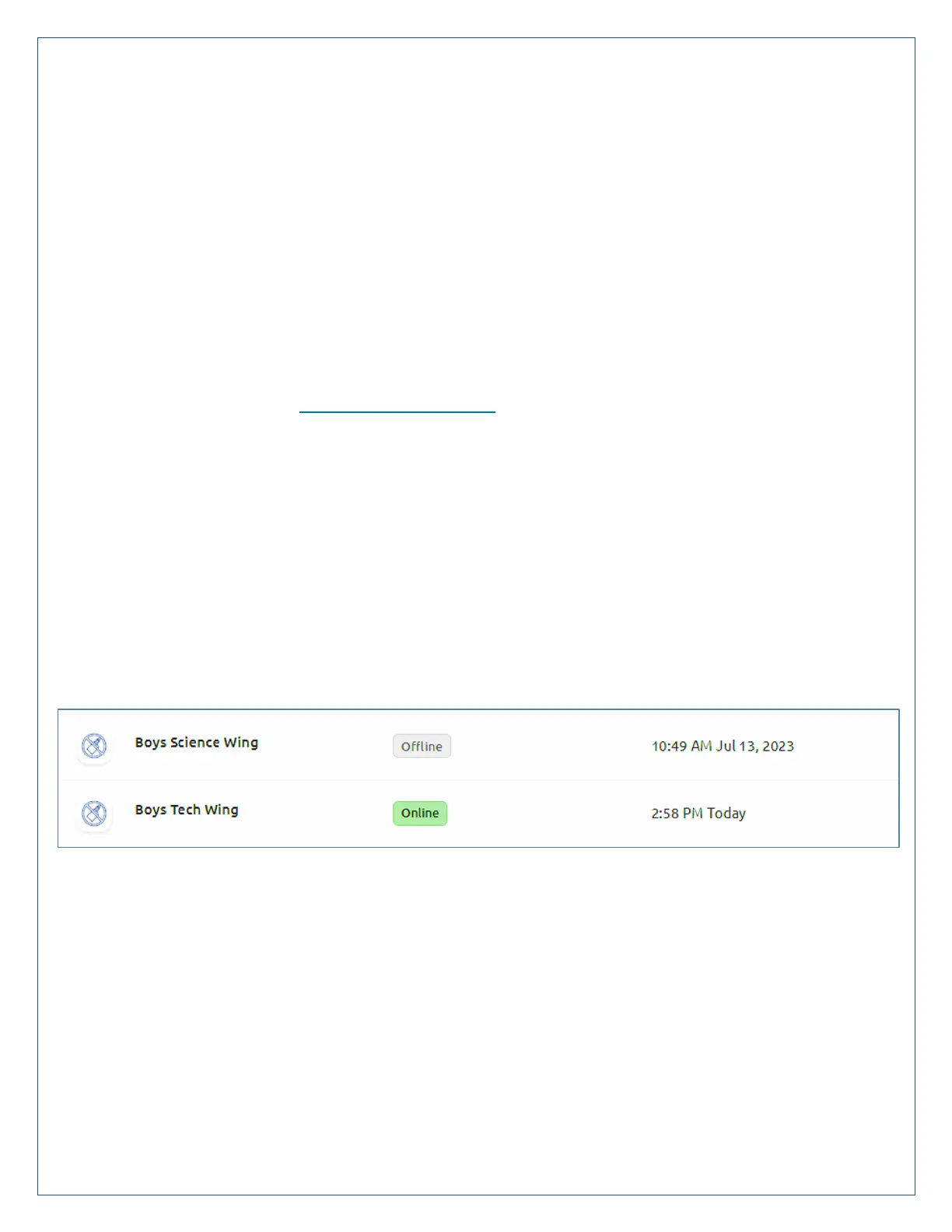
For Wi-Fi devices, the My Devices view of the web console is intended to show all of the organization’s devices, the
owner and their current status. In that view, the status is shown as Online or Offline. For Wi-Fi devices, Offline
generally refers to the device being in a standby state.
Wi-Fi devices switch to a standby (STBY) state when there is no motion detected in the room. This is a battery
conserving measure. In the dashboard view, the status is displayed as STBY.
My Devices view may show Offline, however the device may not be offline in the sense that it is disconnected from the
network. It may be in an idle state, waiting for the motion sensor to activate.
To check whether a device is truly offline (disconnected) from the network, open the dashboard for that device and
look at the date/time stamp in the status. If the device is actively working, it will show Ready – RDY – and the current
date/time in the status. If it shows Standby – STBY – it will display the last date/time before it switched to standby
mode.
If that date/time is recent, you can assume the device is connected, but just not active. If the date and time are not
recent or do not coincide with recent activity, you can assume the device is truly offline and disconnected from the
network. You can also activate the motion sensor on the device and see if it switches to the RDY state. If it does not, it
has lost its connection.



 To Next Page