7
Access the Web Console
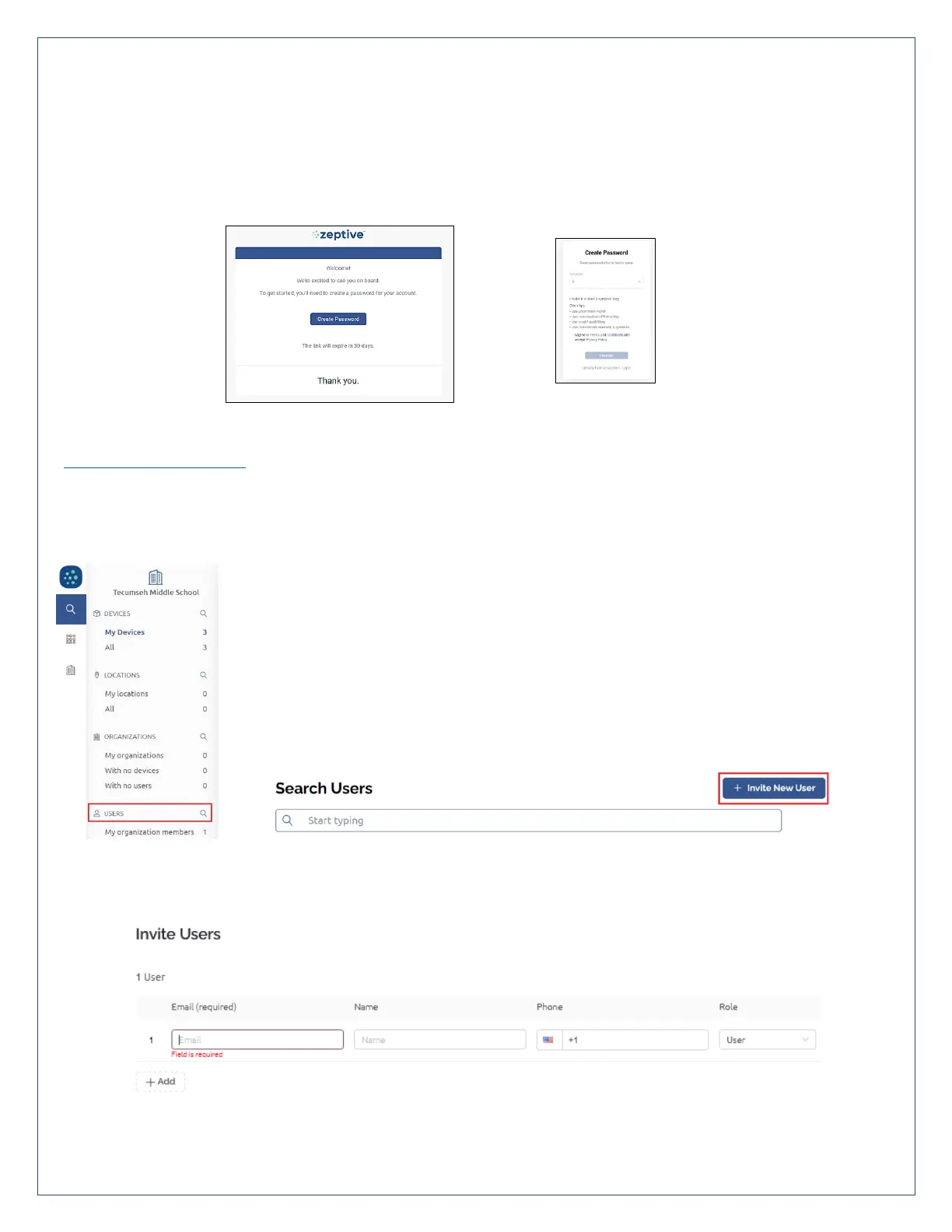
Prior to delivery, the initial customer contact will receive an email invitation to join the Zeptive Web Console. The
customer will then set up a password which will be used on both the web console and the Zeptive phone app. That
initial customer can then invite others to join and use the system. Please let your point of contact or Zeptive know if
you did not receive an email invitation.
After setting up your account, you can access the Zeptive Web Console. Use the following link to make the connection:
www.zeptive.com/console
Invite New User
From My Devices screen, go to lower left and click on Users then click on Invite New User.
Enter new user info and click Invite. Note that if the user wishes to receive text notifications, the phone number field
will need to be completed, otherwise, it can be left as is. The invitee will receive an email and will need to create a
password to join. Once done, they will have access to the system.
Visit the “Notifications Settings” to enable alerts and configure how each user wishes to receive their vape, tamper and
low battery alerts.



 To Next Page