EasyManua.ls Logo

Zircon Leak Alert WiFi - User Manual

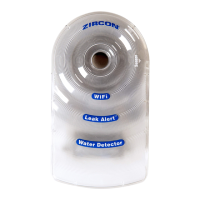
Zircon Leak Alert WiFi
21 pages
Print Icon
To Next Page IconTo Next Page
Loading...
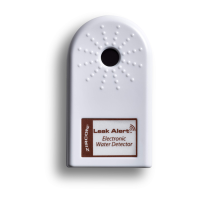
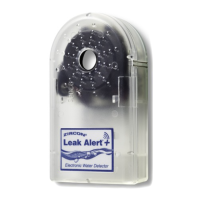
Leak Alert
WiFi
Smart Water Detector
Detector Inteligente de Agua
EN
ENGLISH
ES
ESPAÑOL
www.zircon.com

Questions and Answers

  • T
    Terry ThomasJul 28, 2025
    Why am I not receiving notifications from my Zircon Leak Alert WiFi?
    • J
      Joseph McleanJul 29, 2025
      If you are not receiving notifications from your Zircon Security Sensors, ensure your user information is correct by reconnecting to the Detector’s setup portal to correct, update, or resubmit your information. Also, check if your electronic device disconnected from the Detector before you submitted the information and reconnect it. Your Wi-Fi router might be offline, so check for a software update on the Detector’s setup portal. Finally, the Detector may be too far from the router, or there may be interference; check for a software update on the Detector’s setup portal.
  • M
    Mrs. Cynthia Griffin DDSAug 3, 2025
    Why do my Zircon Security Sensors keep giving false alarms?
    • D
      David NelsonAug 3, 2025
      If your Zircon Security Sensors are giving false alarms, it could be due to a few reasons. First, the battery voltage may be low, so replace it with a new 3V lithium battery (CR123A or CR17345). Second, the Detector might be on a conductive surface like metal; if so, place a thin piece of paper or plastic between the Detector and the metal surface. Finally, ambient moisture might have collected on the metal contacts; wipe the metal contacts dry.
  • J
    Joshua FisherAug 9, 2025
    What to do if I can't load “192.168.4.1” on my device for Zircon Leak Alert WiFi?
    • D
      Dr. Wendy EllisAug 9, 2025
      If you're having trouble loading “192.168.4.1” on your electronic device for your Zircon Security Sensors, it might be due to a couple of reasons. You may have typed the Leak Alert™ WiFi IP address incorrectly, so retype “192.168.4.1” into the address bar, ensuring all numbers are correct. Alternatively, your electronic device might have disconnected from the Detector (Leak Alert™ WiFi “network”), so reconnect the electronic device to the Detector, following the steps in Section 2.
  • A
    Amber PetersAug 15, 2025
    What to do if my Zircon Security Sensors don't alarm when touching water?
    • J
      John AllisonAug 15, 2025
      If your Zircon Security Sensors detector isn't sounding an alarm or flashing its LEDs when touching water, ensure that the metal contacts are flat on the surface where water should be detected. Also, the battery might be dead, so replace it. Lastly, water might have entered the unit; open the Detector, remove the battery, allow it to dry, and then replace or reposition the battery.
  • W
    Wesley LeeAug 21, 2025
    How to fix Zircon Leak Alert WiFi that do not float?
    • R
      Renee HuberAug 21, 2025
      If your Zircon Security Sensors detector does not float, it might be because the battery is not installed correctly. Position the battery as shown in the diagram carved in the battery compartment and place the detector in a face-up position.

Summary

Product Overview

Battery Installation and Placement

Connect to Electronic Device

Configure Wi-Fi Network

Set up the device's connection to your Wi-Fi router.

Device Configuration

Name the detector and set its local time.

Email Notification Setup

Add Contact Information

Enter email addresses to receive leak alerts.

Setup Completion

Confirmation screen indicating setup is complete.

Testing the Leak Detector

Detector Placement Guidelines

Software Update Process

Troubleshooting Common Issues

Limited One-Year Warranty

Zircon Leak Alert WiFi Specifications

General IconGeneral
BrandZircon
ModelLeak Alert WiFi
CategorySecurity Sensors
LanguageEnglish

Related product manuals