8
3
Last run
Display a list of recently opened applications, which can be
accessed quickly after being touched
4
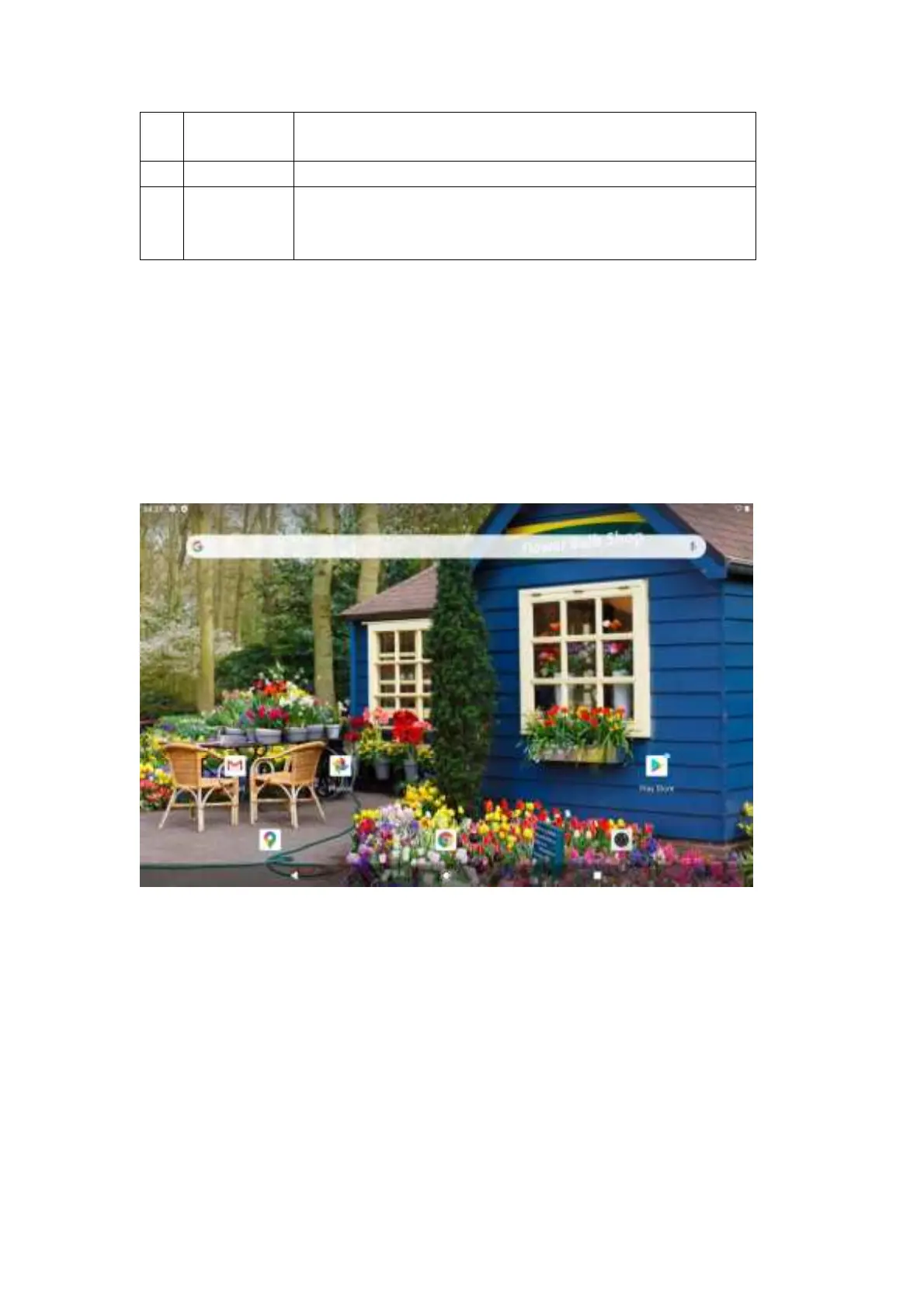
Main screen Pull up in the main screen to enter the APP application interface
5
Status
notification
bar
Display prompt information and equipment status icons, and pull
down to expand the status notification panel
Status notification panel
Click the top of the screen and pull down to open the panel of the status notification bar, as
displayed in the following figure.
Users can view the system notification daily, and view the specific notification content
by pulling it down
Pull down to click the icon to quickly adjust some settings, such as screen brightness,
opening/closing flight mode, etc.
Lock screen interface
After booting and entering the system, the first thing the user sees is the lock screen interface
Slide up to unlock the screen and enter the main interface


 To Next Page