12
Using the
G6
, 9 effects can be com-
bined freely. If the processing capability
limit is exceeded, however, a "PROCESS
OVERFLOW" warning will appear on the
touchscreen and effects will be bypassed.
Change or remove one of the effects to end
this condition. The processing status can
be checked on screens where categories
and effects are selected.
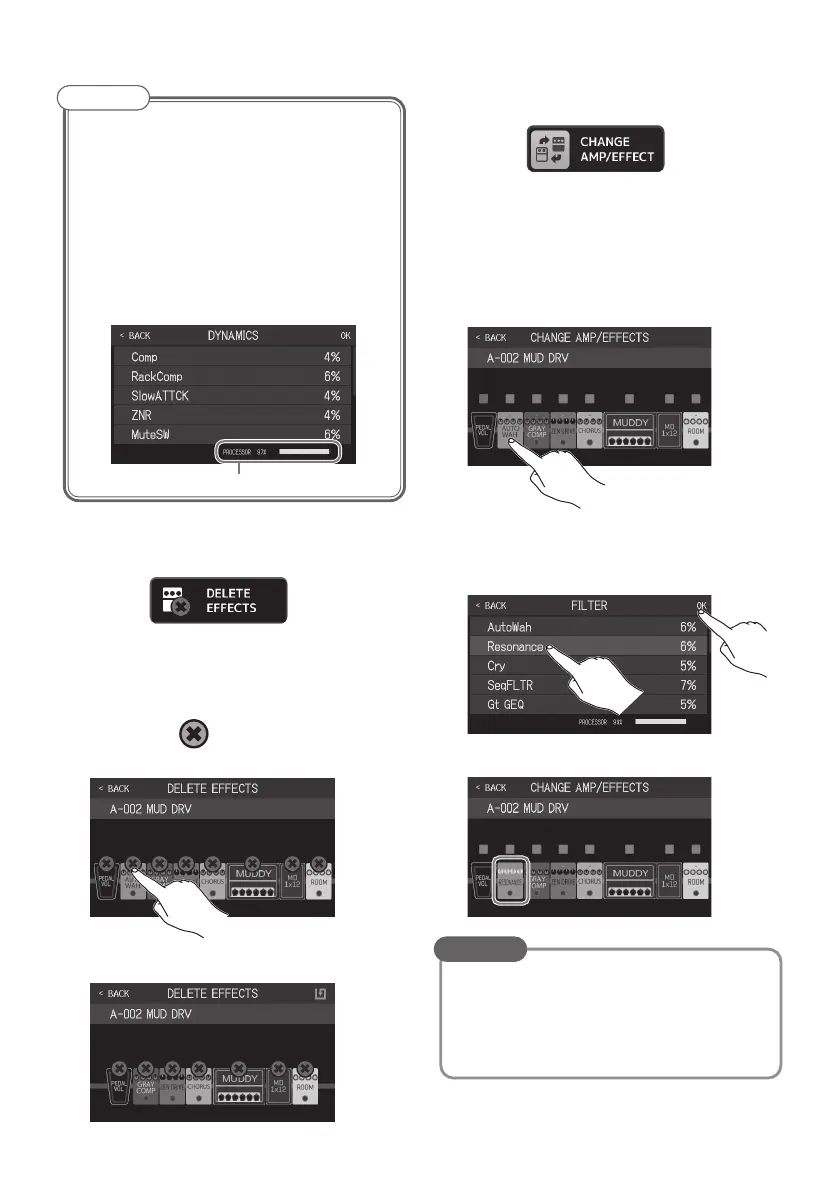
Processing status
NOTE
■
Deleting effects
1.
Touch on the Menu
Screen.
This opens the DELETE EFFECTS screen on
the touchscreen.
2.
Touch the for the effect to delete
it.
That effect will be deleted.
■
Changing effects
1.
Touch on the Menu
Screen.
This opens the CHANGE AMP/EFFECTS
screen on the touchscreen.
2.
Touch the effect that you want to
change.
3.
Touch an effect type to select it. Then,
touch OK.
That effect will be changed.
• To change to an effect in another cat-
egory, touch BACK, select the category
and then select the effect.
• See Guitar Lab for the explanations of
each effect.
HINT



 To Next Page