7
4. Find your desired le(s) and copy them to your
desired location(s):
4.1. Open the recorder (its avatar) on your
computer. Its three primary folders will appear
(Stereo, 4CH, and MTR).
4.2. Open the relevant primary folder based on the
recording mode(s) that you’ve used.
4.3. Open the relevant secondary folder(s). Each
primary folder has 10 secondary folders
(Folder01 to Folder10).
4.4. Cut/copy and paste les as needed.
7B. Transferring audio les to a computer
by SD card
1. Ensure that the recorder is turned off.
2. Remove the SD card from its slot on the right
side:
2.1. Locate the SD card slot (cover) on the
recorder’s right side.
2.2. Open the slot cover.
2.3. Press downward/inward on the exposed side
of the SD card. It will release from the slot.
2.4.
R
emove the SD card.
3.
I
nsert SD card into your computer
’
s compatible
slot.
4. Find the SD card on your computer
’
s operating
system as an e
x
ternal device
/
drive:
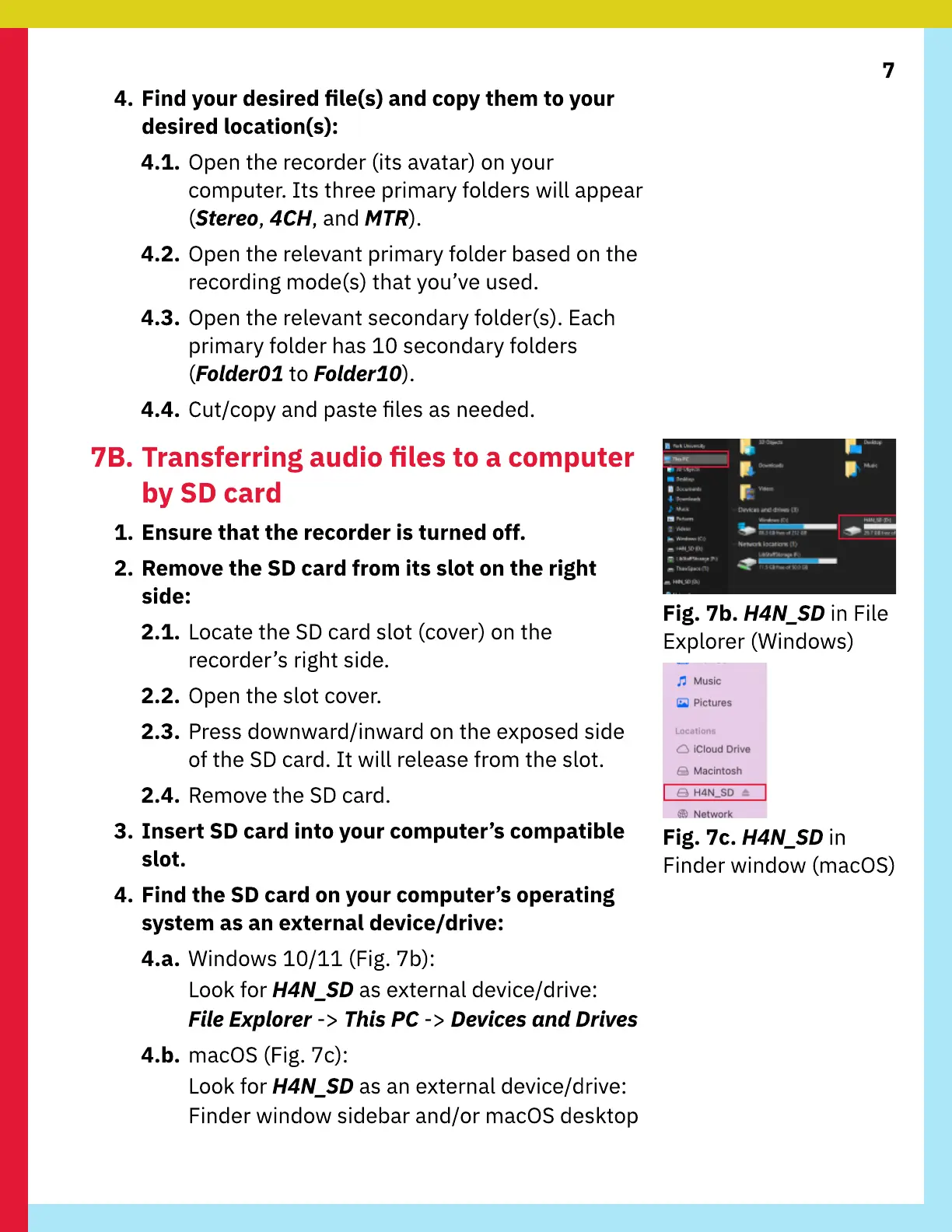
4.a.
W
indows 10/11 (
F
ig.
7
b)
Loo
k
for H4
N_
S
D
as external device/drive
F
i
le
Exp
lorer
->
T
his
P
C
->
D
e
vic
e
s
an
d
D
r
iv
e
s
4.b. macOS (
F
ig.
7
c)
Loo
k
for H4
N_
S
D
as an external device/drive
F
inder window sidebar and/or macOS des
k
top
Fig. 7b. H4
N_
S
D
in
F
ile
Explorer (
W
indows)
Fig. 7c. H4
N_
S
D
in
F
inder window (macOS)



 To Next Page