6
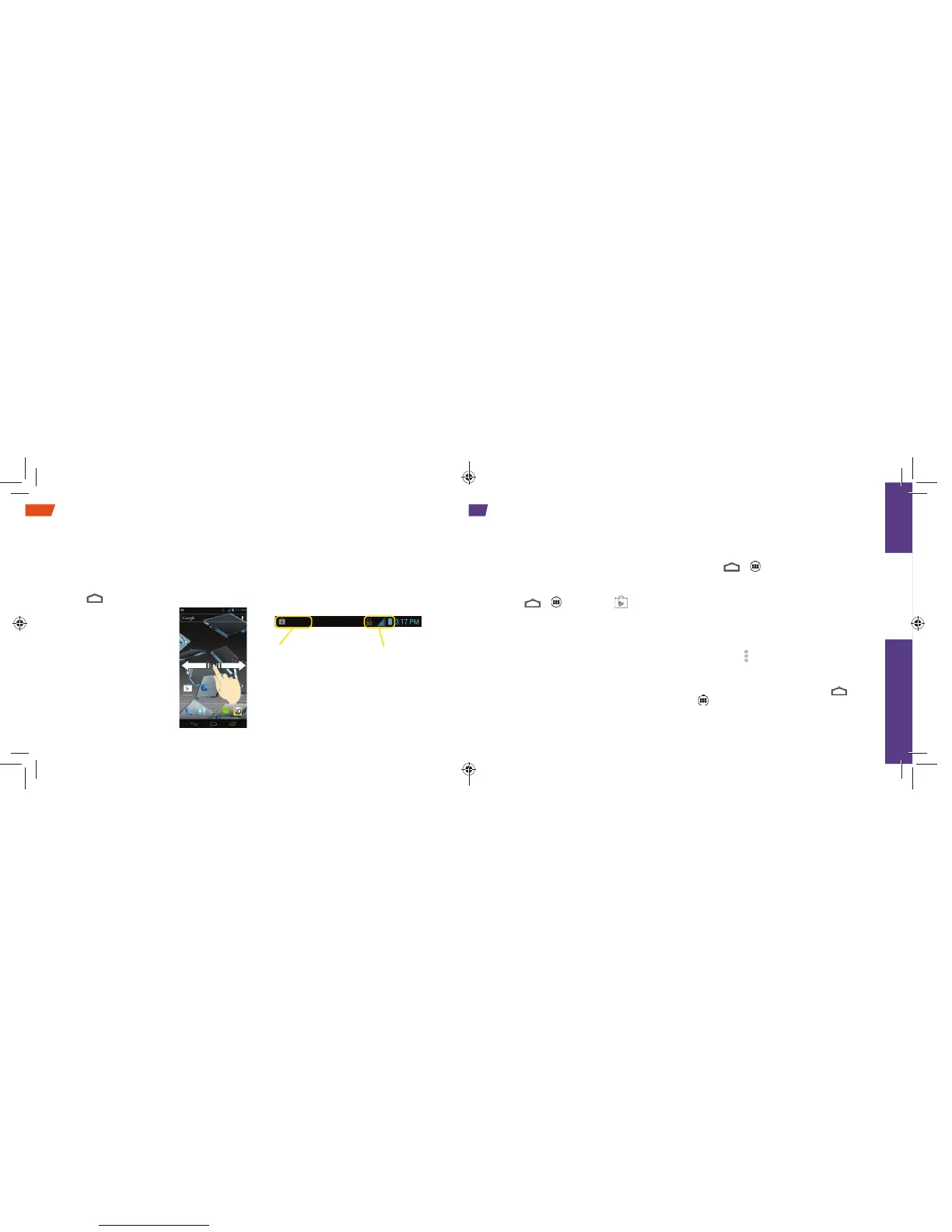
Status Bar
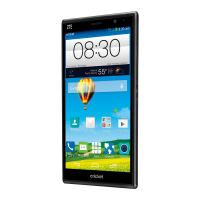
The status bar at the top of the Home screen
lets you quickly see both your phone status
(connections, signal strength, battery) and any
current notifi cations.
Your Home Screen
Viewing Your Home Screen
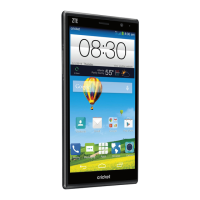
Your phone’s Home screen extends horizontally
to fi ve full screens. This gives you room to
customize your phone and put the things you
need front and center, just a swipe away.
• To display the main (center) Home screen,
touch
from any screen.
• To view extended screens,
swipe the screen left or
right. There are two
additional screens on
each side of the main
Home screen.
Notifi cation
area
Phone
status area
visit sprint.com/support for complete user guide 27
Use Your Phone
Set Up Social Networking Accounts
Before using your social networking accounts,
you may need to download them from the Google
Play Store app.
1. Touch >
> Play Store .
2. Browse or search for the app you want to
download, for example Facebook for Android,
Twitter, or Instagram.
3. Touch the app and then touch Install. Follow the
prompts to download and install the app.
Social Networking: Facebook, Twitter & More
Use Social Networking Accounts
1. Touch >
> Facebook (or Twitter,
Instagram, etc.).
2. Follow the onscreen instructions to sign into
your account, for example, by entering a user
name and password.
3. Update your status, post pictures, follow
your
favorite tweets, and more, all on your
Sprint Flash.
Note: Touch
to access settings for your apps,
depending on the account type.
Tip: You can add Home screen widgets for
many social networking apps. Touch
>
> Widgets, and then touch and hold a
widget and drag it to an empty space on
a home page.
You can set up and access all your favorite social media apps on the go.


 To Next Page