8
Buttons and Keys
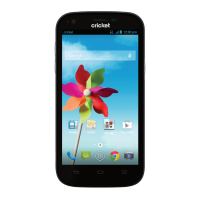
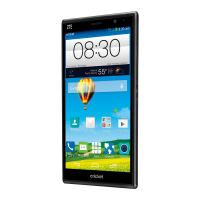
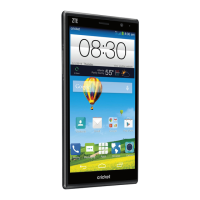
The bottom of the phone screen contains three
static keys that let you perform specifi c functions.
Above this row is a row of program icons that are
available from every Home screen.
Buttons and Keys
• Home Key ( ) – Touch to return to the main
Home screen.
• Back key ( ) – Touch to return to the previous
screen view.
• Recent Apps key ( ) – Touch to display a list of
recently used applications. Touch an item to open it.
• Phone icon ( ) – Touch to open the phone
screen.
• Contacts icon ( )- Touch to open your
Contacts list.
• Apps icon ( ) – Touch to display the
applications list.
• Messaging icon (
)- Touch to open the
Messaging app.
• Sprint ID icon ( )- Touch to open the Sprint ID
application.
Phone
Contacts
Messaging
Apps
Back
key
Home
key
Recent
Apps key
Sprint ID
visit sprint.com/support for complete user guide 25
Use Your Phone
Bluetooth
Pair and Connect With a Bluetooth
®
-
Capable Device
1. Verify your Bluetooth is active. (Touch > >
Settings > Bluetooth and slide the switch to ON
to turn on Bluetooth.)
2. From the Bluetooth settings page, touch your
phone’s name to make it discoverable by other
devices.Your phone must be visible to successfully
pair with an external phone.
3. Touch Search for Devices. (Your phone will display
a list of discovered in-range Bluetooth devices.)
4. Touch a device from the list to initiate pairing.
5. Enter the passkey or PIN code, or verify the
shared key, and touch Pair.
6. The external device will then have to also accept
the connection and enter your or verify phone’s
PIN code.
7. Once you’re paired with a device, your connection
should launch. The
and icons show your
current connection status.
Share Contacts, Files, or Pictures Using
Bluetooth
1. Open the application containing the fi le you
want to share (for example, touch >
>
Gallery).
2. Locate the fi le or entry you want to share.
• You can send pictures and videos directly
from the camera or from Gallery, Calendar
events, Contacts (as vCards), music tracks,
and voice recordings. Not all devices will be
able to receive all fi le types.
3. Depending on the application, touch
>
Bluetooth or touch and hold the fi le and select
Share (or Send) > Bluetooth.
4. Touch the name of the device to which you’re
sending the fi le. (If prompted, touch Yes to turn
Bluetooth on.)


 To Next Page