4
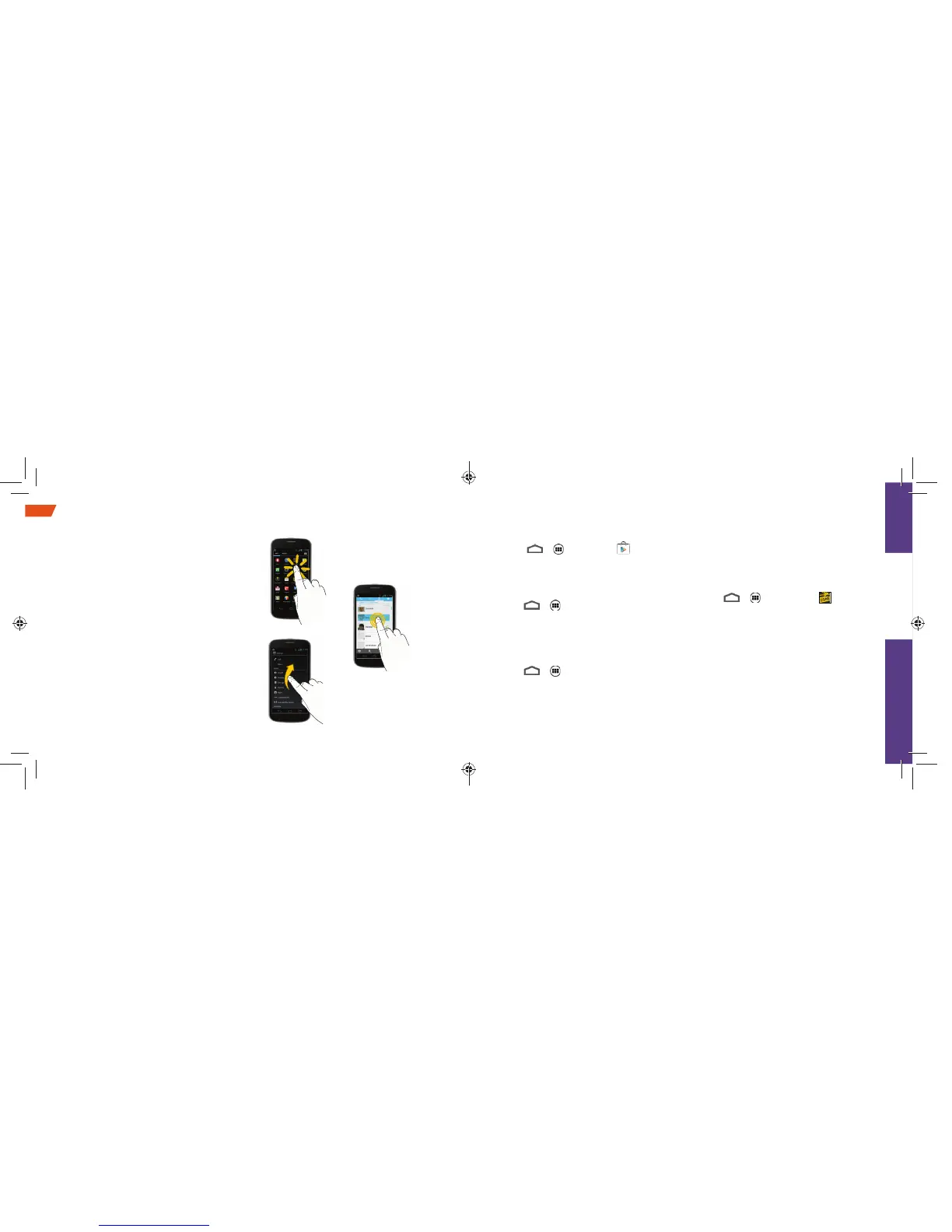
Touch
Flick
Touch
and hold
Android Basics: Getting Around Your Phone
Move Around Your Phone’s Menus
and Screens
Your phone’s touchscreen lets you control
everything through various types of touches,
or gestures.
Touch: When you want to type using the
onscreen keyboard, select items such as
application and settings icons, or press onscreen
buttons, simply touch them with your fi nger. A light
touch works best.
Touch and hold: To display the available options
for an item simply touch and hold the item.
Flick: Move your fi nger in lighter, quicker strokes
than swiping. This fi nger gesture is always used in
a vertical motion, such as when fl icking through
contacts or a message list.
visit sprint.com/support for complete user guide 29
Use Your Phone
Get Scout
1. Touch
>
> Play Store .
2. Touch Apps > Sprint > Scout and follow the
prompts to download and install the app.
Use TeleNav GPS Navigator
1. Touch > > Scout.
2. Follow the onscreen instructions to access,
launch, and use.
Note: Before using any navigation programs, make
sure your phone is set to allow location detection,
and then select which sources you want to use.
Touch
> > Settings > Location services.
Select Use wireless networks and/or Use GPS
satellites for location sources.
Sprint Zone
Enhance your Sprint experience. The free Sprint
Zone application makes it a snap to manage
your account, get tips and tricks for your phone,
fi nd recommended apps, and more.
1. Touch > > Sprint Zone .
2. From the Sprint Zone Web page, scroll up or
down and touch an item to check your
account, read the latest news about your
phone, load an application, and more.


 To Next Page