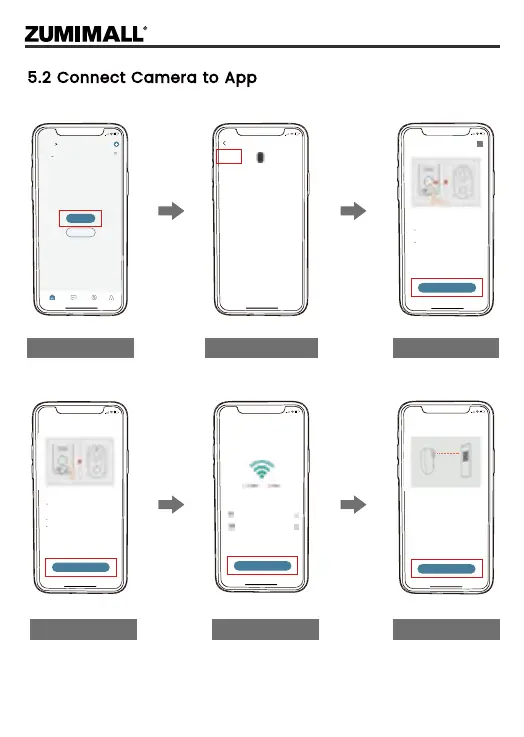
5.2 Connect Camera to App
Tap 'Add Device'
Reset the Camera Input Wi-Fi Password Prepare the Scanning
Select 'Battery Camera' Turn on the Camera
Home
Homepage Messages Search
5:48
All Devices
Me
Living room Bedroom
Add Device
Quick Guide
5:48
Battery
Camera
Smart
Doorbell
Battery Camera
Power Plug
Camera
Baby
Camera
Floodlight
Camera
Doorbell
Kits
Select Device
5:49
Add Battery Camera
Press the [battery camera] button to
wake the device if it is asleep.
Hold the device power button to start
the device.
<
Please stay near to your router for the
best signal.
Next
Hold the RESET button on your device for
4-5 seconds(please refer to the user
manual for more on this).
Wait for a flashing RED indicator light.
Tap Next
5:49
Add Battery Camera
Please reset the device.
<
Next
5:50
Wi-Fi Setup
SELECT A 2.4GHZ WIFI NETWORK AND
ENTER Your Password
The Device Does Not Work with 5G Wifi NetWorks
Common Router Setup Methods
Junan
cam2019@
<
Next
Please remove all film from the lens.Tap
Next to show a QR code, and let your
device scan the code. Keep your phone
5-8 inches from the lens.
5:50
Operation Instructions
<
15-25cm
5-8 in
Next
5


 To Next Page