EasyManua.ls Logo

Zumimall F5 - User Manual

Zumimall F5
28 pages
Print Icon
To Next Page IconTo Next Page
Loading...
Get Smarter About Your Security
QUICK START GUIDE
WIRELESS I WIFI I OUTDOOR I SECURITY
FCC ID2AXBN-Q3
F5
BATTERY POWERED CAMERA
Question and Answer IconNeed help?

Do you have a question about the Zumimall F5 and is the answer not in the manual?

Summary

Whats in the Box

Product Diagram

Download and Install App

Account Registration

Add Camera to App

Preparations for Connection

Outlines prerequisites like Wi-Fi and SD card for camera setup.

Initial Connection Steps

Guides through initial device connection steps like reset and Wi-Fi input.

Scanning and Finalizing Connection

Details QR code scanning, network checks, and installation advice.

Camera Installation

Important Notes

Monitoring Area

Device Menu

PIR Body Detection

Body Detection Alarm Setting

Explains how to configure motion detection sensitivity and its impact on distance.

Alarm Notification

Describes how the camera sends alerts and stores motion-triggered recordings.

Record;Playback;Delete

Two-Way Audio

Power Saving Settings

Alarm Interval & Shooting Interval

Details how to set intervals to manage alarm frequency and battery usage.

Maximum Shooting Time & Recording Time

Explains how to adjust maximum recording duration to conserve power.

Alarm Plan

Battery Management

Multi Device Management

Multi Camera Management

Guides on managing multiple cameras within the ZUMIMALL application.

Mulit-User Sharing

Two Ways to Share

Details the methods for sharing camera access via QR code or account ID.

Select Device Sharing Permission

Allows users to define access levels for shared devices.

Reset Camera

ZUMIMALL FAQ

Unable to Connect Network

Troubleshooting steps for network connection issues.

Connect to a New Network

Steps to reconnect the camera to a different network.

Reset the Camera

Guide on how to perform a factory reset on the camera.

Cant Charge

Solutions for issues related to charging the camera.

Frequently Received Alarm Information

Tips to reduce excessive motion detection alarms.

Some People Pass by Without Calling the Police

Advice to ensure motion detection triggers correctly for all events.

No Alarm Video Recording

Troubleshooting steps when video recordings are not saved.

No Alarm Push

Solutions for not receiving motion detection notifications.

Unable to Play Local History Playback

Steps to resolve issues with playing back recorded history.

Unable to Play Cloud Playback

Troubleshooting steps for issues with cloud playback.

Device Offline

Solutions for when the camera appears offline.

Short Battery Life

Tips to improve camera battery longevity.

ZUMIMALL APP Crashes

Troubleshooting steps for the ZUMIMALL application crashing.

Unable to Register an Account

Solutions for problems with account registration.

Unable to Share Device

Troubleshooting steps for device sharing issues.

No Sound is Heard When the Device is Talking

Solutions for audio issues during two-way communication.

Noise During Two-Way Intercom

Explains and addresses noise during two-way audio.

Live Video is Blurry

Troubleshooting steps for blurry live video feed.

The Live Broadcast at Night Has White Spots

Explains and addresses white spots during night vision.

How to Find SN Number?

Overview

The ZUMIMALL F5 Battery Powered Camera is a wireless, Wi-Fi-enabled outdoor security camera designed to provide smart security for your home. This quick start guide outlines the steps for setup, installation, and operation, ensuring you can get smarter about your security.

Function Description

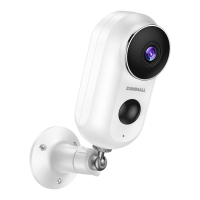
The ZUMIMALL F5 camera is a battery-powered device, offering flexibility in placement without the need for constant wired power. It features a camera lens, PIR sensor for motion detection, LED indicator, IR lamp for night vision, microphone, speaker for two-way audio, SD card slot for local storage, USB port for charging, and a power button. The camera is designed to detect motion and record events, providing alarm notifications to your smartphone. It supports both Micro SD card storage and a 7-day free cloud service for video clips. The device operates on 2.4GHz Wi-Fi networks, making it compatible with most home routers.

Usage Features

Getting Started:

To begin, download and install the ZUMIMALL App from Google Play™ or App Store™ on your smartphone. Ensure the app has permissions to access mobile cellular data, wireless LAN, and receive push notifications for alarms. New users will need to register an account with their email address.

Adding the Camera to the App:

Before connecting, insert a Micro SD card for video storage or utilize the cloud service. Place the camera close to your 2.4GHz Wi-Fi router (recommended within 10-15ft) during the connection process. In the app, tap 'Add Device', select 'Battery Camera', and then turn on the camera by holding the power button. Reset the device by holding the reset button for 4-5 seconds until the red indicator light flashes. Input your Wi-Fi password, and then scan the QR code displayed on your phone with the camera lens from a distance of 5-8 inches. A tone will confirm a successful scan, and the app will indicate when installation is complete.

Camera Installation:

For physical installation, first fix the supplied bracket to your desired location using screws. Then, fasten the camera onto the metal mount and adjust the viewing angle.

Important Notes for Optimal Performance:

To minimize false alarms, avoid installing the camera facing strong lights, mirrors, windows, or swimming pools. Do not place the camera too close to areas with busy traffic. The recommended distance between the camera and motion objects is within 32ft. Keep the camera away from outlets, air conditioner vents, humidifier outlets, heat transfer vents of projectors, and other wireless devices (at least 1 meter away) to prevent interference.

Monitoring Area:

It is not recommended to install the camera vertically towards moving objects, as this may hinder motion detection or cause delays. For best results, ensure the angle between the PIR sensor and detected objects is more than 10 degrees. The motion sensor is more sensitive to side-to-side movement across its field of view compared to movement directly toward or away from the camera.

Device Menu and Controls:

The app's device menu offers various functions:

  • Live View: View real-time footage, switch between HD/SD quality, and check battery status.
  • Two-Way Audio: Activate the audio option, press and hold the intercom button to speak, and release to listen.
  • Recording and Playback: Access 'Alarm Messages' on the 'MESSAGES' page to view recorded events. Playback or delete records. Screenshots and manually recorded videos are saved in 'Pictures & Videos' and can be saved to your phone album or shared.
  • PIR Body Detection: Adjust the 'Motion Detection' sensitivity (LOW: 13-16ft, MID: 16-23ft, HIGH: 23-42ft). Higher sensitivity increases detection distance but drains battery faster.
  • Alarm Notifications: The camera is event-recording, triggering only when motion is detected. It sends alarm notifications with sounds from the app and automatically stores pics/videos in the Micro SD card or cloud.
  • Power Saving Settings:
    • Alarm Interval & Shooting Interval: Prevent repeated alarms for the same event by setting an interval (e.g., 5 minutes). If triggered at 08:00 with a 5-minute interval, you won't receive new pushes for 5 minutes, even if motion continues. This feature is off by default.
    • Maximum Shooting Time & Recording Time: Choose the recording length (e.g., 20 seconds) for alarm videos viewed in cloud playback history. Shorter times reduce power consumption.
    • Alarm Plan: Set a weekly/daily alarm schedule for specific working hours. The camera will only trigger and record during these periods. Up to 4 time periods can be set.

Battery Management:

The camera has a high-capacity battery designed for 2-3 months of use, assuming 15 wake-ups and 10 minutes of video playback daily. Battery durability depends on wake-up frequency; higher frequency drains the battery faster. Lowering motion detection sensitivity or turning it off occasionally is recommended. The app will send charging reminders when power is below 20%. Charge the camera for 5-8 hours with a DC 5V 2A charger until fully charged.

Multi-Device and Multi-User Management:

  • Multi-Camera Management: Add more cameras to your app by clicking the '+' button on the 'Devices' page.
  • Multi-User Sharing: While one app account cannot log in on multiple devices simultaneously, and one camera cannot connect to multiple devices, a camera can be shared between users. User A (owner) can share the camera with User B. User B downloads the ZUMIMALL App, creates an account, and User A then uses the 'Device Share' option to scan User B's QR code or input their account ID. User B accepts the share and refreshes their device page.

Maintenance Features

Resetting the Camera:

To reset the camera, long press the reset button for 3-5 seconds until you hear a "Boogu" sound. This restores factory settings.

Troubleshooting (ZUMIMALL FAQ):

  • Unable to Connect Network:
    • Verify Wi-Fi name and password (no special symbols).
    • Ensure Wi-Fi is 2.4GHz (5GHz is not supported).
    • Confirm camera and phone are in the same Wi-Fi environment and near the router during connection.
  • Connect to a New Network: Remove the camera from the app, long press the reset button to restore factory settings, then reconnect.
  • Can't Charge:
    • Charge for 8-10 hours with a 5V/2A adapter.
    • Ensure charging cable and power adapter are functional.
    • Red light indicates charging; blue light indicates full charge.
  • Frequently Received Alarm Information:
    • Reduce motion detection sensitivity.
    • Check for objects within detection range interfering with the PIR sensor.
    • Enable "Alarm only when people appear" to filter false positives using humanoid algorithms.
  • People Pass By Without Calling the Police (No Alarm):
    • Ensure good network condition (Wi-Fi signal > 70%).
    • Confirm motion detection is on and sensitivity is increased.
    • Verify motion occurs within the PIR detection range.
  • No Alarm Video Recording:
    • Ensure the camera is triggered.
    • Verify Micro SD card is correctly inserted and recognized, or that cloud services are subscribed.
  • No Alarm Push:
    • Enable ZUMIMALL App notifications in phone settings.
    • Enable alarm push in the ZUMIMALL App's "Settings" interface.
    • Turn on push sound in the "My" interface settings.
    • Ensure motion detection is successfully enabled.
    • Restart phone and clear Android cache.
    • Check network condition.
  • Unable to Play Local History Playback:
    • Check Micro SD card status in "Settings" to ensure recognition.
    • Reinsert the Micro SD card.
    • Format the Micro SD card in the App.
    • Use a new Micro SD card.
  • Unable to Play Cloud Playback:
    • Ensure cloud service function is enabled.
    • Open the cloud storage button in the cloud service interface.
  • Device Offline:
    • Check device power status and camera indicator light.
    • Verify Wi-Fi network and restart router.
    • If the camera is far from the router, move the router closer or install a Wi-Fi signal extender.
    • Delete the camera from the account, reset, and re-add.
    • Ensure device version and ZUMIMALL App are up to date.
  • Short Battery Life:
    • Reduce motion detection sensitivity and trigger frequency.
    • Reduce two-way intercom usage and live broadcast viewing.
    • Set alarm interval and alarm time plan.
    • Check for objects interfering with the PIR sensor's field of view.
    • Note that cold weather reduces battery capacity.
  • ZUMIMALL App Crashes:
    • Re-download the latest version of the App.
    • Check if phone system version is too low or too high.
    • Clear phone cache.
  • Unable to Register an Account:
    • Ensure ZUMIMALL App has access to mobile cellular data and wireless LAN.
    • Enter an unregistered account with correct format.
  • Unable to Share Device:
    • Accounts must be registered in the same country.
  • No Sound Heard When Device is Talking:
    • Open speaker button on the App.
    • Adjust intercom volume in settings.
    • Turn on phone media volume.
    • Release intercom button to listen to the other party.
  • Noise During Two-Way Intercom:
    • A whistling sound may occur if the camera and mobile phone are too close (1-2 meters); maintain a certain distance.
  • Live Video is Blurry:
    • Check and clean the lens for dust.
    • Try switching between different resolutions.
    • Re-add camera after reset.
  • Live Broadcast at Night Has White Spots:
    • Avoid pointing the lens directly at strong light sources, as this can cause white spots on the screen.

For further assistance, provide the camera's SN number and a description of the problem to Support@zumimall.com. The SN number can be found in the app under 'Device Information' by clicking 'Settings' and then 'View Virtual ID'.

Zumimall F5 Specifications

General IconGeneral
Power SourceRechargeable Battery
Sensor TypeCMOS
Image SensorCMOS
Wi-Fi ConnectivityWi-Fi
Special FeaturesWaterproof
Battery TypeLithium
StorageSD Card (up to 128GB)
ConnectivityWi-Fi