saved as a shareable 16:9 video clip; capturing your unique point of view, ready to share with the
world.
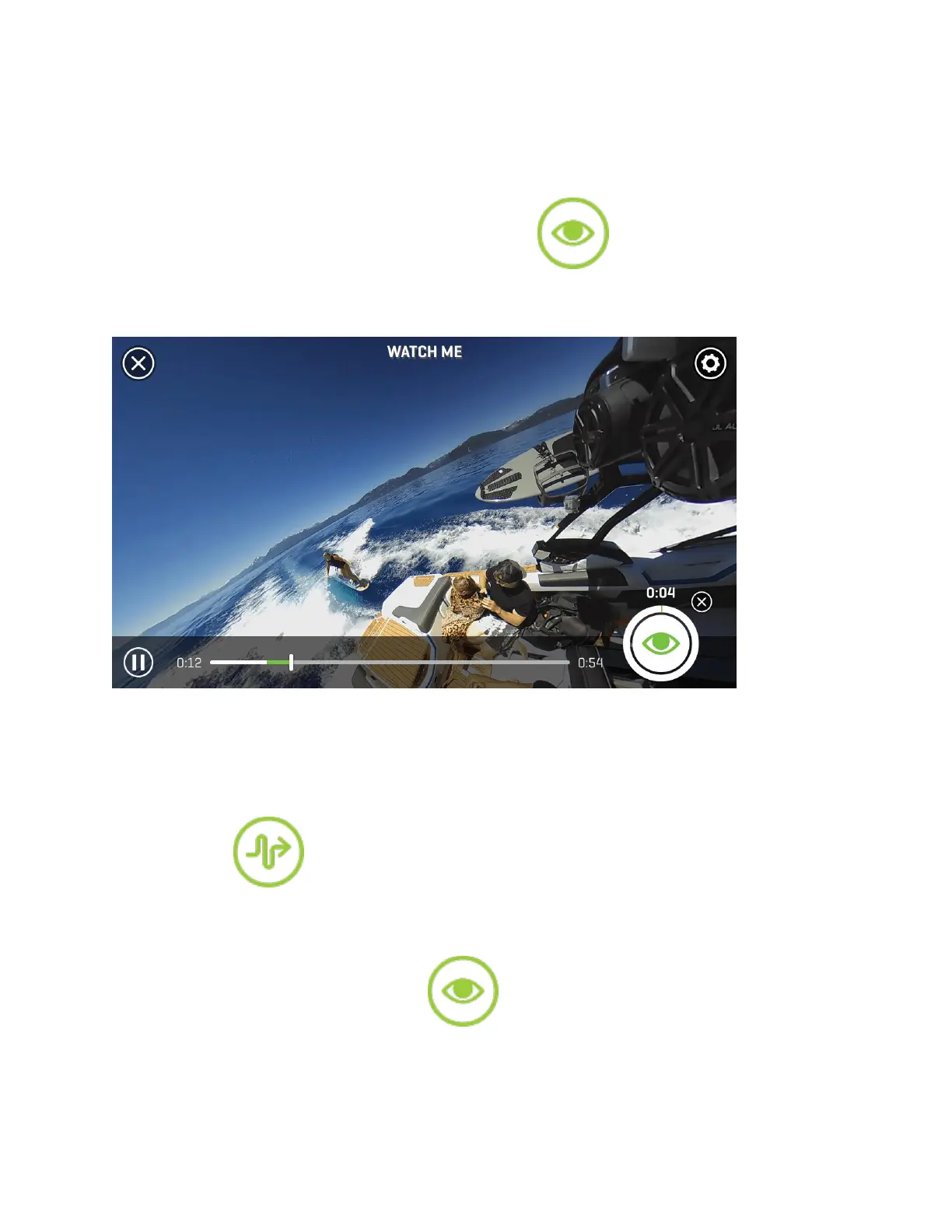
After launching the Watch Me tool, select the “Play” icon to start reviewing your video. At the
location that you would like to begin your clip, press the icon to start capturing. You’ll
notice a green status ring around the icon indicating the time you have left in your capture
session. You can record up to 10 minutes in one session.
As your video is recording, move the point of view by panning right, left, up, and down with
your finger or by physically moving your device to pan via the gyroscope. Your resulting video
clip will capture your point of view by following all of your movements.
You can also use the AutoPilot mode to automatically adjust the point of view within your clip
by selecting the icon in the top right corner of the screen. AutoPilot will pan the point
of view within your clip by automatically selecting the area within the video that contains the
highest degree of activity.
When you’re done recording, click on the icon to stop recording. You can start and stop
multiple times in various locations of your video file to create a single clip.


 To Next Page