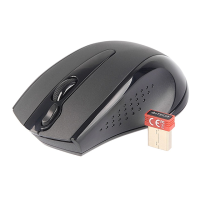
Notice: To ensure that your keyboard sends and receives perfectly, please read below instructions for your reference:
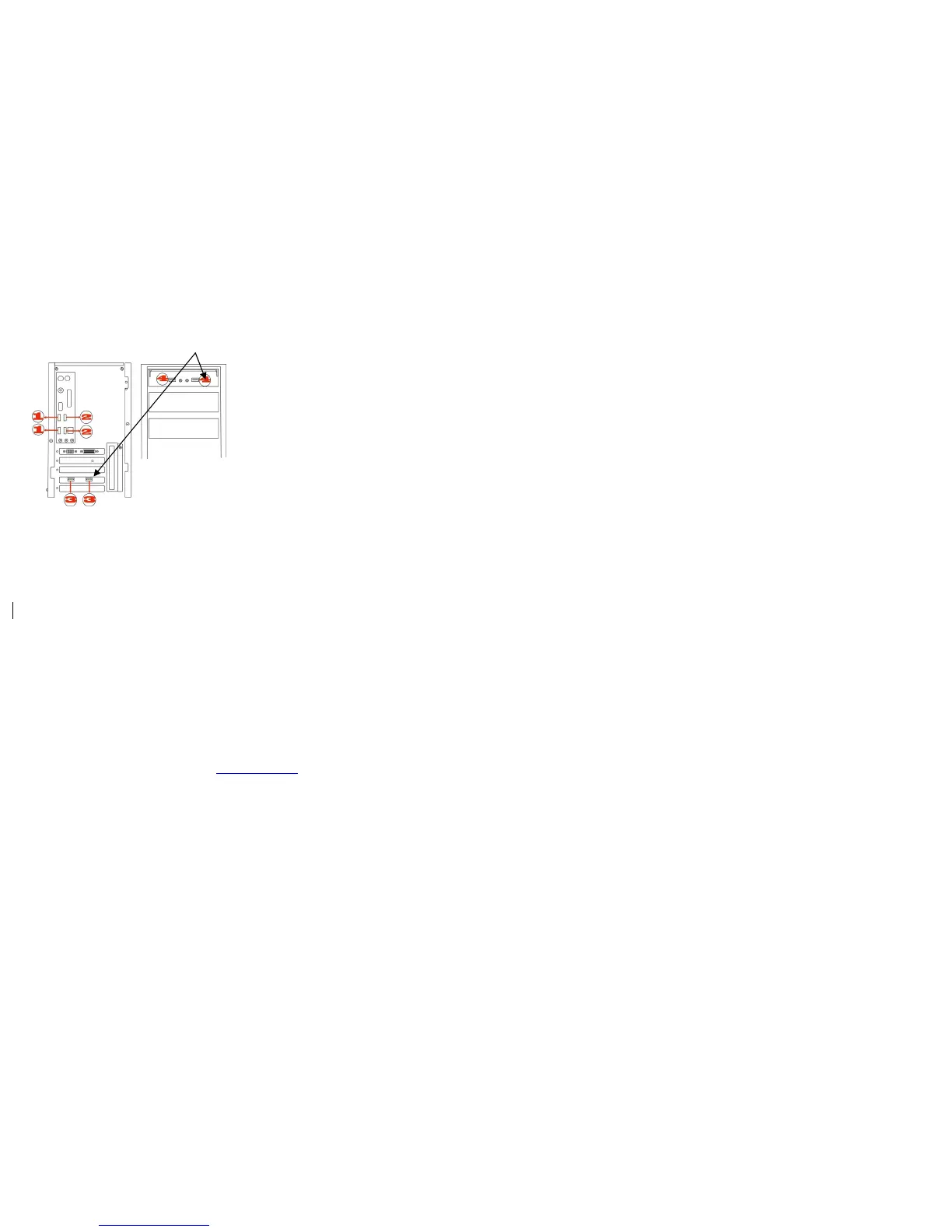
1 Avoid Interference from iron panel of PC.
Please plug the Dongle USB Ports.
2. Use USB extension cable to position the Dongle at a far location to prevent electromagnetism interference from devices
3. Avoid using the wireless keyboard/mouse on a metal surface. Metals such as iron, aluminum, or copper shield the radio frequency transmission and slow down the response time of keyboard or mouse ,or cause the
keyboard /mouse to fail temporarily.
The radio frequency is 2.4GHZ, it is safe for our bodies, but please be cautious in using cardiac pacemaker or other body auxiliary instruments.
Troubleshooting
If the keyboard/mouse is not working:
1. Make sure the keyboard/mouse was paired .
2. Check battery power is full.
3. Check Dongle(receiver) installation.
4. Try another USB port.
Product Support
Need help with technical support? Please go to: http://www.bloody.tw and our support team will respond within 72 hours.
**All pictures and description mentioned above is for reference only and is subject to change without notice.


 To Previous Page