Transfer Data via LibreView
13,15,17
–
for a Secure Data Backup
31
2
Install device driver once
In order for your computer to recognize the reader, it is necessary to install the LibreView
device driver. You can find the download link in your LibreView account.*
3
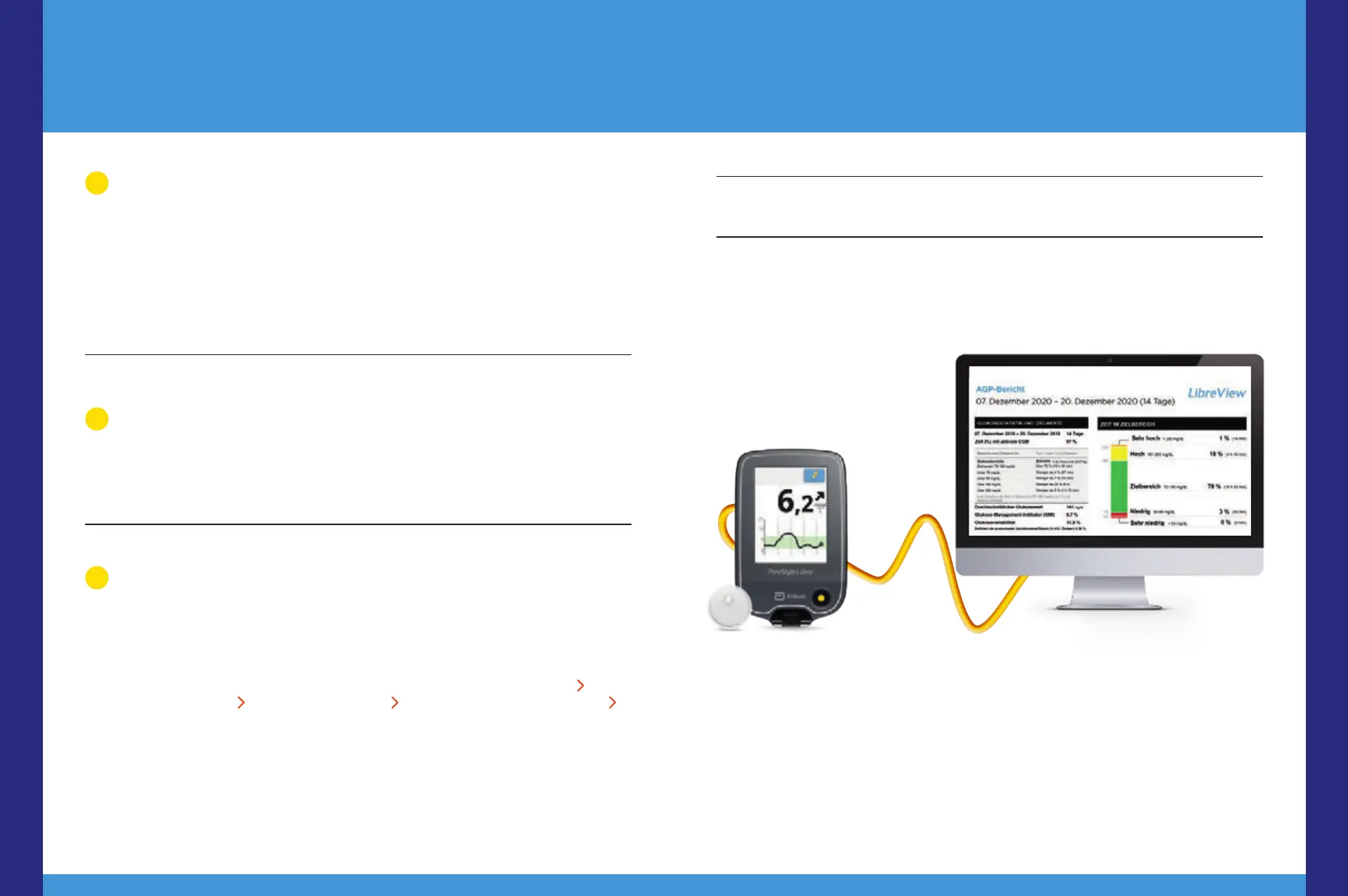
Transfer data via cable and connect to your practice
• Connect your reader to your computer using the cable provided.
• To upload glucose reports, click the „Press here to upload patient data“ button. To view
all reports, click the „Glucose Reports“ button afterwards.
• To share the data with your practice, you will need to: click on the settings menu
click
on „Account Settings“ click on „My Practices“ enter your practice's Practice ID
32
click „Add“.
*Administrator rights are required to install the drivers.
1
Create LibreView account
• Go to www.LibreView.com, click on „Sign Up“ and choose the top option, „LibreView
Account“.
• Now you will be guided through the registration process. At the end you will receive an
email asking you to confirm your email address.
• You will then be taken back to the home page where you should click on „Log in“.
With the FreeStyle Libre 3 reader, you can only upload your glucose data using
LibreView
13
.
Note: Your healthcare providers can also read out your data without your registration. However, this
data is not stored permanently and cannot be assigned to a patient profile.
Digital Tools
50 51







 To Next Page